Client
36 cases23 passed 10 failed 2 manual 1 other
1A. Marketing & Public Pages
3 passed 2 failed 1 other
FailedTC-C-01Homepage loads correctly9.3s
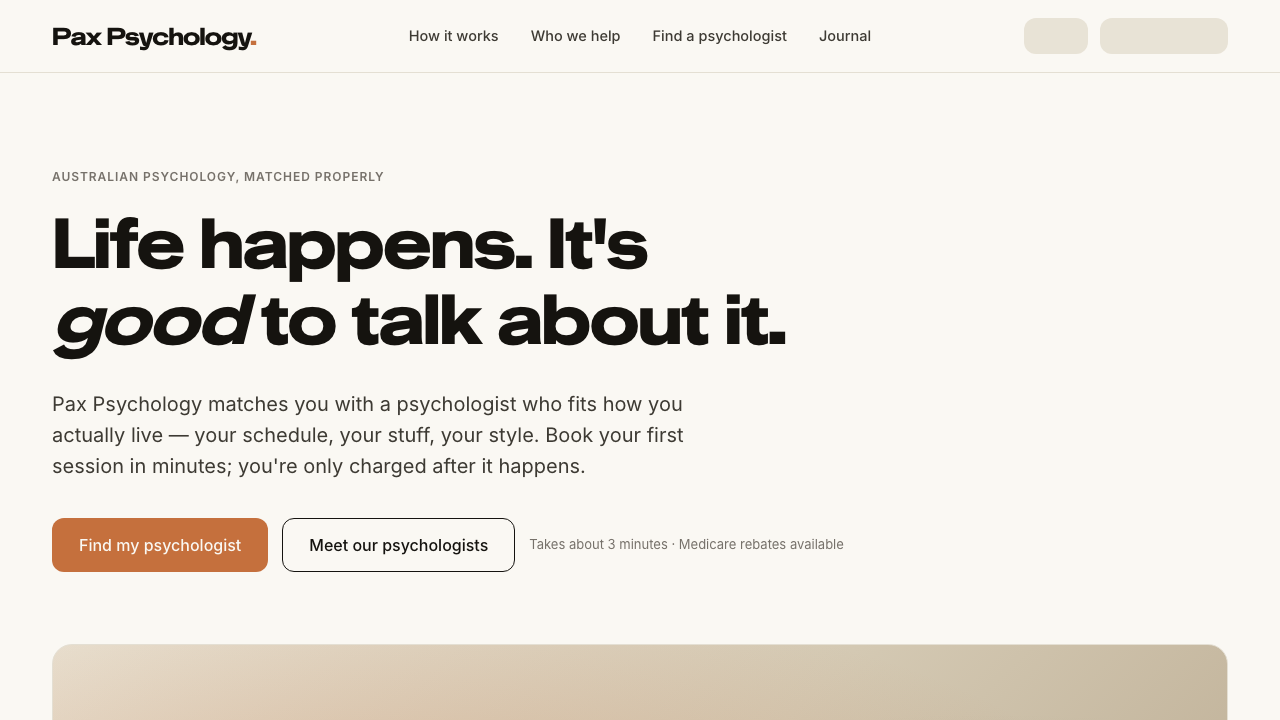
- 1. Navigate to https://paxpsychology.dev/
- 2. Scroll through the full page
- Notes. At 375px the nav collapses to a hamburger whose panel adds Contact — failed
Error: expect(locator).toBeVisible() failed

Locator: getByRole('button', { name: 'Close menu' })
Expected: visible
Timeout: 5000ms
Error: element(s) not found

Call log:
  - Expect "toBeVisible" with timeout 5000ms
  - waiting for getByRole('button', { name: 'Close menu' })
PassedTC-C-02Navigate to Our Story page3.1s
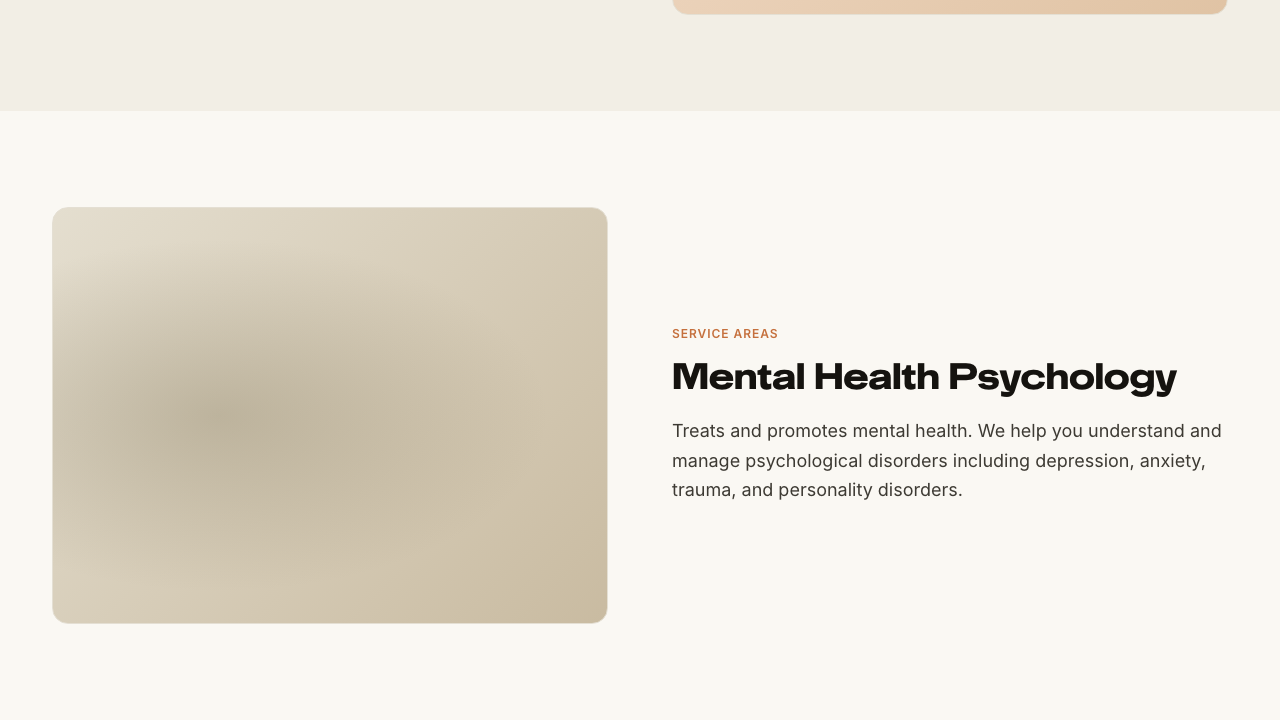
PassedTC-C-03Navigate to For Business page2.2s
- 1. Navigate to https://paxpsychology.dev/for-business
- 2. Click “Enter” with the code field empty
- 3. Type any code and click “Enter”
FailedTC-C-04Navigate to Contact page13.9s
- 1. Navigate to https://paxpsychology.dev/contact
- 2. Click “Submit” with the form empty, and check the validation messages — failed
Error: expect(locator).toBeVisible() failed

Locator: getByText('Name must be at least 2 characters')
Expected: visible
Timeout: 10000ms
Error: element(s) not found

Call log:
  - Expect "toBeVisible" with timeout 10000ms
  - waiting for getByText('Name must be at least 2 characters')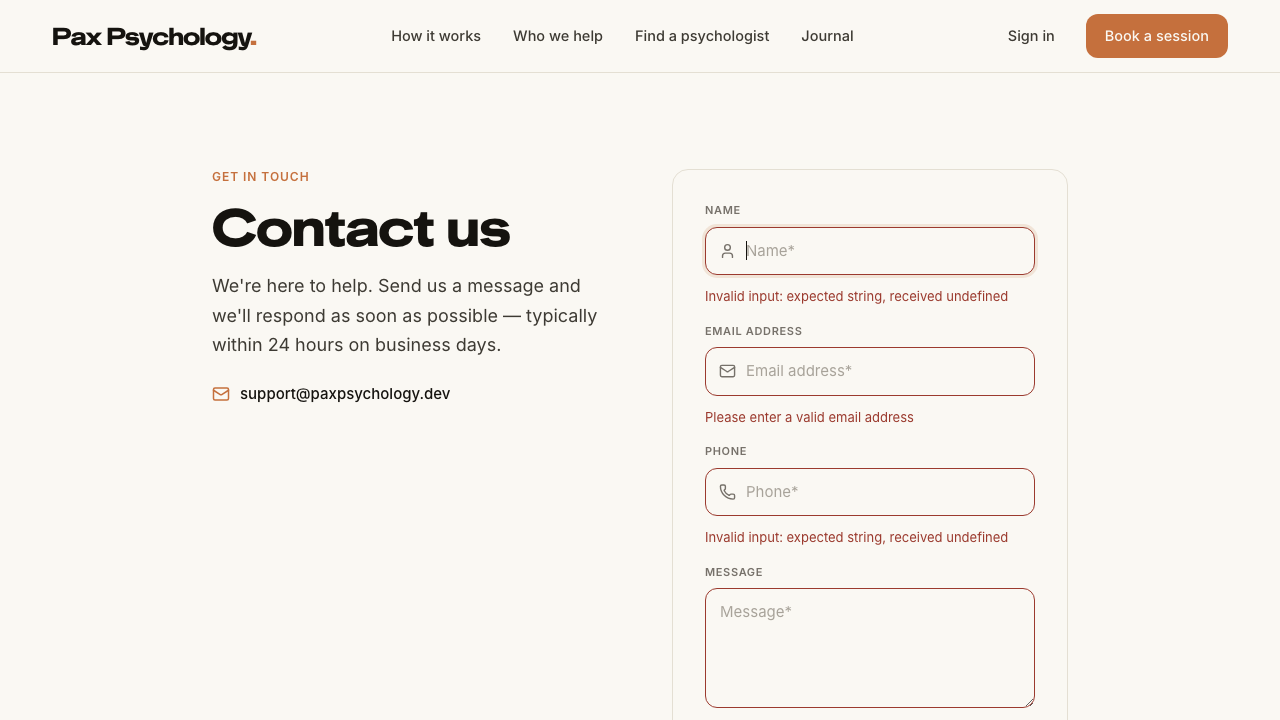
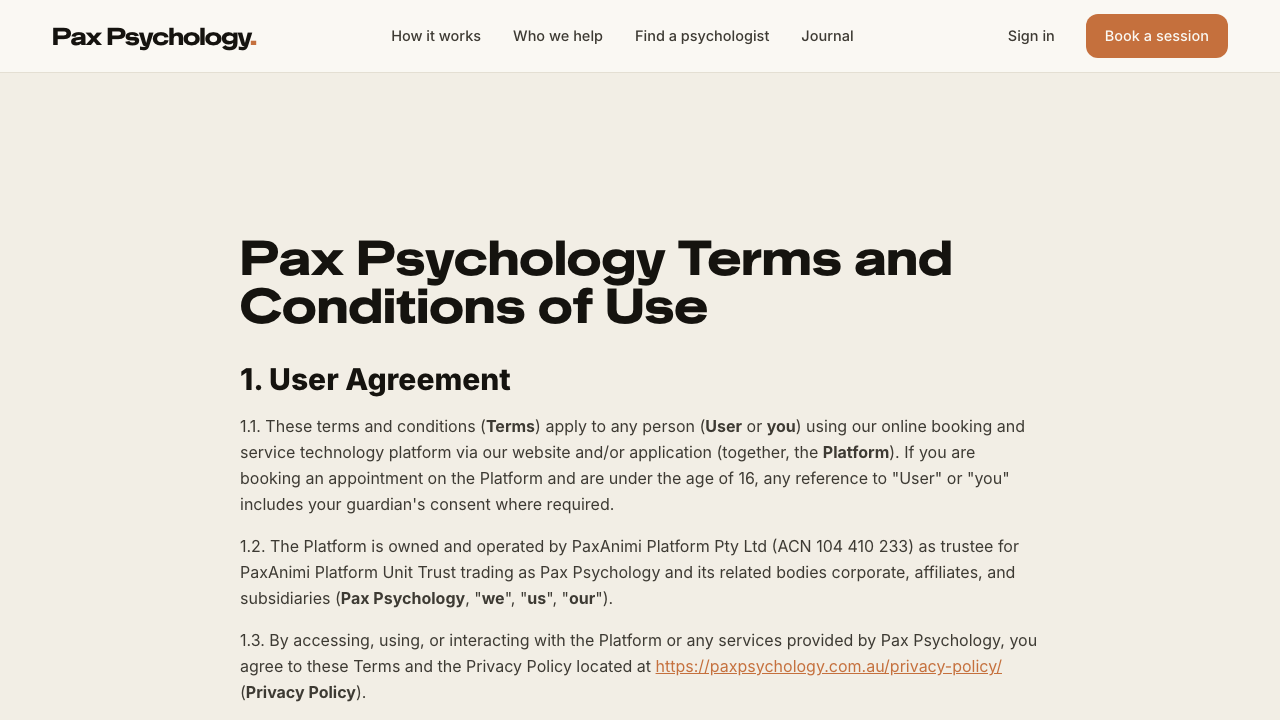
PassedTC-C-05Privacy Policy and Terms of Use pages load2.9s
- 1. Navigate to https://paxpsychology.dev/privacy-policy
- 2. Navigate to https://paxpsychology.dev/terms-of-use
RetiredTC-C-06Newsletter signup from homepage footer—
Retired by the 2026-09-03 script revision: the homepage and footer no longer contain a newsletter form. The only signup on the site is the strip at the foot of /journal, covered by TC-C-27.
1B. Find Your Match (6-step wizard)
2 passed 1 failed
FailedTC-C-07Complete the full match wizard35.9s
- 1. Navigate to https://paxpsychology.dev/onboarding
- 2. Confirm the chrome: brand link, “Step 1 of 6” counter, ochre progress bar and “Save & exit”
- 3. Step 1 — focus. Select a chip; “Continue” is disabled until one is chosen
- 4. Step 2 — story. Type a sentence, then click “Continue”
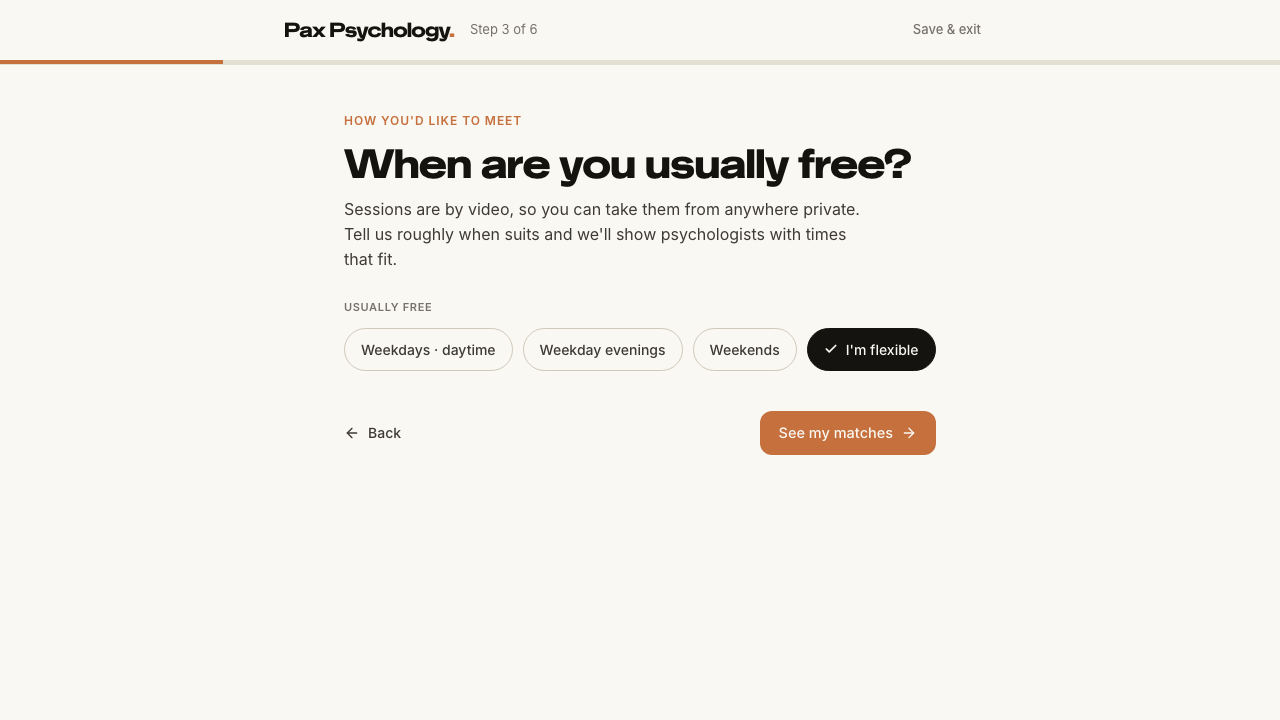
- 5. Step 3 — availability. Pick a chip, then click “See my matches”
- 6. Step 4 — shortlist. Pick a psychologist, then click “Pick a session time”
- 7. Step 5 — time slot. Pick a day and a slot, then “Continue to details”
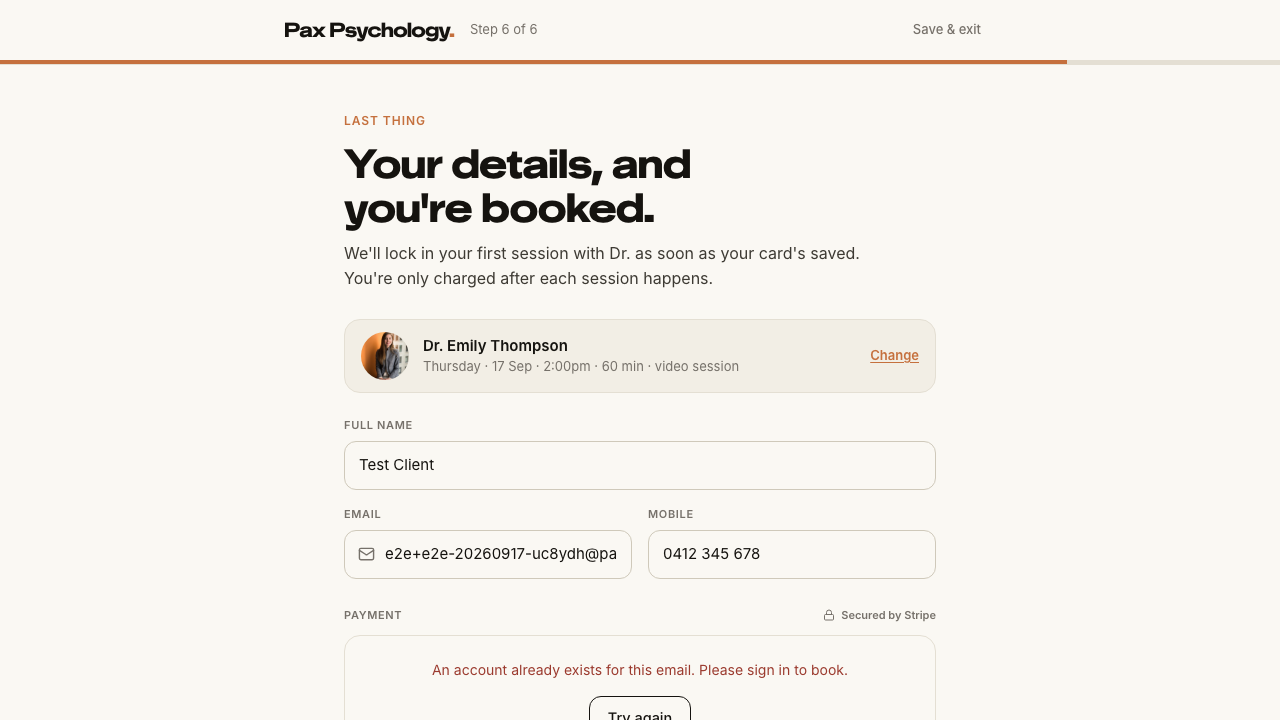
- 8. Step 6 — details + payment. Fill the details and save the card — failed
Error: expect(locator).toBeVisible() failed

Locator: getByText(/Nothing comes out today — your card['’]s saved securely and only charged after your session happens\./)
Expected: visible
Timeout: 30000ms
Error: element(s) not found

Call log:
  - Expect "toBeVisible" with timeout 30000ms
  - waiting for getByText(/Nothing comes out today — your card['’]s saved securely and only charged after your session happens\./)
PassedTC-C-08Match wizard progress persistence4.9s
- 1. Navigate to https://paxpsychology.dev/onboarding
- 2. Complete step 1 (focus) and step 2 (story), and land on step 3 (availability)
- 3. Close the tab, then reopen https://paxpsychology.dev/onboarding
- 4. Repeat, but get as far as step 4 (shortlist) before closing — only steps 1–3 persist
PassedTC-C-08aEmail validation on the details step (new)4.1s
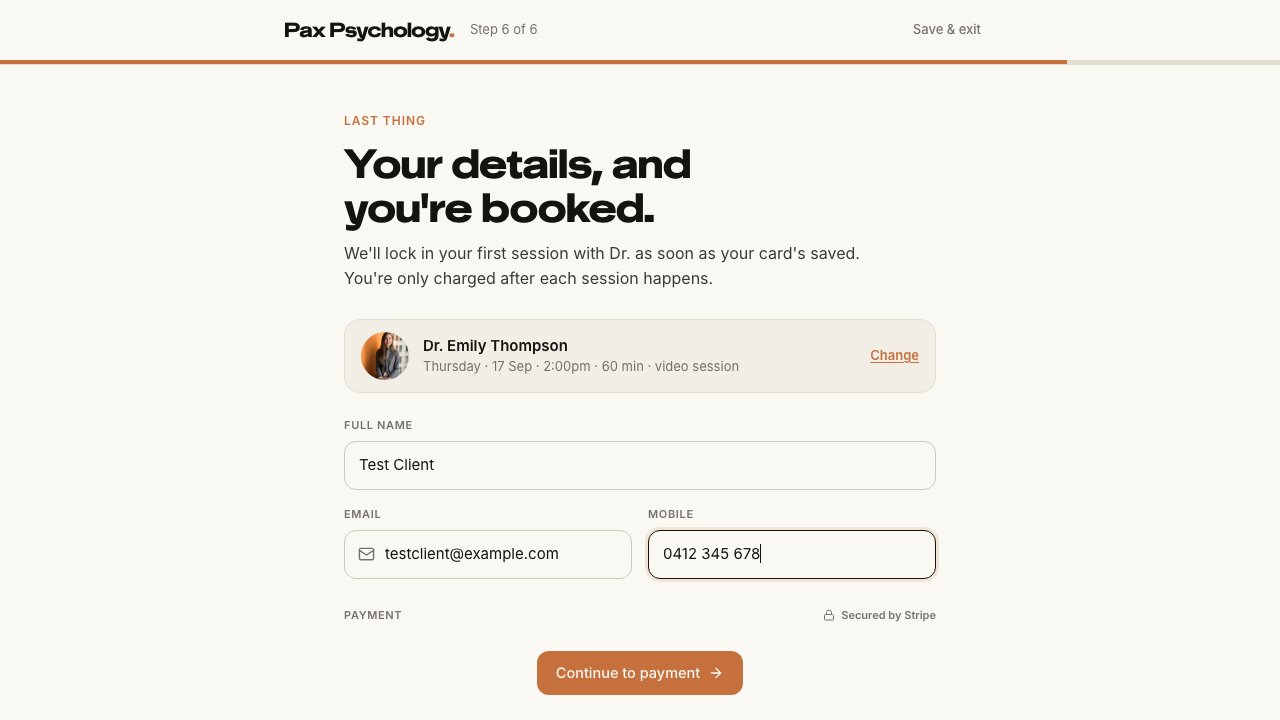
- Precondition. Reach step 6 of the wizard
- 1. Type `notanemail` into “Email” then click elsewhere (blur the field)
- 2. Correct it to a valid address — the error updates live on each keystroke
1C. Psychologist Directory
1 passed 1 failed
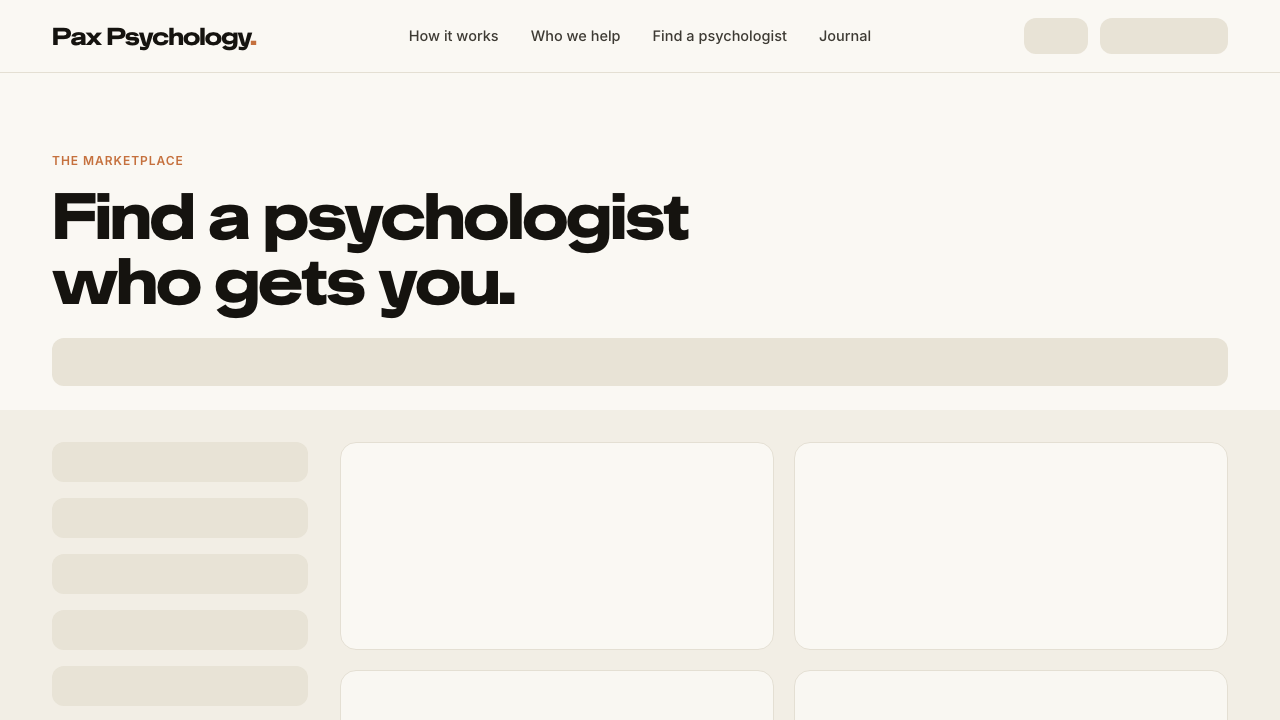
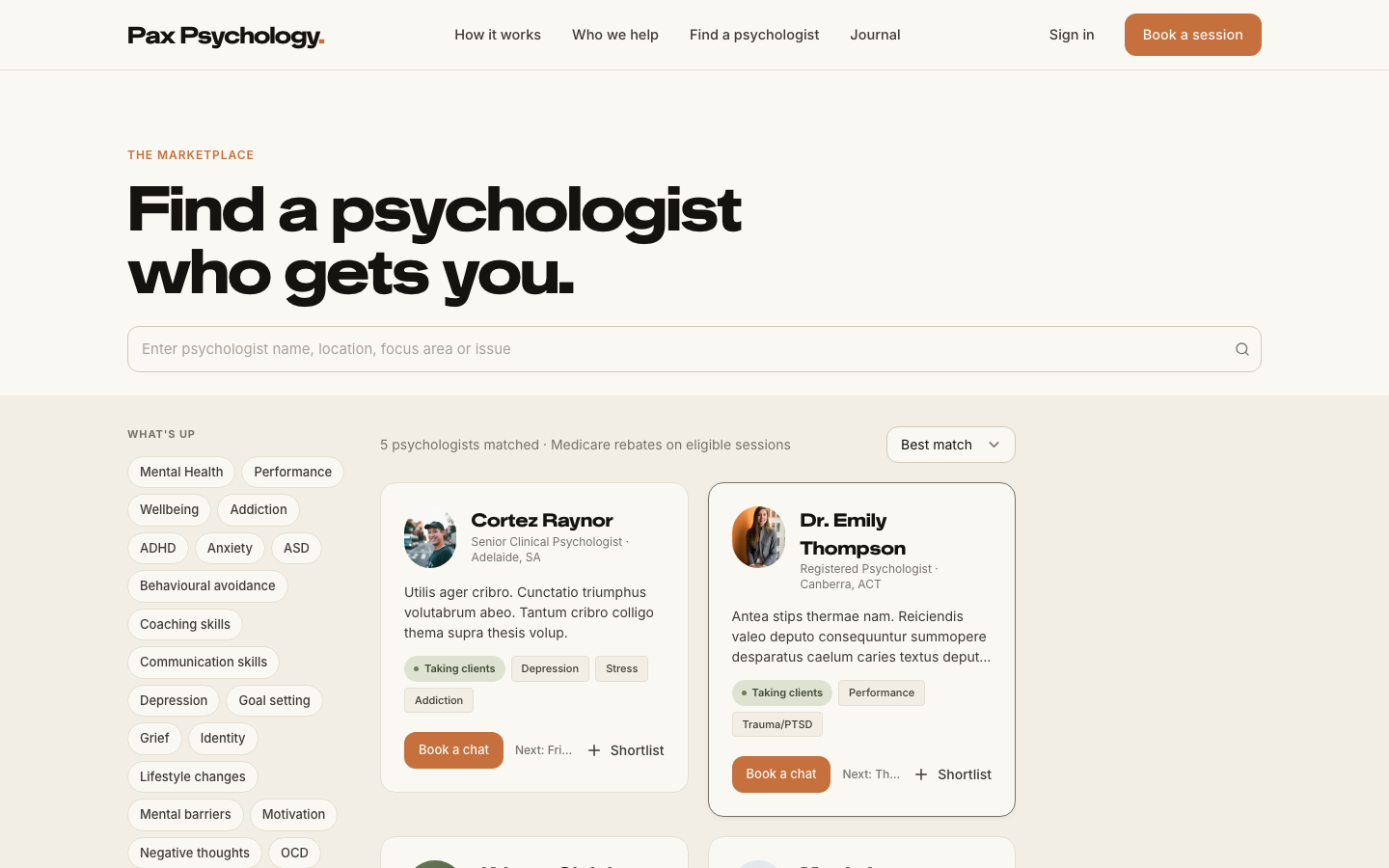
PassedTC-C-09Browse the directory and use the desktop filters15.0s
- 1. Navigate to /psychologists on a desktop-width window
- 2. Confirm the eyebrow “The marketplace” and H1 “Find a psychologist who gets you.”
- 3. Search using the box — try a psychologist’s name, then a location
- 4. In the left sidebar, tick a “Location” checkbox
- 5. Choose a “Psychologist’s gender” radio option
- 6. Select a chip under “What’s up”
- 7. Toggle “Taking clients now”
- 8. Change the sort dropdown from “Best match” to “Lowest rate”
- 9. Click “Clear all” in the pill row above the results
FailedTC-C-10View an individual psychologist profile page8.3s
- 1. From /psychologists, click a psychologist['’]s name and then “Full profile” — failed
- An unknown username returns a real 404
Error: expect(locator).toHaveCount(expected) failed

Locator:  locator('dialog[open]')
Expected: 0
Received: 1
Timeout:  5000ms

Call log:
  - Expect "soft toHaveCount" with timeout 5000ms
  - waiting for locator('dialog[open]')
    14 × locator resolved to 1 element
       - unexpected value "1"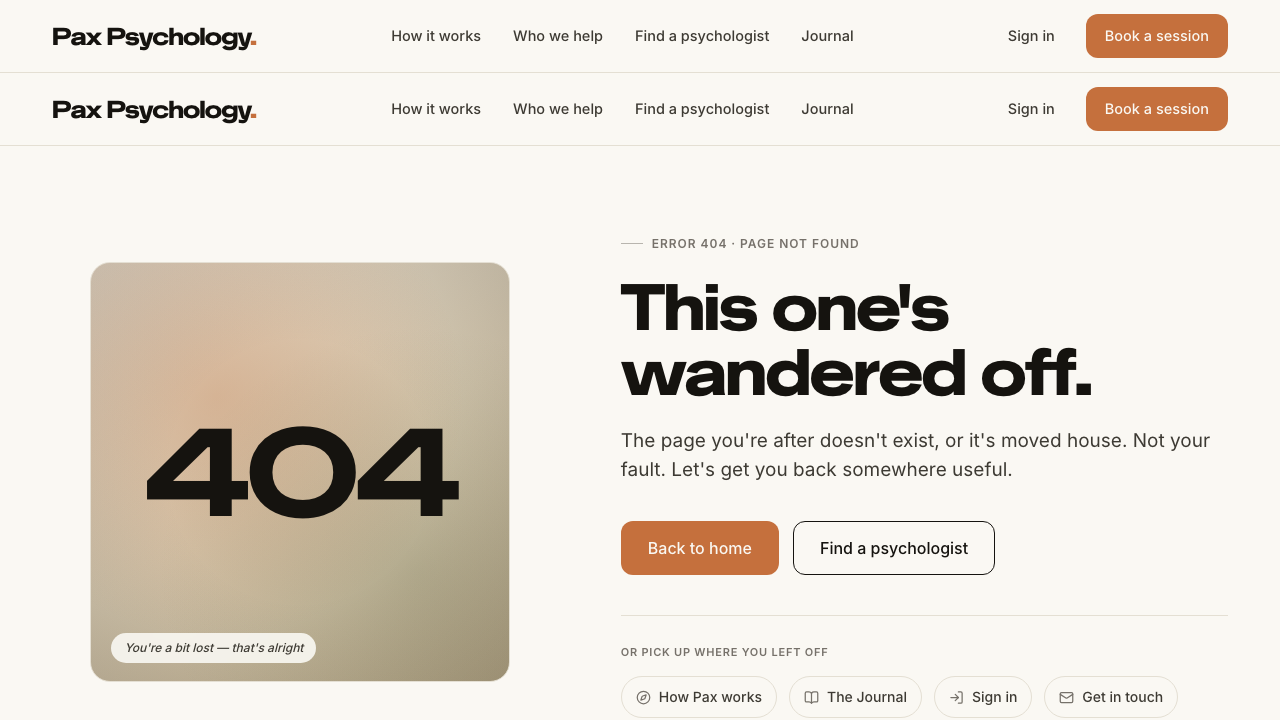
1D. Authentication
4 passed 2 manual
PassedTC-C-11Login with email/password2.5s
- 1. Navigate to https://paxpsychology.dev/auth/login
- 2. Check the page copy
- 3. Enter client@paxpsychology.dev and Test123!
- 4. Click “Sign in”
ManualTC-C-12Login with Google OAuth—
Google's hosted consent screen cannot be driven from Playwright (bot detection plus a real Google account and 2FA). Verify by hand: /auth/login → “Continue with Google” → land on /dashboard.
ManualTC-C-13Login with Microsoft OAuth—
Microsoft Entra's hosted sign-in cannot be driven from Playwright (bot detection plus a real tenant account). Verify by hand: /auth/login → “Continue with Microsoft” → land on /dashboard.
PassedTC-C-14Forgot password flow5.2s
- 1. From /auth/login, click “Forgot?” to reach /auth/forgot-password
- 2. Enter the account email and click “Send reset link”
- 3–5. MANUAL: open the reset email, follow the link, set a new password and sign in with it
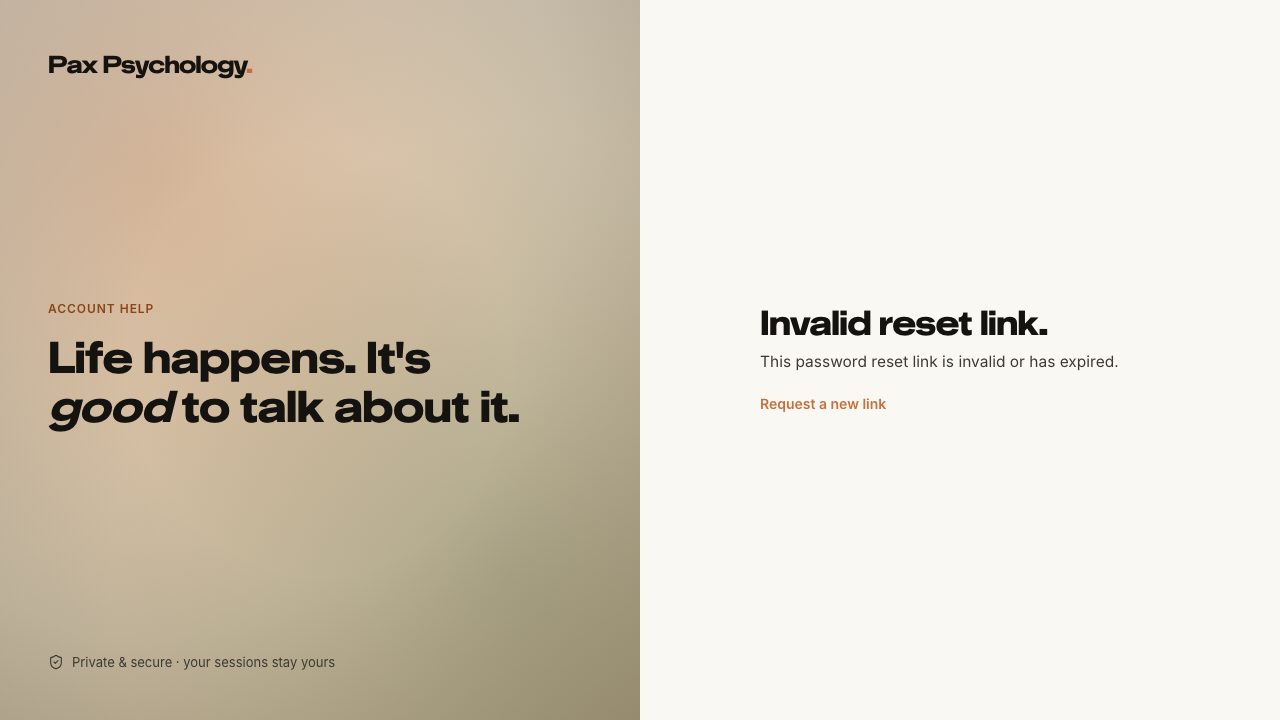
- 6. Separately, open /auth/reset-password with no ?token
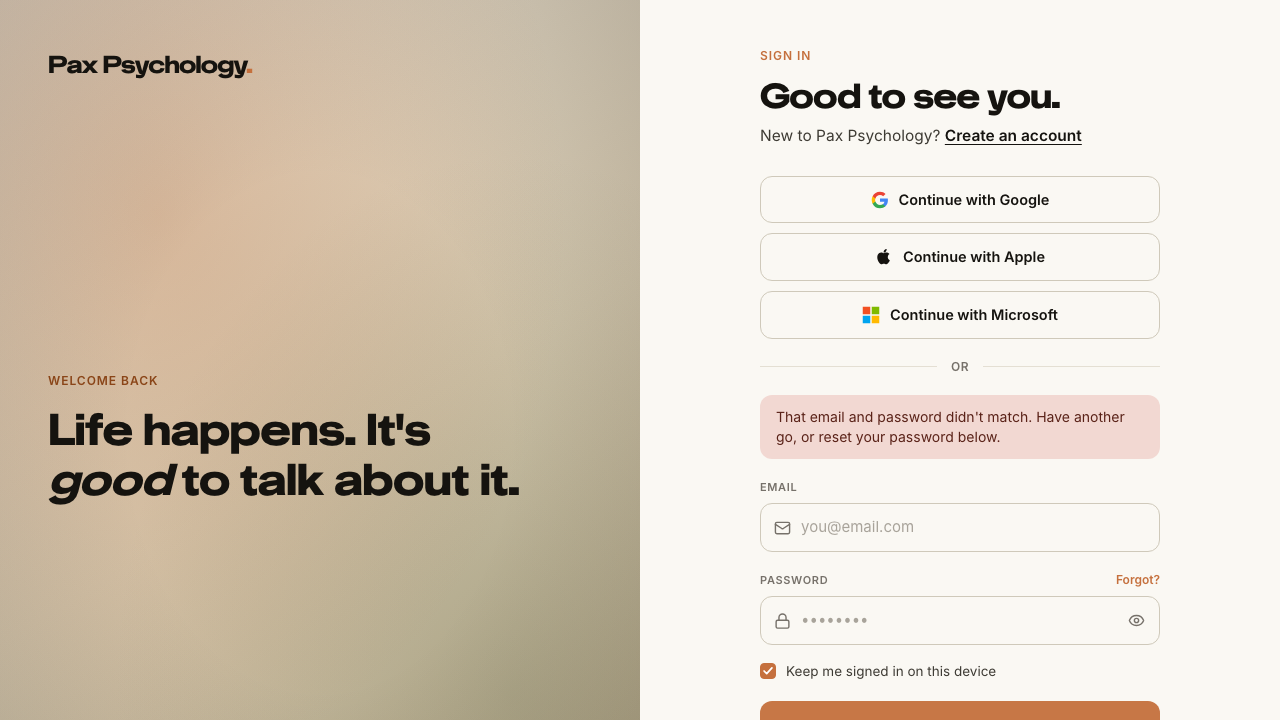
PassedTC-C-15Login with invalid credentials2.2s
- 1. Navigate to https://paxpsychology.dev/auth/login
- 2. Enter invalid@example.com / wrongpassword and click “Sign in”
PassedTC-C-16Sign out6.2s
- 1. From any dashboard page, click the user chip at the bottom of the left sidebar
- 2. Confirm the menu contains “Settings” and “Sign out”
- 3. Click “Sign out”
- 4. Log back in, then use the “Sign out” button in the red “Account” panel of Settings › Account
1E. Booking Flow
2 passed 1 failed
FailedTC-C-17Complete a full booking (card saved, charged later)47.4s
- 1. From a psychologist profile click “Book a session” to reach /book/[username]/[appointmentName]
- 2. Step “Select Time”: pick a date, then a slot under “Available times for …”
- 3. Step “Your Info”: fill the form, tick both consents and click “Continue to Payment”
- 4. Step “Payment”: read the callouts, enter 4242 4242 4242 4242 and click “Confirm Booking - $<amount>” — failed
Error: expect(locator).toBeVisible() failed

Locator: getByText('Payment Details')
Expected: visible
Timeout: 40000ms
Error: element(s) not found

Call log:
  - Expect "toBeVisible" with timeout 40000ms
  - waiting for getByText('Payment Details')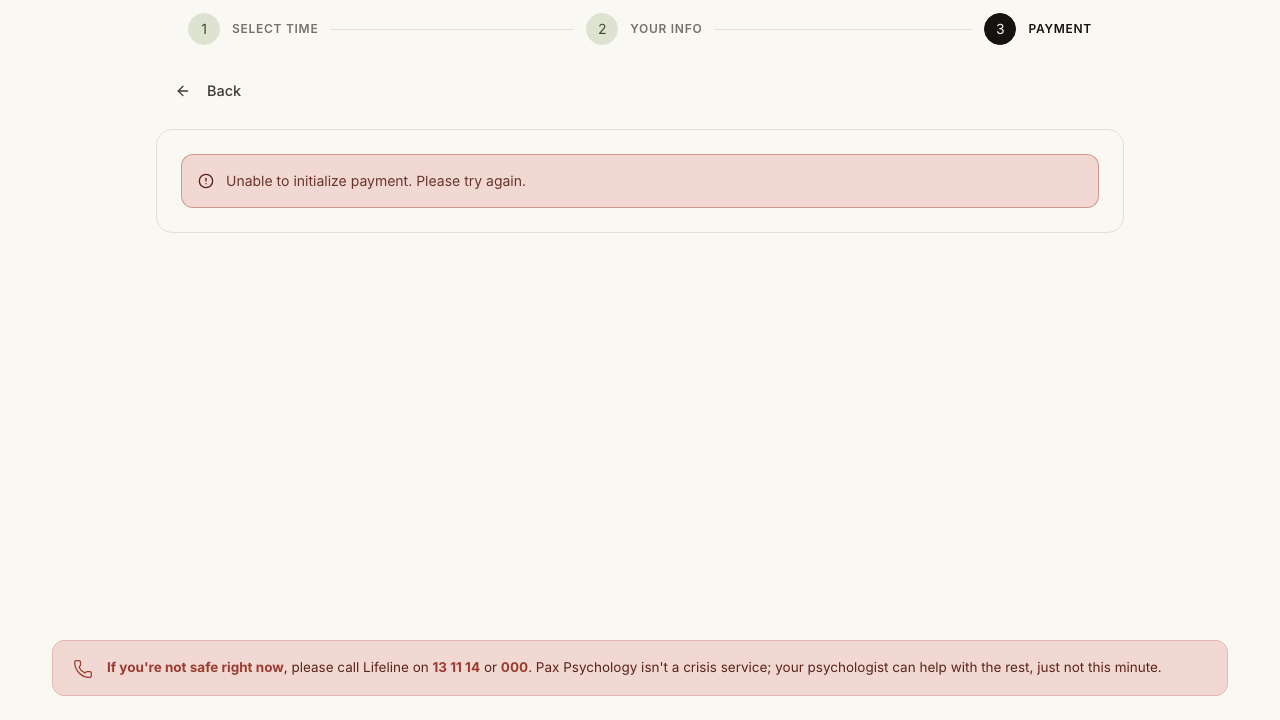
PassedTC-C-18Booking as a signed-in client (Review Info step)15.4s
- 1. Go to a booking page and select a date and time
- 2. Continue
- Saved cards are offered under “Payment Method”, with the default one marked “Default”
- Housekeeping: cancel the booking from the client Sessions list
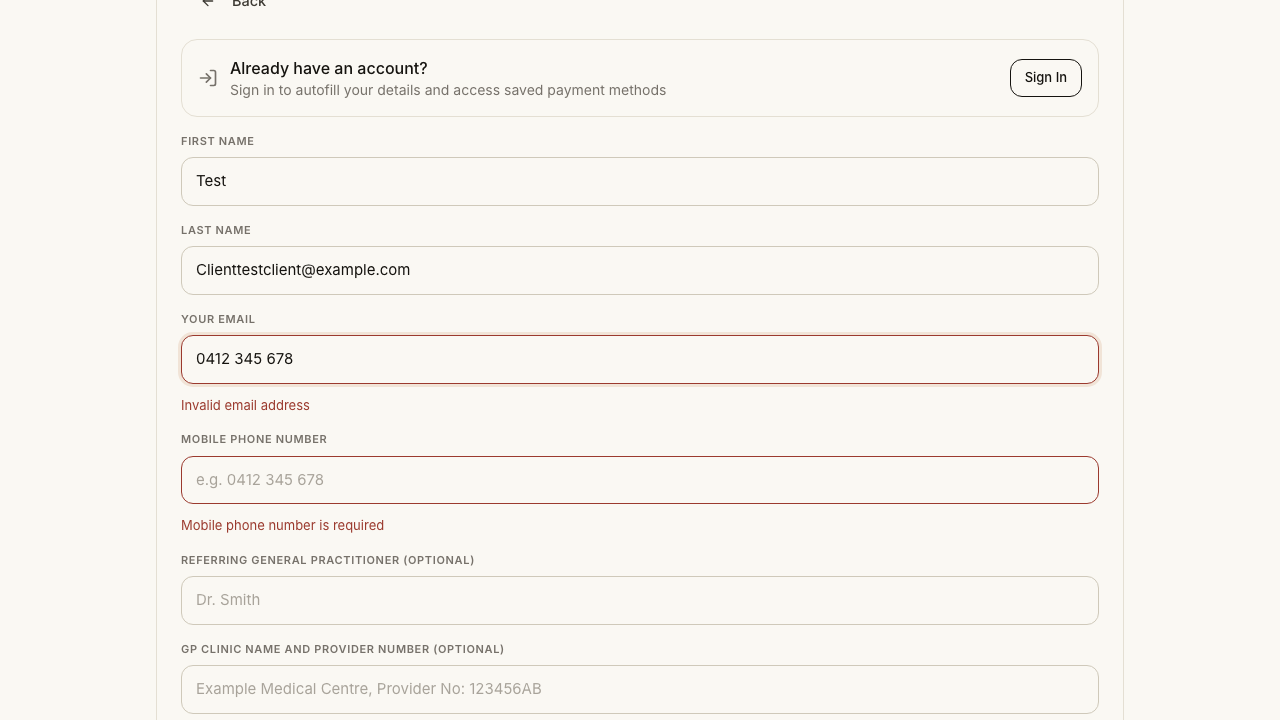
PassedTC-C-19Booking information validation4.5s
- 1. Go to a booking page and select a date and time
- 2. On “Your Info” leave every field empty and click “Continue to Payment”
- 3. Scroll up and note where the page has moved you
- 4. Enter `notanemail` in “Your Email” and blur the field
- 5. Fill the text fields correctly but leave the checkboxes unticked, and submit again
1F. Client Portal
5 passed 3 failed
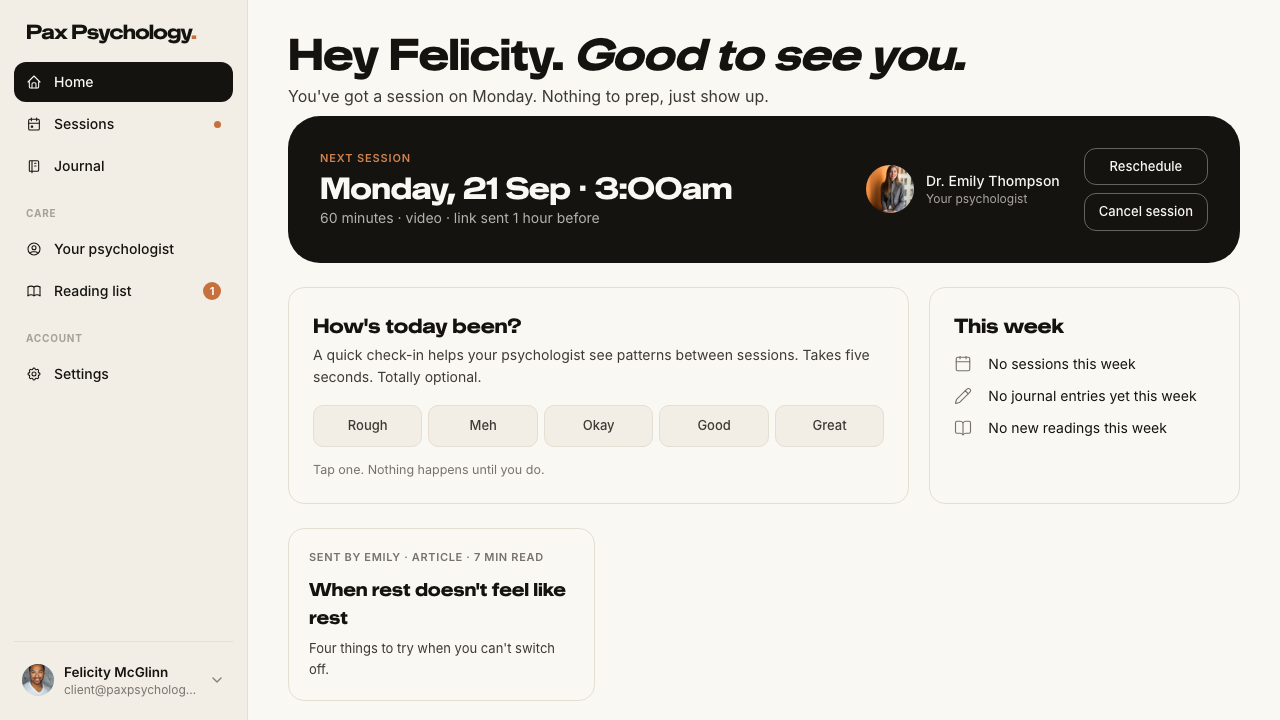
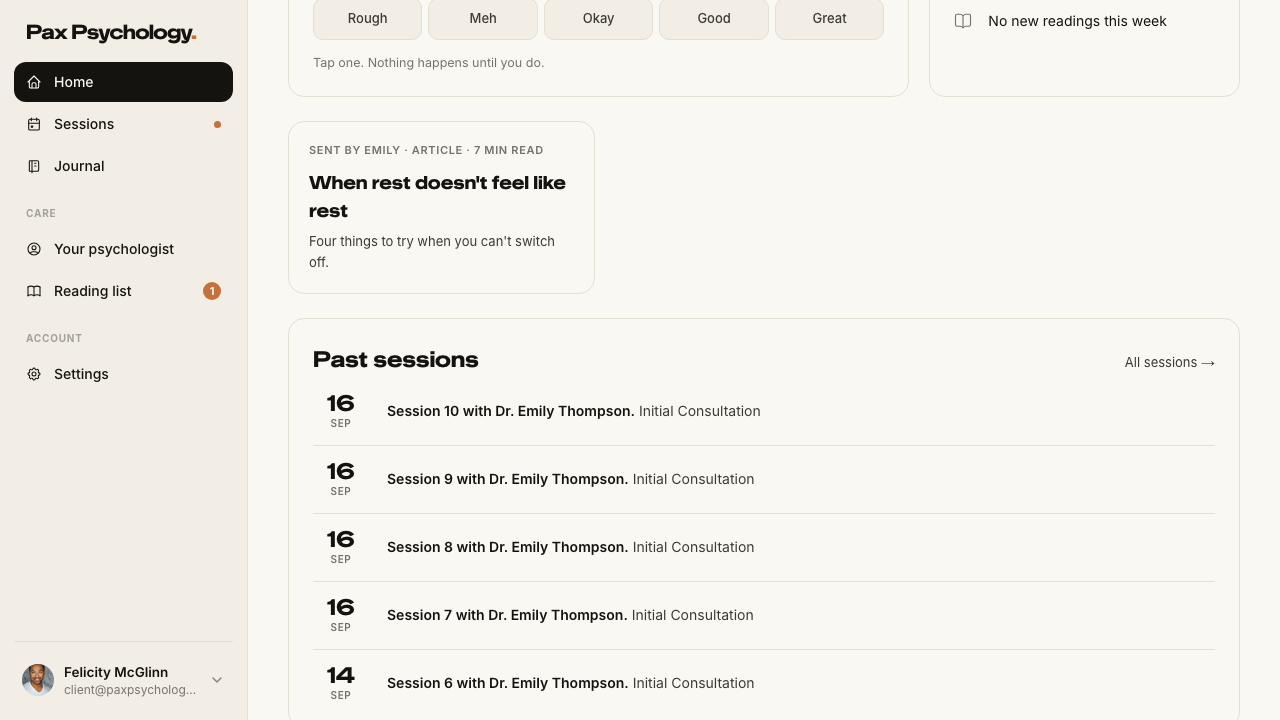
PassedTC-C-20Client Home3.5s
- 1. Navigate to https://paxpsychology.dev/dashboard
- Sidebar nav: Home · Sessions · Journal, then Care and Account groups
- Greeting, “Next session” hero, mood check-in, “This week” and “Past sessions”
PassedTC-C-21Sessions list (Upcoming / Past)4.4s
- 1. Navigate to https://paxpsychology.dev/dashboard/appointments
- 2. Confirm the “Upcoming” tab is selected, then click “Past”
- 3. Click a session title
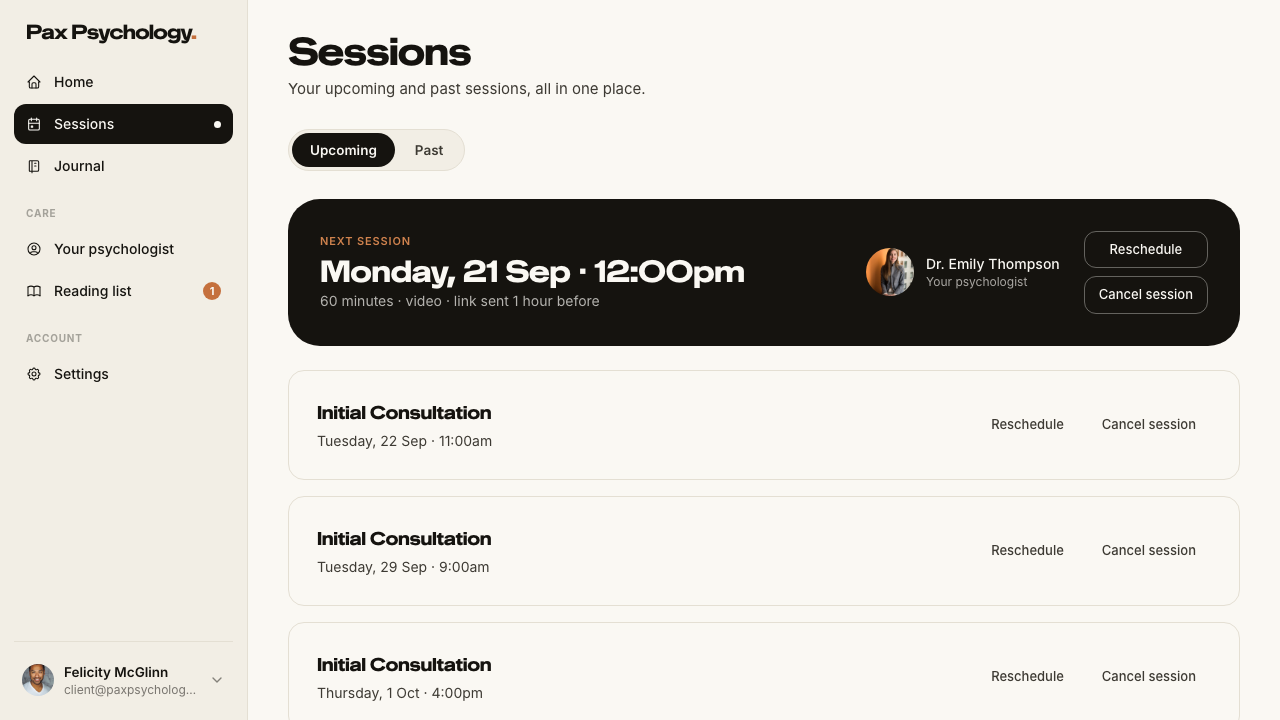
FailedTC-C-35Reschedule and cancel from the Sessions list35.5s
- 1. On /dashboard/appointments, find the session more than 24 hours out
- 2. Confirm both “Reschedule” and “Cancel session” buttons are present
- 3. Click “Reschedule”, pick a new date and time, and confirm — failed
Error: expect(locator).toHaveCount(expected) failed

Locator:  locator('dialog[open]')
Expected: 1
Received: 0
Timeout:  15000ms

Call log:
  - Expect "soft toHaveCount" with timeout 15000ms
  - waiting for locator('dialog[open]')
    34 × locator resolved to 0 elements
       - unexpected value "0"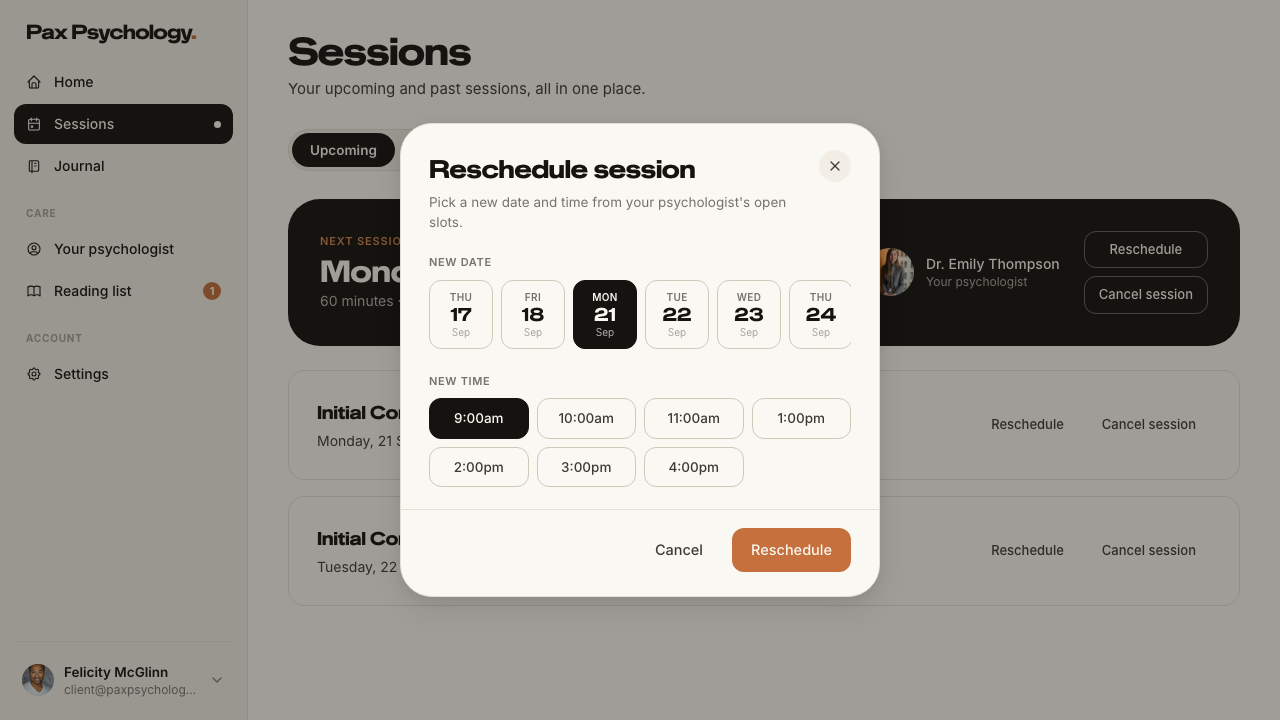
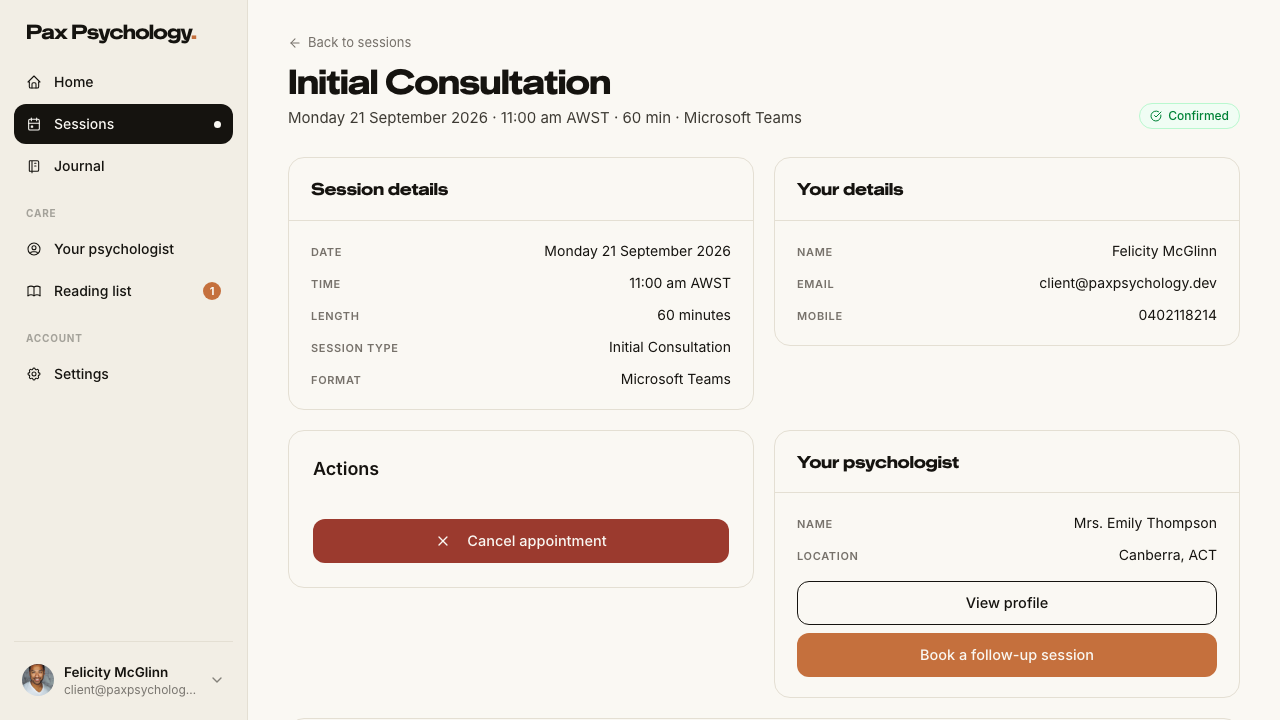
PassedTC-C-22View appointment detail (client)5.2s
- 1. From Sessions, click a session title to open /dashboard/appointments/[appointmentId]
FailedTC-C-23Cancel an upcoming appointment15.3s
- Precondition. Book a session more than 24 hours out to cancel
- 1. Click “Cancel session” on the Sessions list
- 2. In the dialog, check the title and body copy — failed
- 3. Optionally enter a reason
- 4. Click “Cancel Appointment”
Error: expect(locator).toBeVisible() failed

Locator: locator('dialog[open][role=\'alertdialog\']').getByText(/Are you sure you want to cancel the .+ appointment with .+ on \w+, \w+ \d{1,2}, \d{4}\?/)
Expected: visible
Timeout: 5000ms
Error: element(s) not found

Call log:
  - Expect "soft toBeVisible" with timeout 5000ms
  - waiting for locator('dialog[open][role=\'alertdialog\']').getByText(/Are you sure you want to cancel the .+ appointment with .+ on \w+, \w+ \d{1,2}, \d{4}\?/)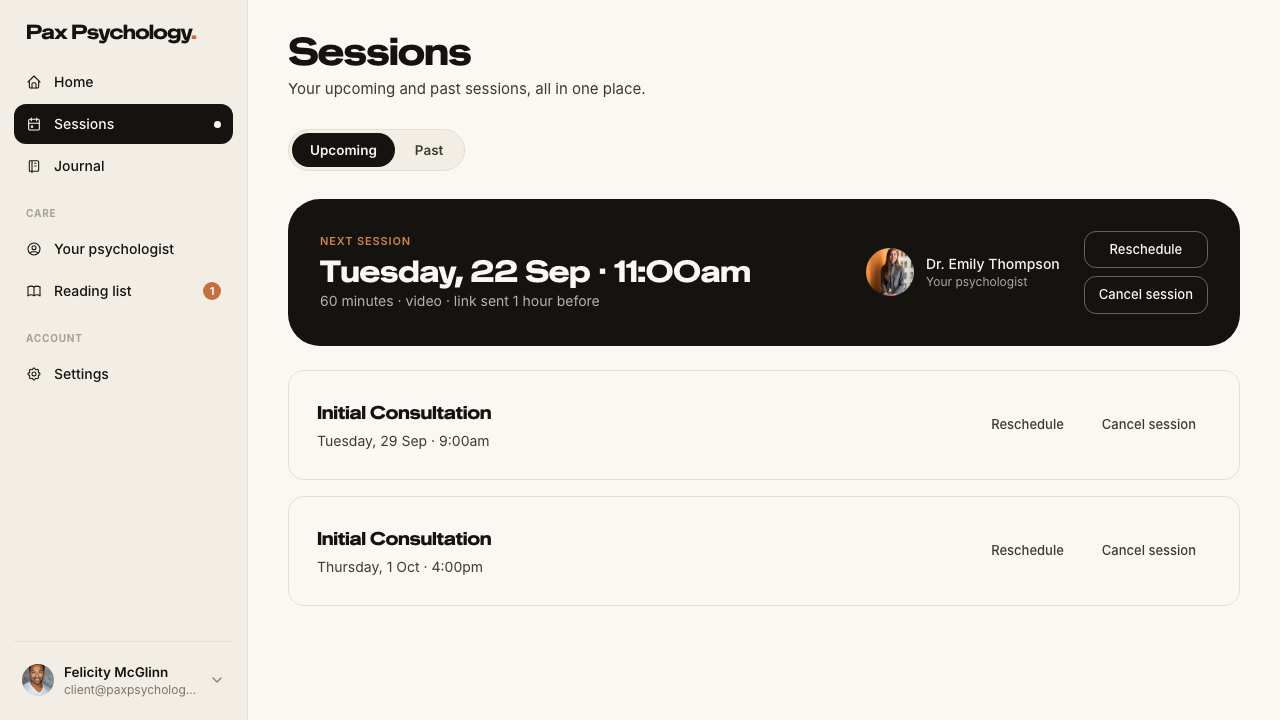
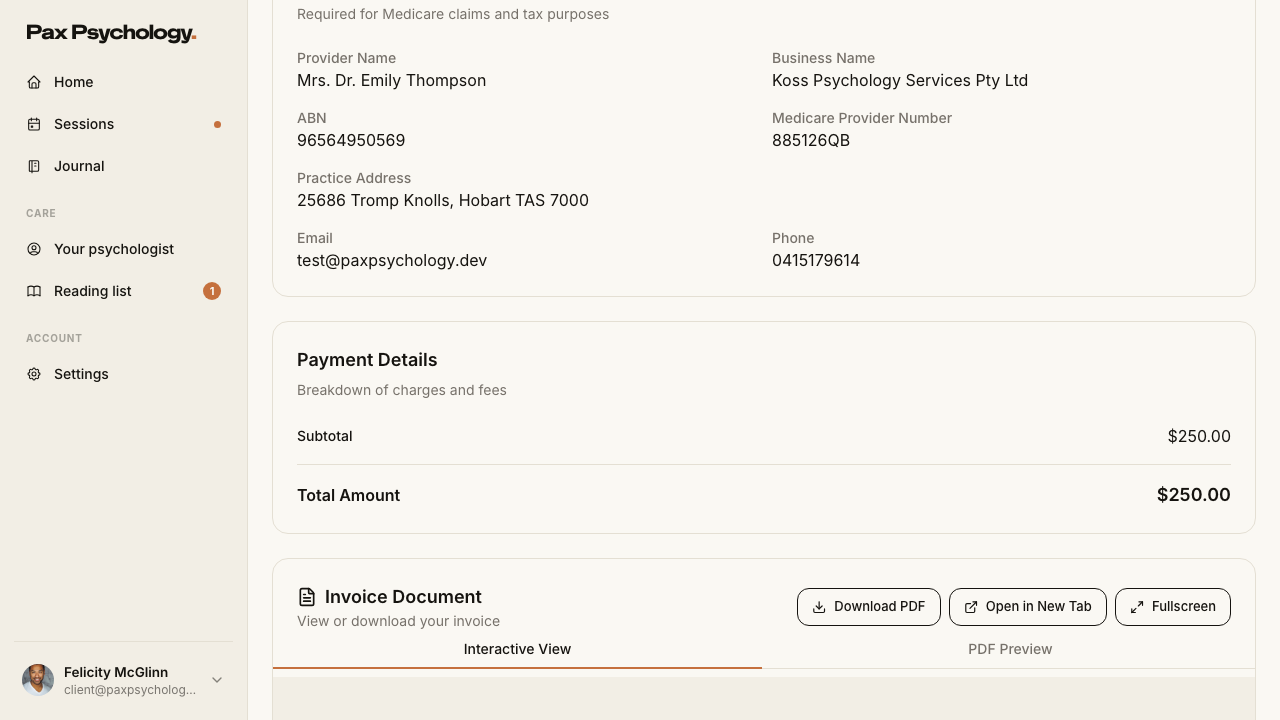
PassedTC-C-24Receipts (client invoices)7.1s
- 1. Navigate directly to https://paxpsychology.dev/dashboard/invoices
- 2. Go to /dashboard/appointments, open the “Past” tab, and click “Receipt”
- 3. On the receipt page, click “Download Receipt”
PassedTC-C-25Client settings — Account6.5s
- 1. Navigate to /dashboard/settings?section=account
- 2. Confirm the section nav and the fields
- 3. Change “Full name” to `Updated Test Client` and click “Save changes”
- 4. Reload the page — the new name persists
- Housekeeping: restore the seeded client's name
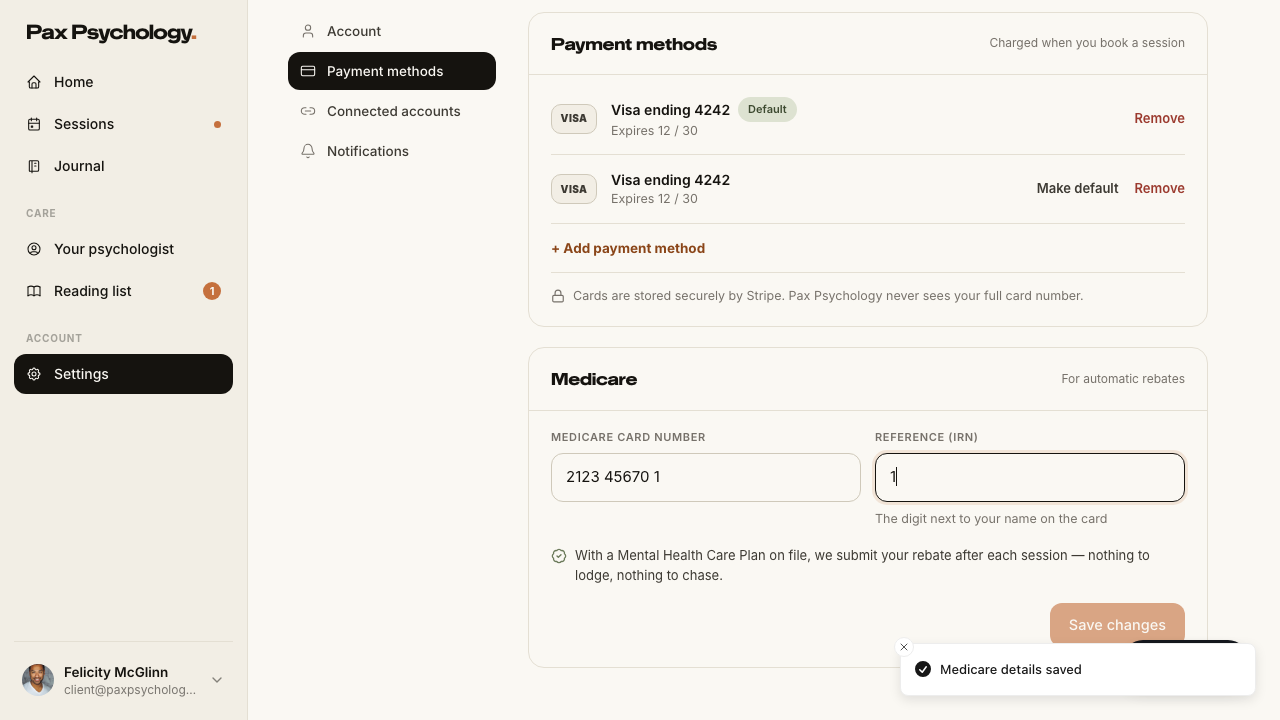
FailedTC-C-26Client settings — Payment methods and Medicare18.8s
- 1. Navigate to /dashboard/settings?section=payment-methods
- 2. Click “+ Add payment method”, enter 4242 4242 4242 4242 / 12/30 / 123 and click “Save card”
- 3. Click “Make default” on the new card
- 4. Click “Remove” on the non-default card and confirm
- 5. Scroll to the “Medicare” panel, enter a Medicare card number and IRN, and save — failed
Error: the Medicare panel's "Save changes" is covered by another element and cannot be clicked

expect(received).toBe(expected) // Object.is equality

Expected: true
Received: false
1G. New public surfaces
4 passed 2 failed
FailedTC-C-27Journal index, article and newsletter signup7.2s
- 1. Navigate to https://paxpsychology.dev/journal
- 2. Click a category chip, then click “All”
- 3. Open an article
- 4. Scroll to the newsletter strip and subscribe
- 5. Try again with `notanemail` — failed
Error: locator.scrollIntoViewIfNeeded: Error: strict mode violation: locator('#newsletter-email') resolved to 2 elements:
    1) <input type="email" name="email" id="newsletter-email" placeholder="you@email.com" class="text-paper placeholder:text-paper/50 focus:border-paper/60 ease-pax min-w-[240px] rounded-[10px] border bg-[rgba(250,248,243,0.06)] px-4 py-3 text-[15px] transition-colors duration-150 focus:outline-none border-paper/25"/> aka getByRole('textbox', { name: 'Email Email' })
    2) <input type="email" name="email" id="newsletter-email" placeholder="you@email.com" class="text-paper placeholder:text-paper/50 focus:border-paper/60 ease-pax min-w-[240px] rounded-[10px] border bg-[rgba(250,248,243,0.06)] px-4 py-3 text-[15px] transition-colors duration-150 focus:outline-none border-paper/25"/> aka getByPlaceholder('you@email.com').nth(1)

Call log:
  - waiting for locator('#newsletter-email')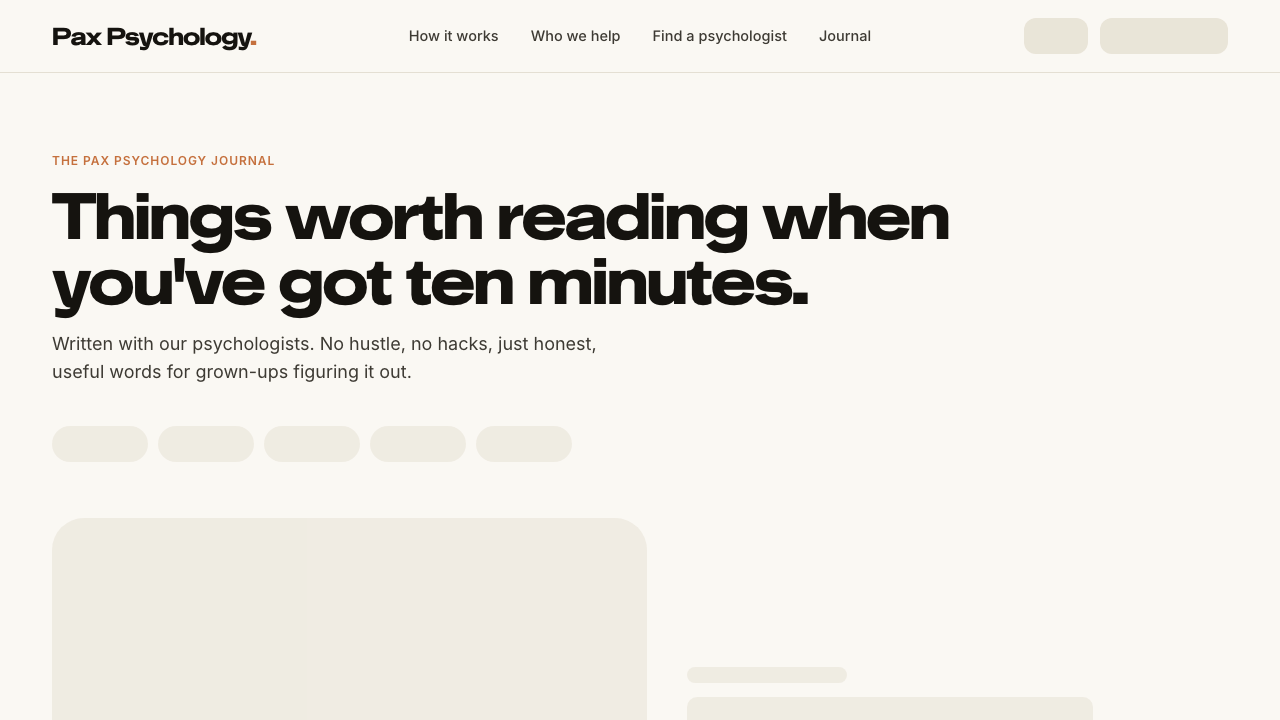
FailedTC-C-28Newsletter unsubscribe28.0s
- 1. Open the unsubscribe link — failed
Error: expect(locator).toBeVisible() failed

Locator: getByRole('heading', { name: /You['’]re off the list\./ }).first()
Expected: visible
Timeout: 25000ms
Error: element(s) not found

Call log:
  - Expect "toBeVisible" with timeout 25000ms
  - waiting for getByRole('heading', { name: /You['’]re off the list\./ }).first()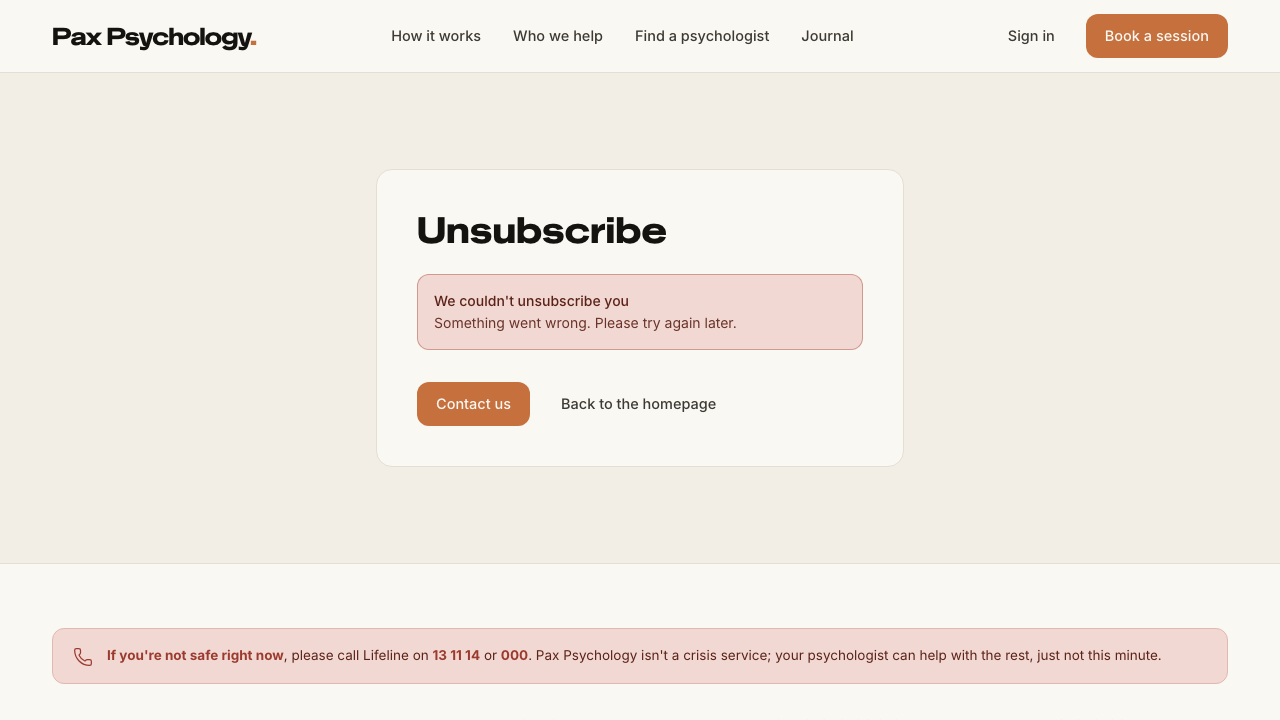
PassedTC-C-29For Psychologists landing page (new)3.6s
PassedTC-C-30Mobile filters drawer on the directory (new)6.5s
- 1. Navigate to /psychologists at 375px width
- 2. Confirm the desktop sidebar is hidden and a “Filters” button sits next to the sort dropdown
- 3. Tap “Filters”
- 4. Apply a couple of filters inside the drawer
- 5. Tap the button at the foot of the drawer
- 6. Widen the window past 768px — the drawer auto-closes and the sidebar reappears

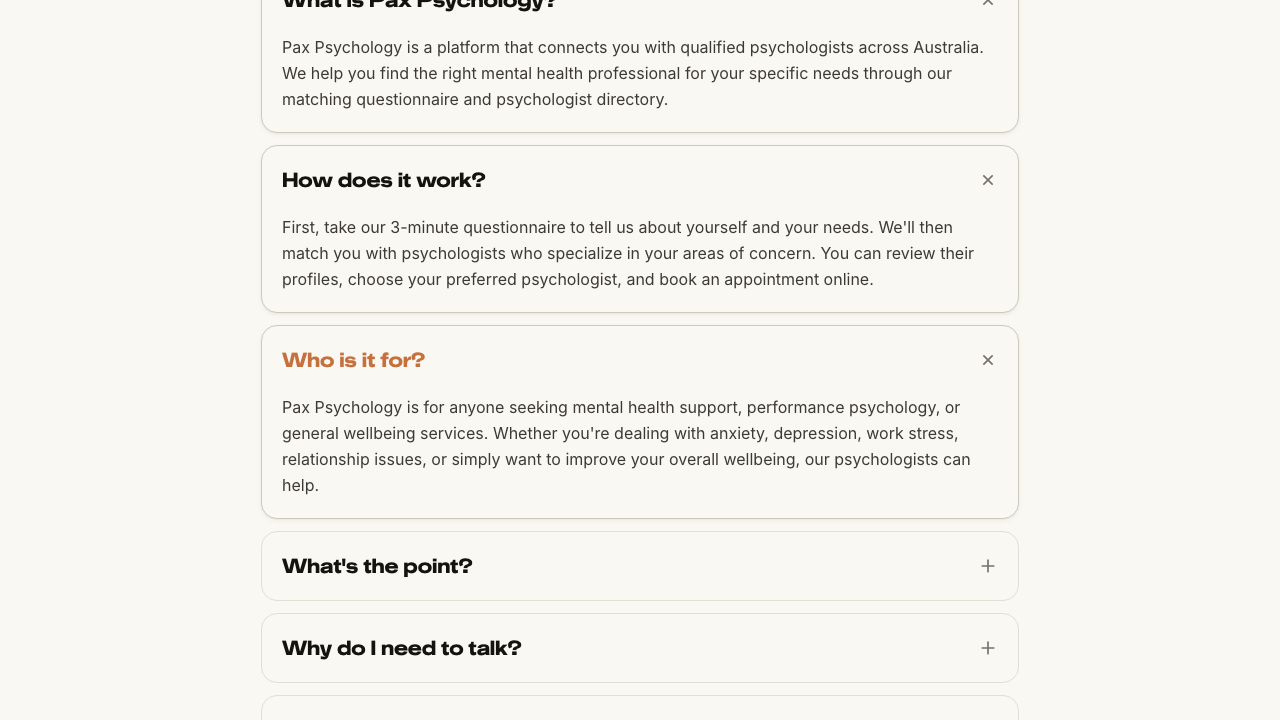
PassedTC-C-31FAQs page3.0s
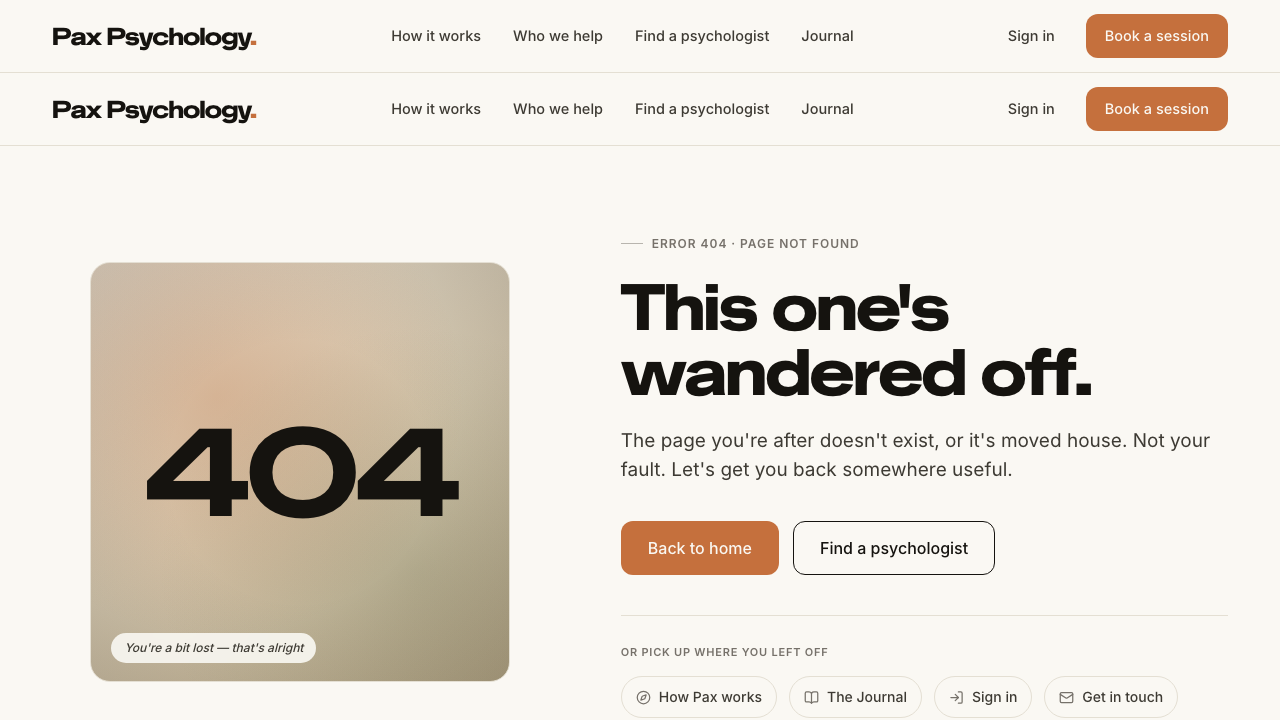
PassedTC-C-32Error pages2.4s
- 1. Navigate to https://paxpsychology.dev/this-page-does-not-exist
- 2. Navigate to /psychologists/definitely-not-a-real-username
1H. Other new surfaces
2 passed
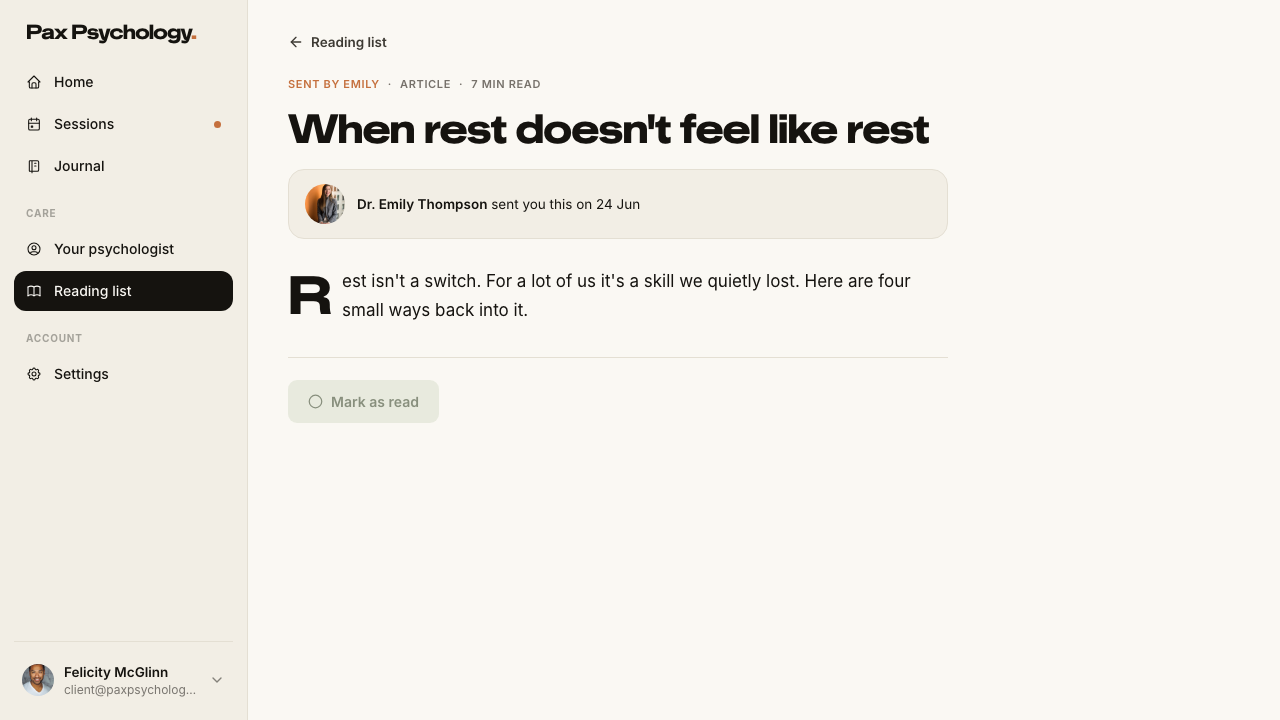
PassedTC-C-33Your psychologist and Reading list (new client Care pages)5.4s
- 1. Click “Your psychologist” in the sidebar
- 2. Click “Reading list”
- 3. Open a reading and mark it read
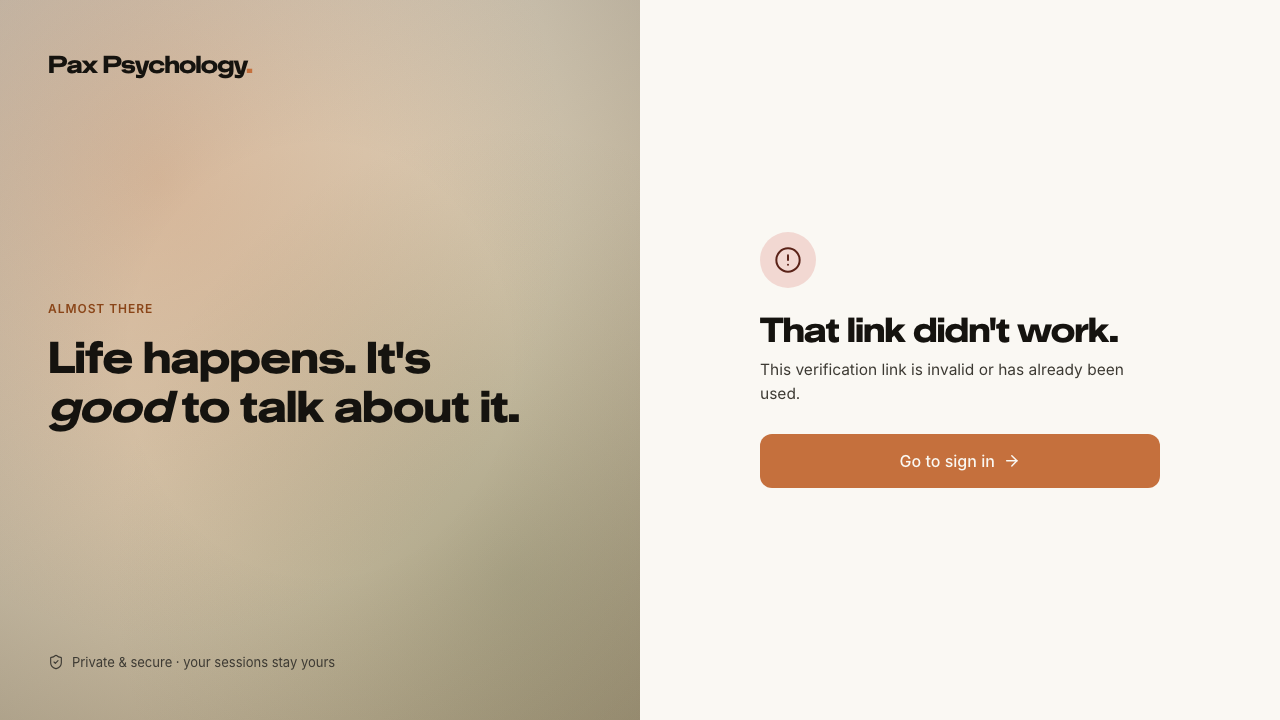
PassedTC-C-34Self-serve registration7.0s
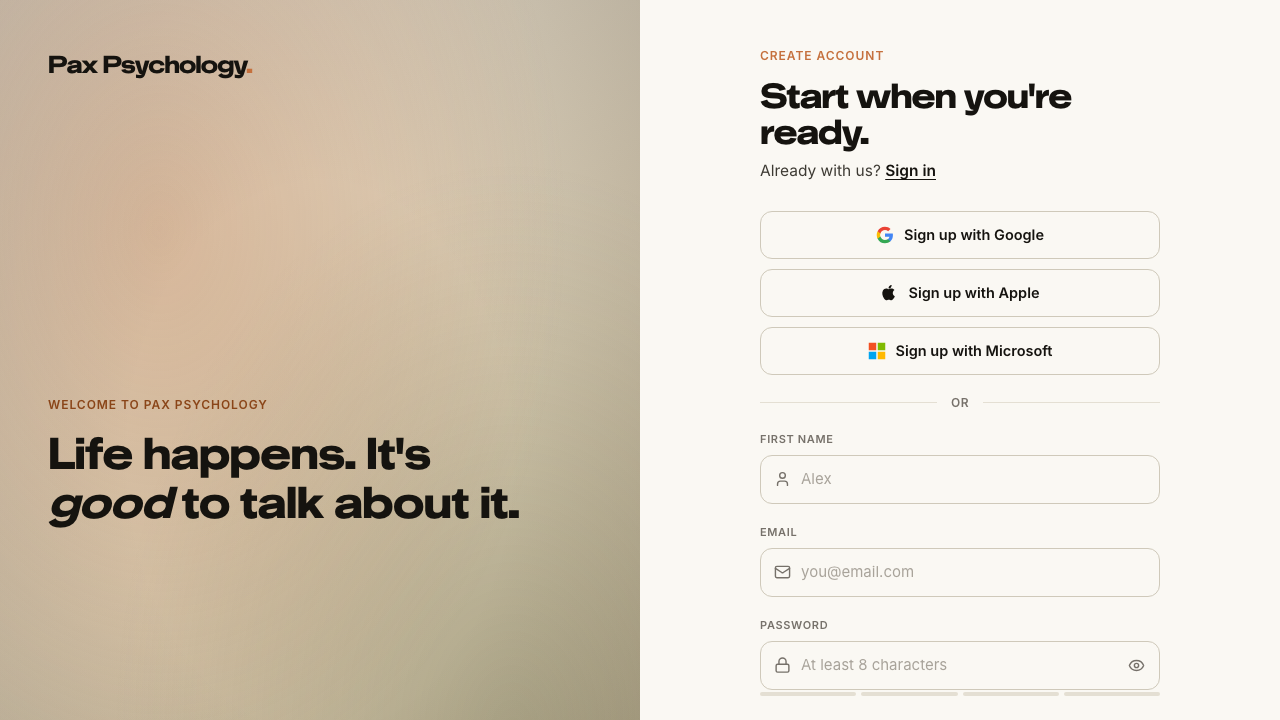
- 1. Navigate to https://paxpsychology.dev/auth/register
- 2. Fill “First name”, “Email” and “Password”, tick the terms checkbox and click “Create account”
- 3. Follow the flow to /auth/check-email and use the resend control
- 4. MANUAL: open the verification email and follow the link
Psychologist
27 cases20 passed 2 failed 3 manual 2 other
2A. Onboarding
4 passed 1 manual
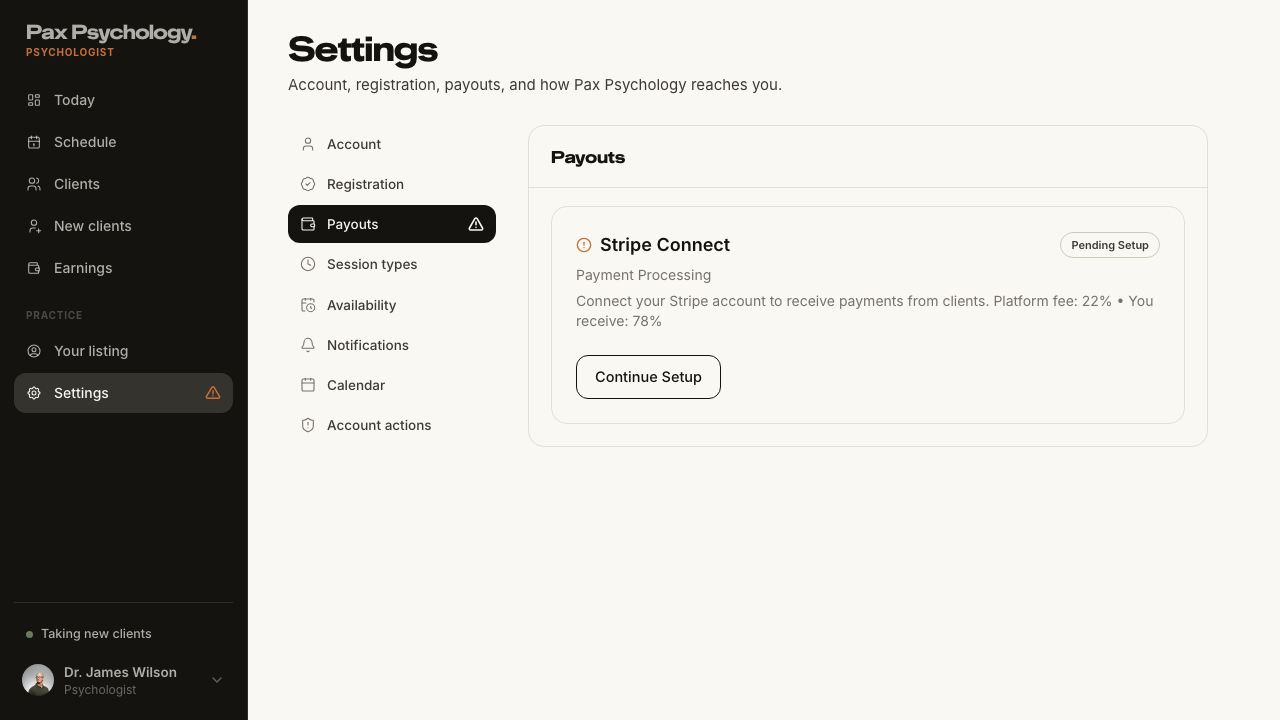
ManualTC-P-01Connect the Stripe Connect payout account3.6s
Steps 4–5 leave Pax: 'Connect with Stripe' hands off to Stripe's hosted Connect onboarding (a stripe.com form with identity and bank details) and returns via an OAuth-style callback. Nothing on that hop can be automated, and completing it would burn the shared `test2@` fixture's 'payouts not set up' state that other cases rely on. Everything Pax itself renders — the banner, the sidebar alert, the Stripe Connect card and its CTA — is checked below; a reviewer only needs to eyeball the hosted form and the post-connect 'Connected' badge (see TC-P-20).
- 1. Navigate to https://paxpsychology.dev/dashboard
- 2. Note the payout banner and click its CTA
- 3. On /dashboard/settings?section=payouts, read the Stripe Connect card
- 4. Click "Connect with Stripe" and complete the Stripe-hosted onboarding — MANUAL
- 5. Return to Pax — MANUAL
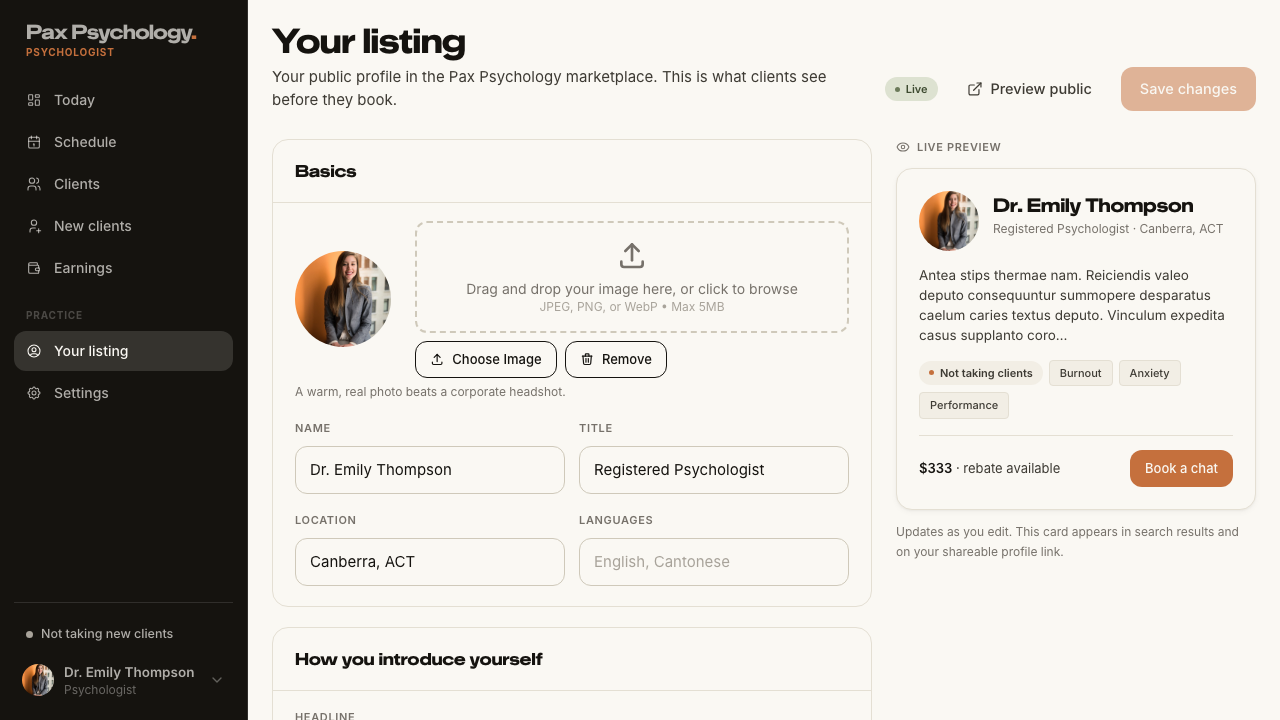
PassedTC-P-02Complete profile / account details5.8s
- 1. Navigate to https://paxpsychology.dev/dashboard/settings?section=account
- 2. Upload a profile picture, change "Full name", click "Save changes"
- 3. Switch to ?section=registration and fill the professional fields
- 4. Open /dashboard/listing and check the public-facing profile editor
- Notes: /dashboard/settings/profile 307-redirects to ?section=account
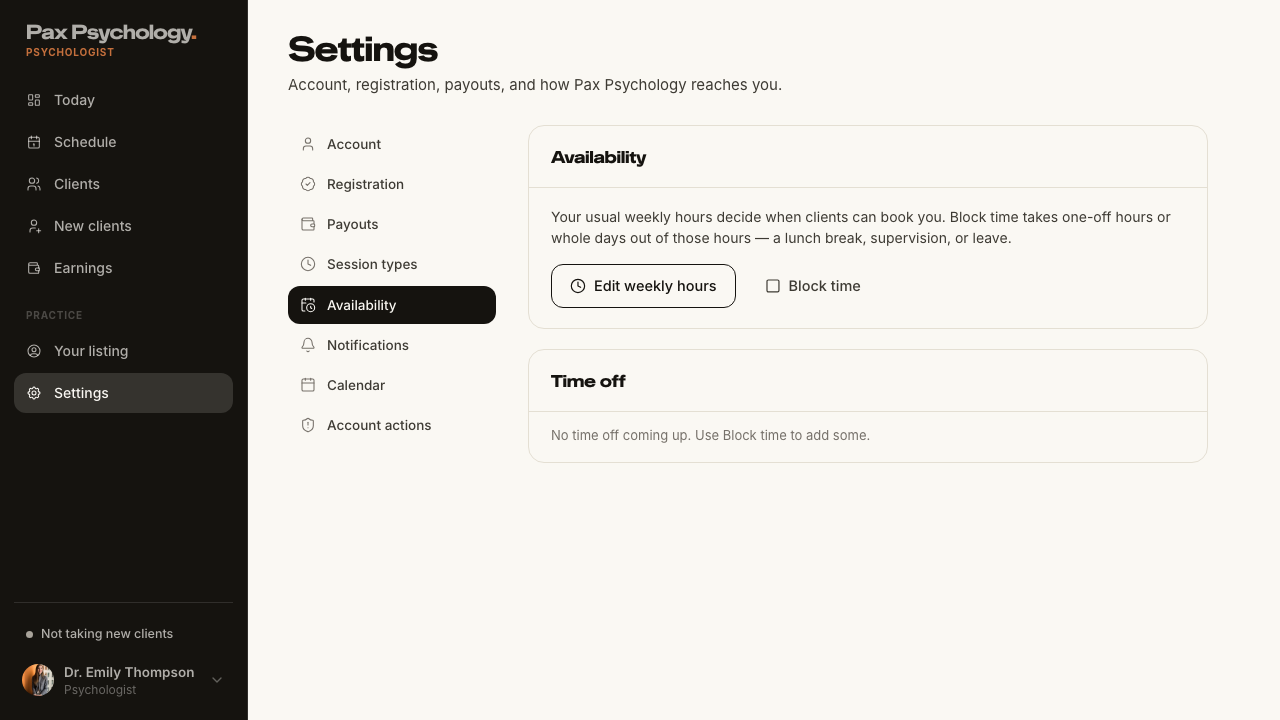
PassedTC-P-03Set weekly availability6.0s
- 1. Navigate to https://paxpsychology.dev/dashboard/appointments
- 2. Click the "Availability" button in the page header
- 3. In the modal, switch Monday on and set "From" 09:00 and "To" 17:00
- 4. Switch Saturday off
- 5. Click "Save availability"
- 6. Deliberately set an invalid combination (From later than To) and save again to see the error
- Restore the original weekly hours
PassedTC-P-04Block out time (time off)19.4s
- 1. On /dashboard/appointments, click "Block time"
- 2. Pick a reason chip, page forward a week, pick a day, set "From" and "To", add a note
- 3. Click "Block time"
- 4. Repeat over a slot that already has a booking, and read the warning
- 5. Try the "Repeat weekly" switch
- 6. Delete the block from Settings › Availability › Time off
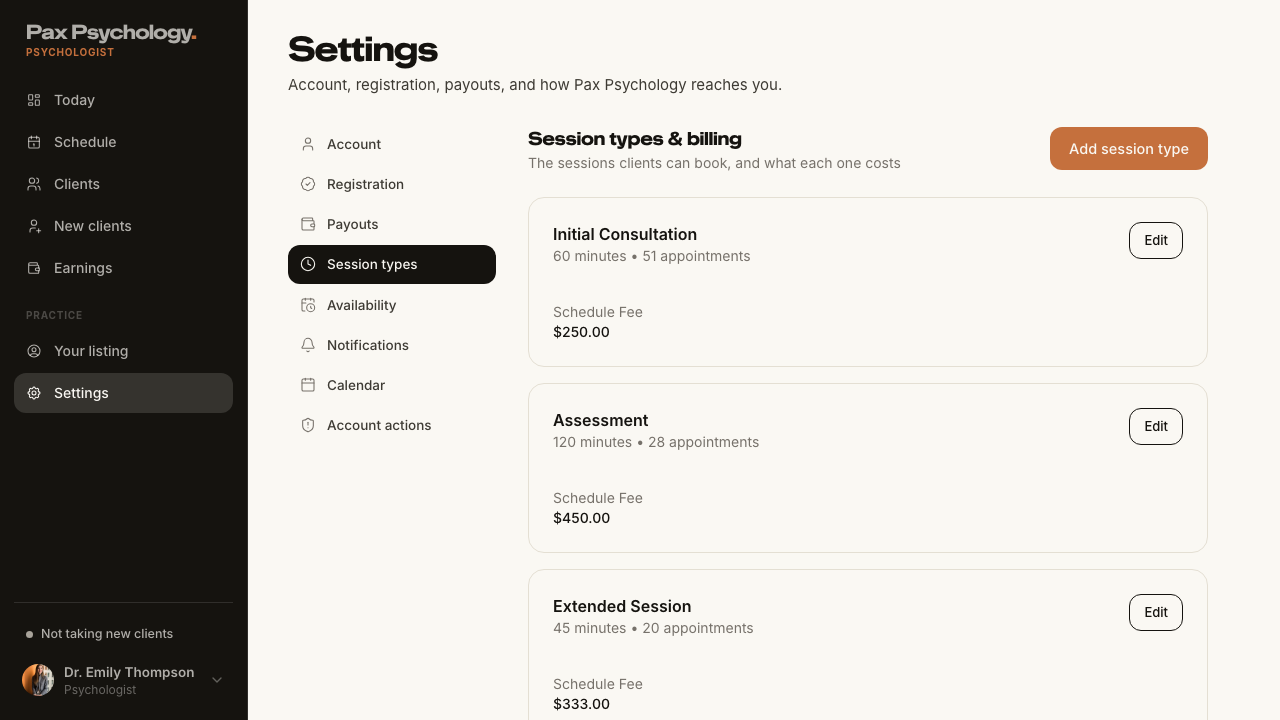
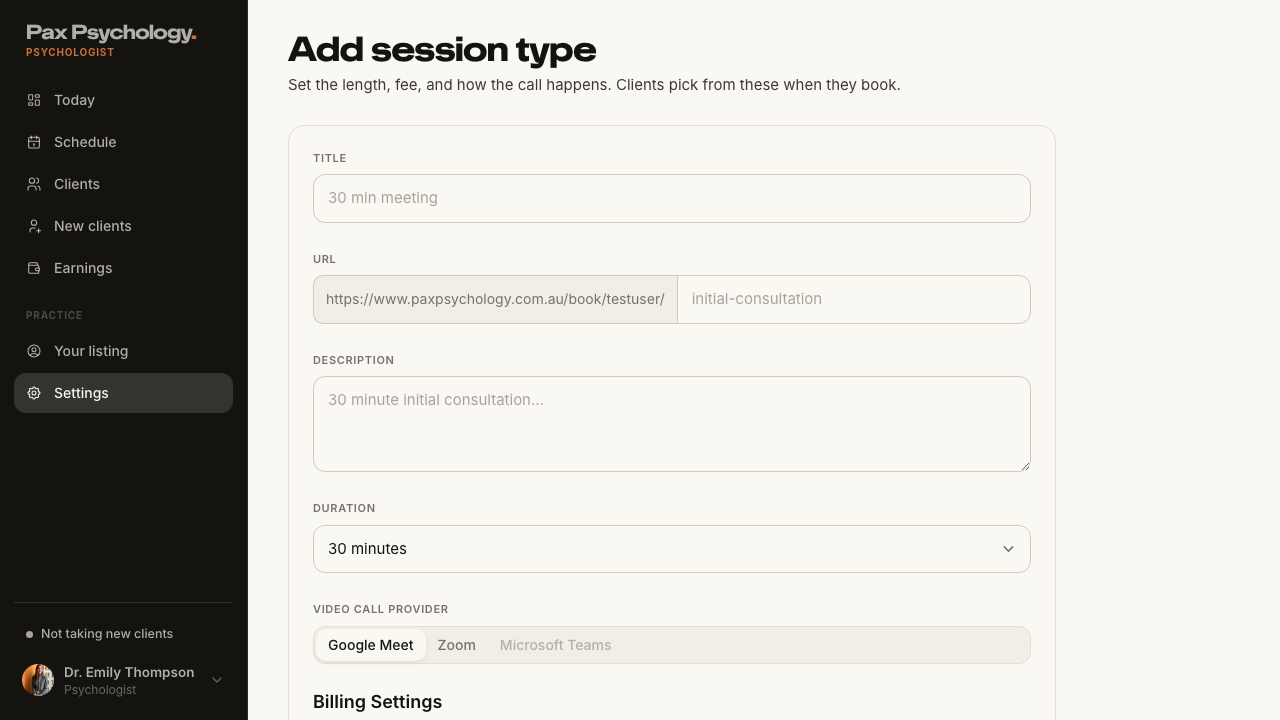
PassedTC-P-05Create a session type7.1s
- 1. Navigate to https://paxpsychology.dev/dashboard/settings?section=appointment-types
- 2. Click "Add session type"
- 3. Fill the form: Title, Url, Description, Duration, Video Call Provider, Schedule Fee
- 4. Click "Add appointment type"
- The new type is bookable at the generated URL
2B. Dashboard
2 passed
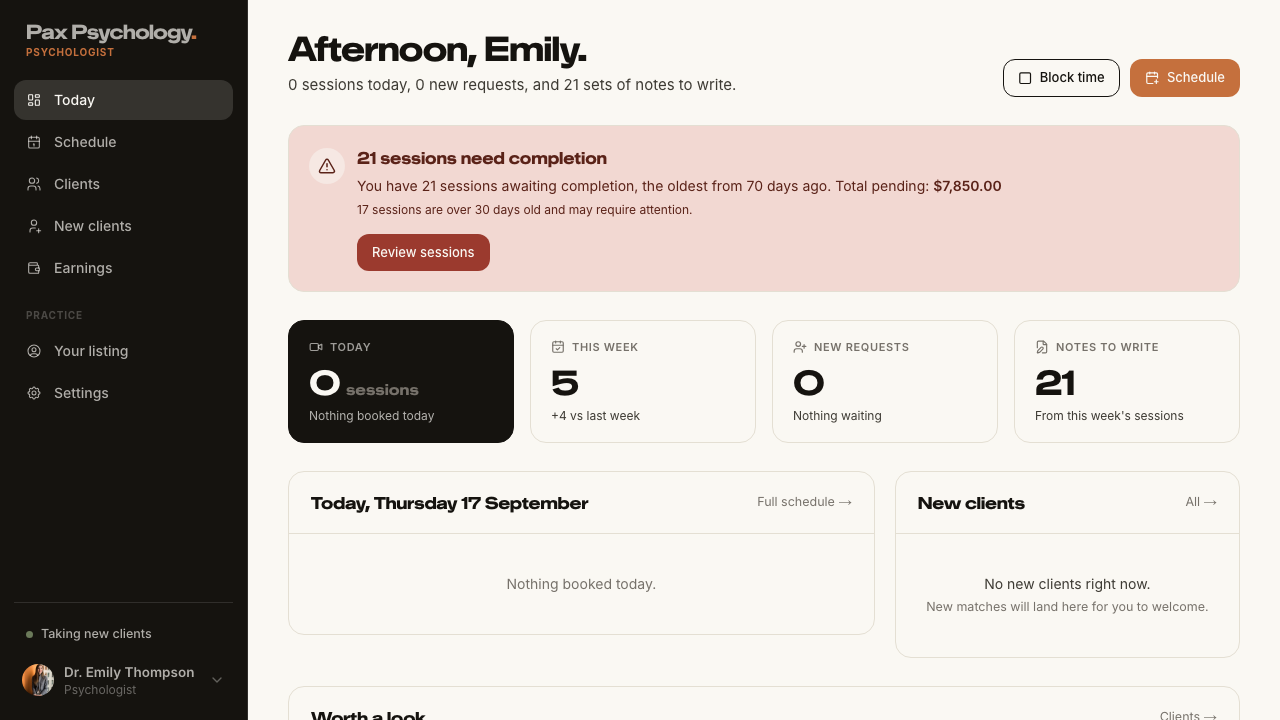
PassedTC-P-06Psychologist Today page3.1s
- 1. Navigate to https://paxpsychology.dev/dashboard
- Sidebar: Today, Schedule, Clients, New clients, Earnings, then Practice › Your listing, Settings
- H1 greeting with the sessions / requests / notes sub-line, and the Block time + Schedule buttons
- Four KPI cards: "Today", "This week", "New requests", "Notes to write"
- Two-column row: "Today, <Weekday D Month>" with "Full schedule →", and "New clients" with "All →"
- Full-width "Worth a look" panel with a "Clients →" link
- Notes: the old earnings cards, chart, weekly schedule block and Quick Actions are gone
PassedTC-P-07Pending completions alert3.0s
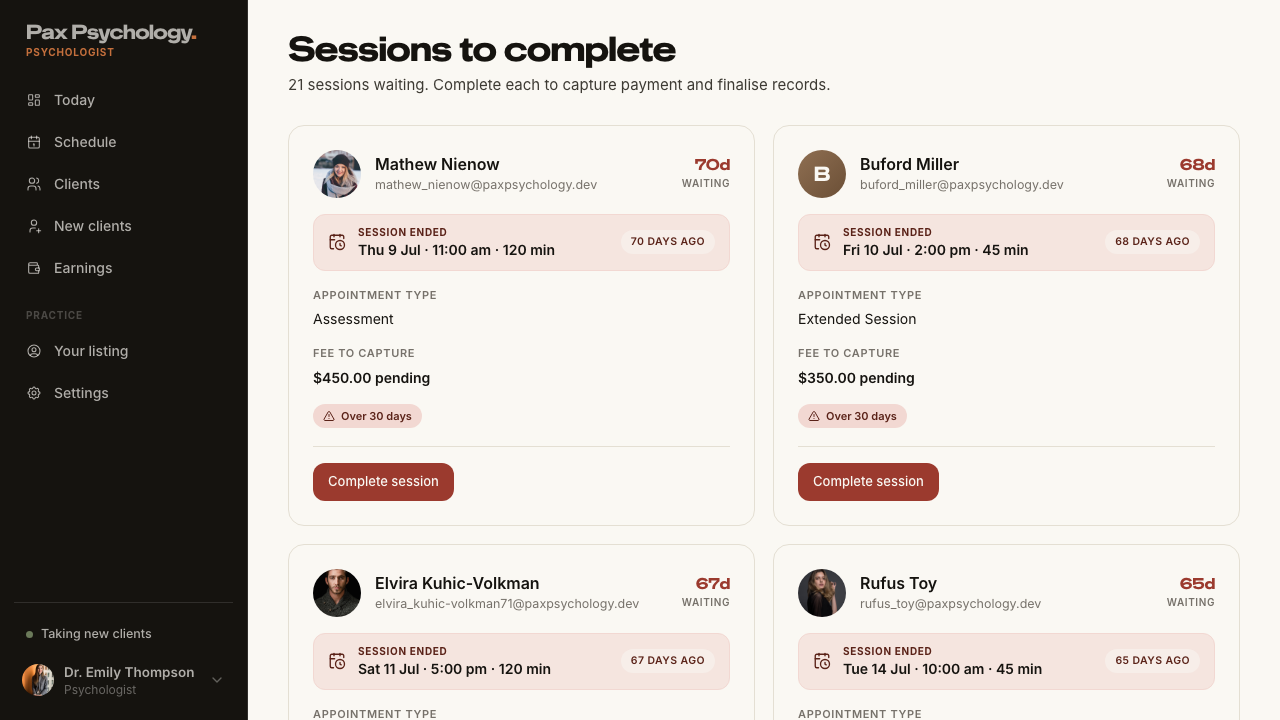
- 1. Navigate to https://paxpsychology.dev/dashboard
- The alert is headed "<n> sessions need completion" and names when the oldest was
- 2. Click "Review sessions"
2C. Schedule and Appointments
6 passed 1 other
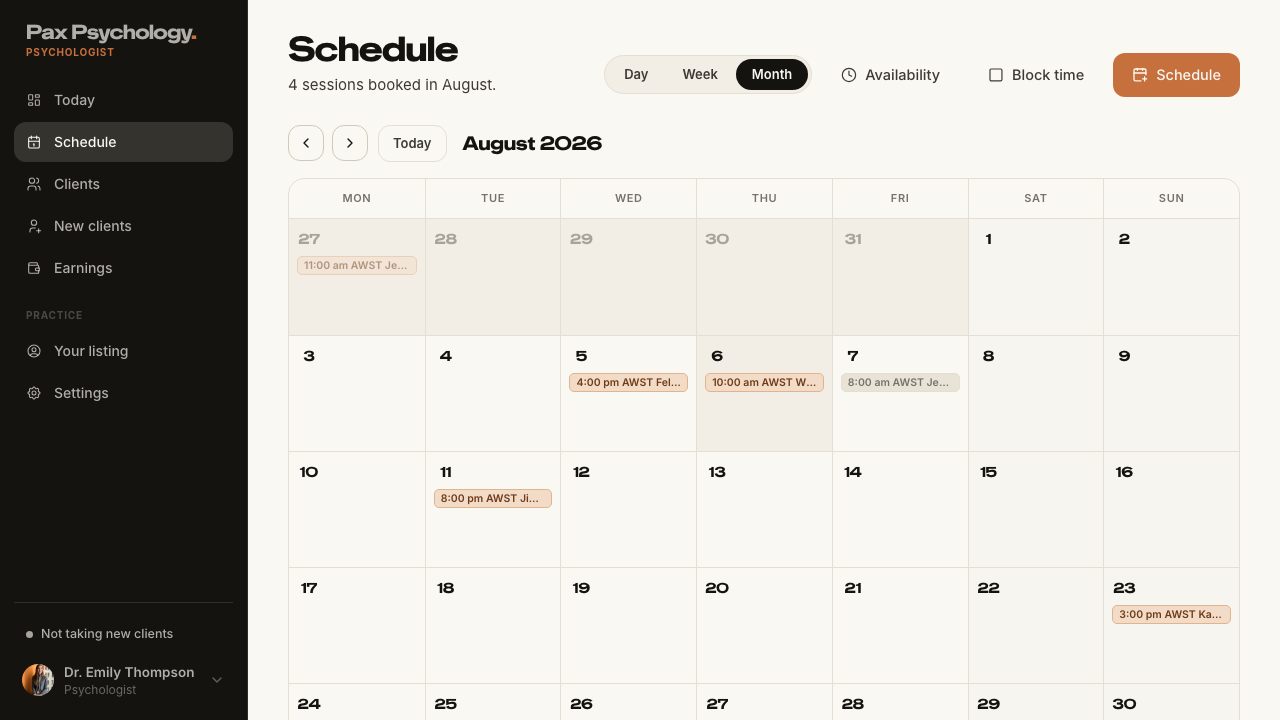
PassedTC-P-08Schedule views9.0s
- 1. Navigate to https://paxpsychology.dev/dashboard/appointments
- 2. Switch between the "Day", "Week" and "Month" segments
- 3. Use the previous / next arrows and the "Today" button
- The legend reads "Video", "Intake", "Blocked"
- 4. Click an appointment
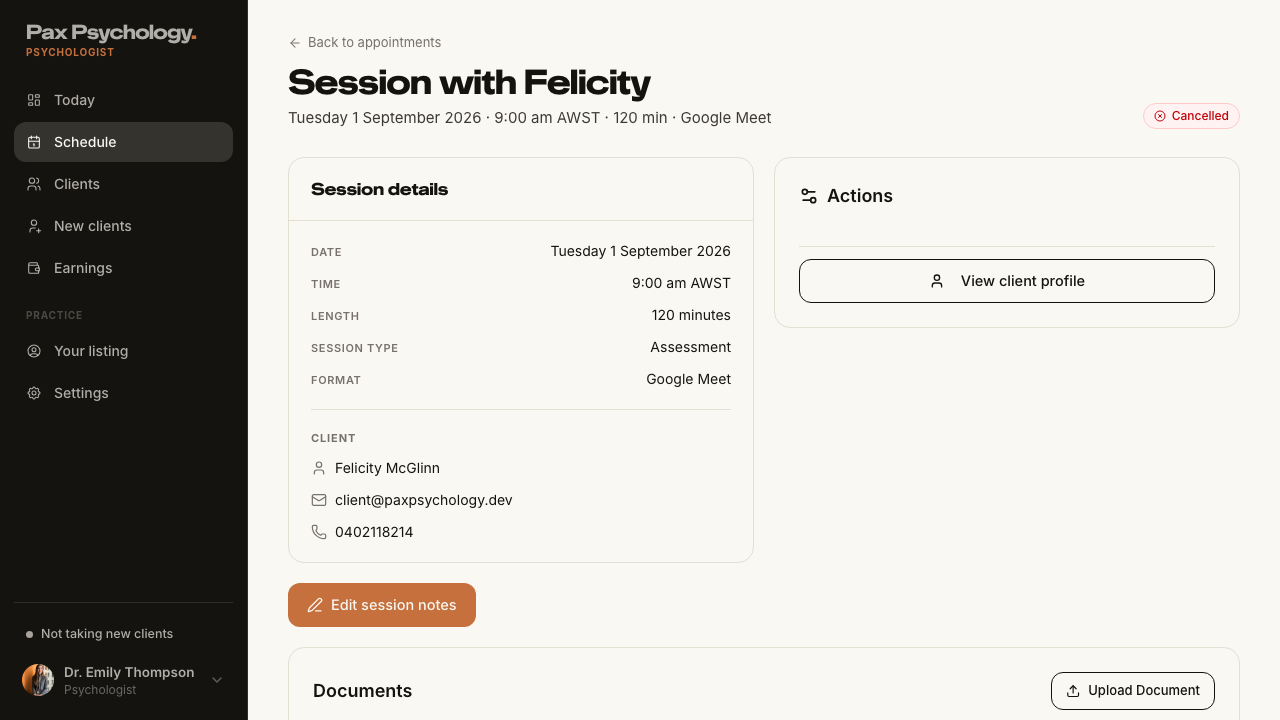
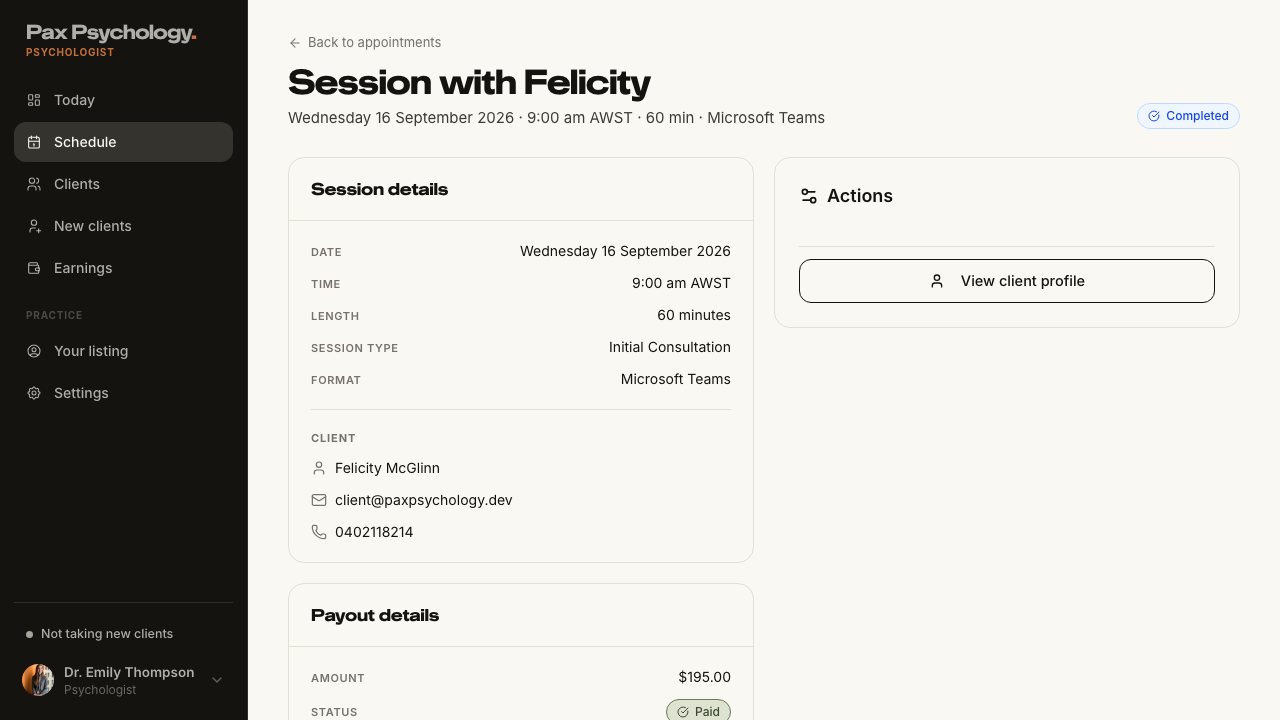
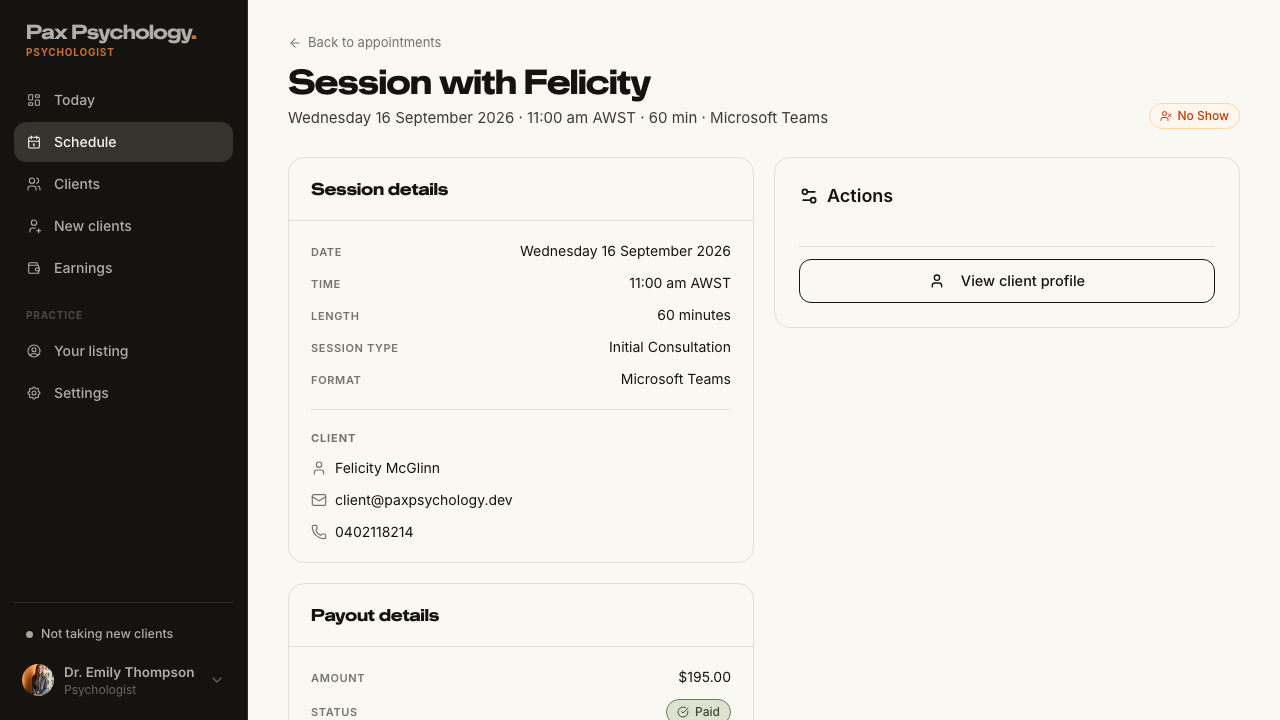
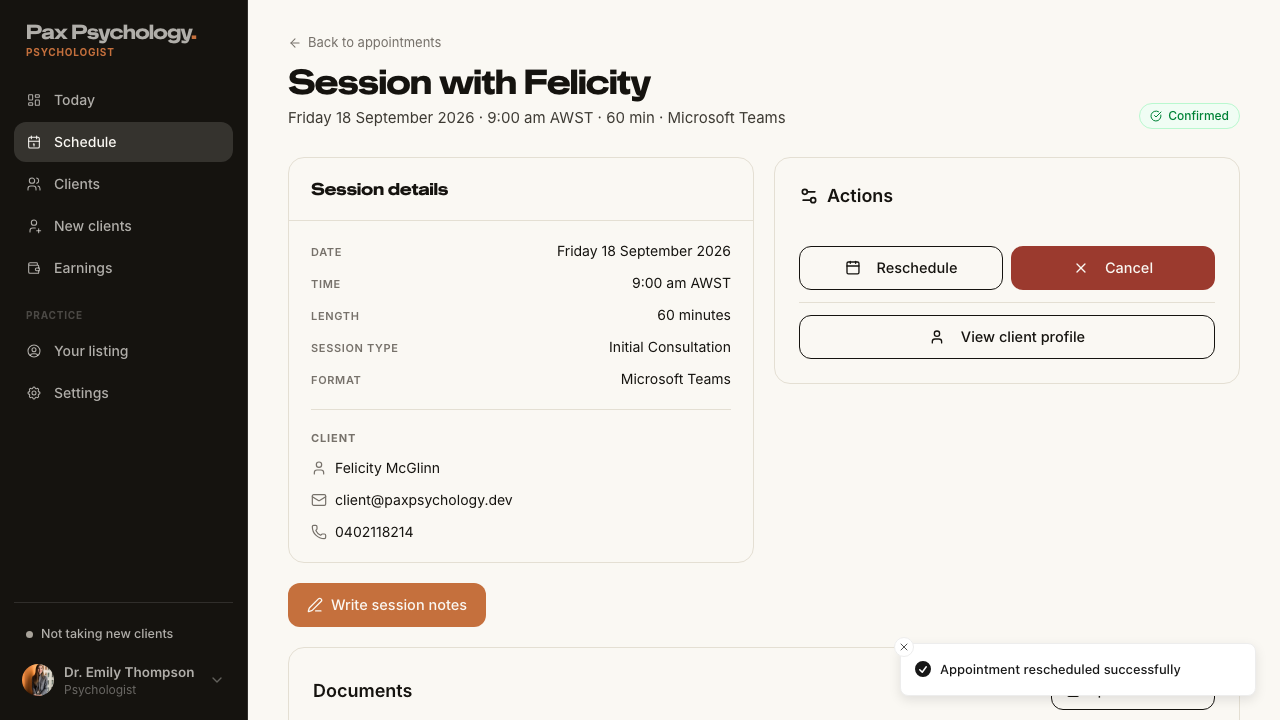
PassedTC-P-09Appointment detail (psychologist)12.8s
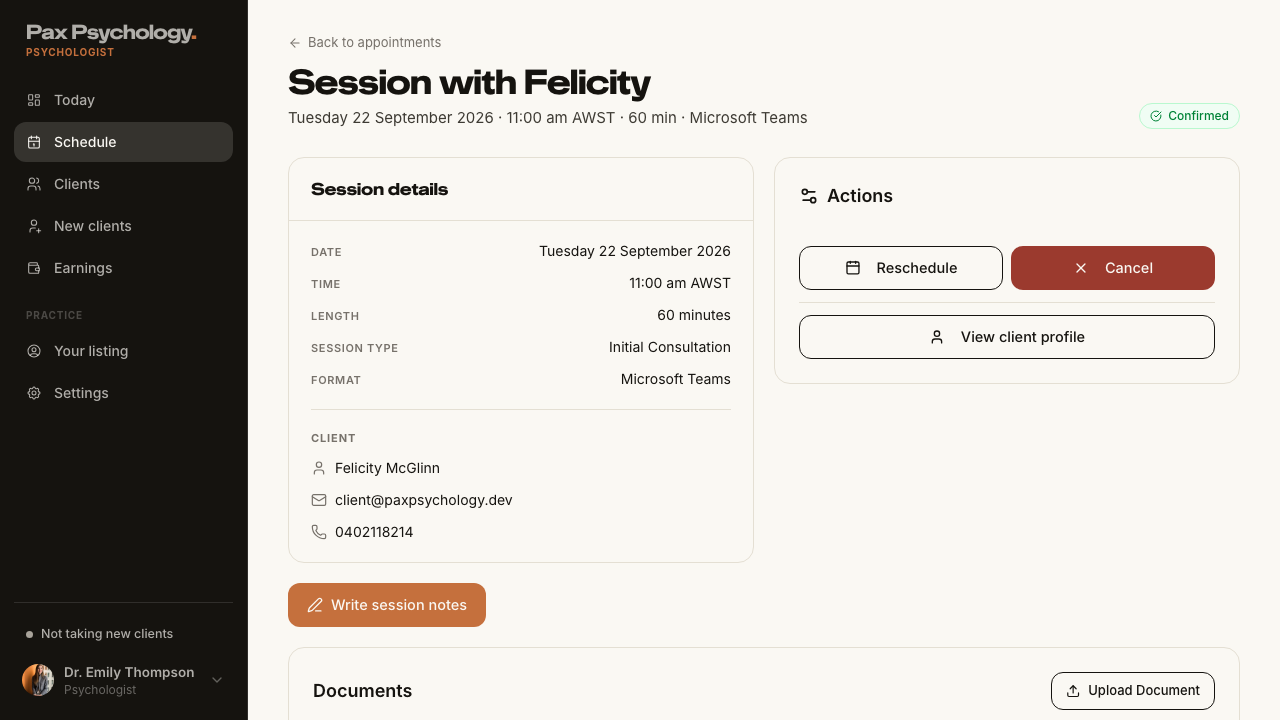
- 1. Open /dashboard/appointments/[appointmentId]
- Back link, H1 "Session with <ClientFirstName>", meta line and status pill
- Panel "Session details" with Date, Time, Length, Session type, Format and the Client block
- The referring GP is read from the client profile, with clinic and provider number
- An "Actions" card with the applicable buttons, plus "View client profile"
- "Payout details" panel, a session-notes button and a "Documents" card
PassedTC-P-10Complete an appointment (client attended)1m 11s
- Find a CONFIRMED session whose end time has passed and whose client has a saved card
- 1. Open the appointment detail page and click "Complete appointment"
- 2. Step 1 — Session Attendance. Choose "Client Attended", then "Continue"
- 3. Step 2 — Session Notes. Type notes in the textarea, then "Continue"
- 4. Step 3 — Documents. Optionally attach a file, then "Continue" (or "Skip")
- 5. Step 4 — Complete Session. Review the summary and click "Complete & Capture Payment"
- The status becomes Completed and an invoice is raised
PassedTC-P-11Mark an appointment as No-Show1m 8s
- Find another CONFIRMED session whose end time has passed, with a card on file
- 1. Click "Complete appointment"
- 2. Choose "No-Show" and read the warning, then click "Continue"
- 3. On the confirm step, click "Confirm No-Show"
- The client is charged and notified, and the session reads No Show
SkippedTC-P-27Complete an appointment for a client with no saved card (new)1m 49s
No completable session without a card on file
- Find a past CONFIRMED session whose client has no payment method on file — failed
PassedTC-P-12Reschedule an appointment9.0s
- Find an upcoming CONFIRMED appointment to reschedule
- 1. On the appointment detail page, click "Reschedule"
- 2. Pick a new date under "Select New Date", wait for slots, and pick one under "Select New Time"
- 3. Click "Confirm Reschedule"
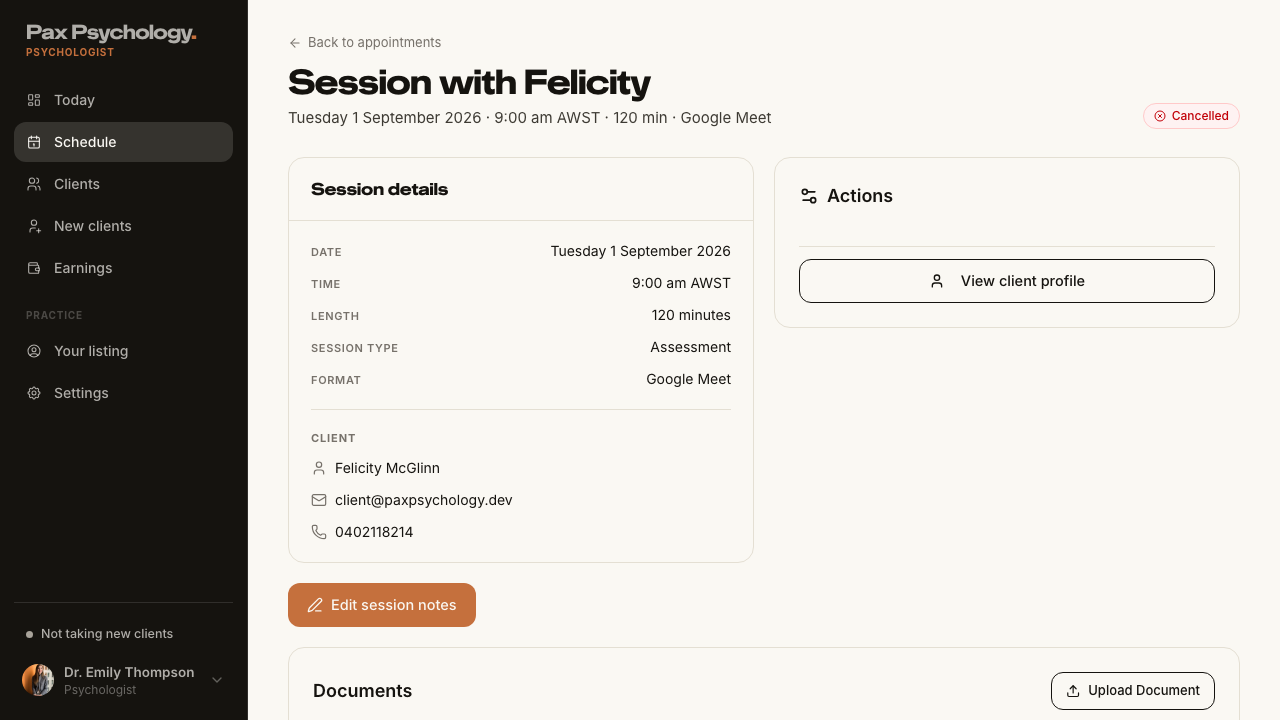
PassedTC-P-13Session Notes workspace6.1s
- Open a completed appointment
- 1. Click "Write session notes" (or "Edit session notes" if notes already exist)
- 2. Choose a template, type notes, add a note to the client and assign a reading
- 3. Click "Save notes" / "Save & send"
- Notes: the "Share notes with client" switch is retired
2D. Client Management
2 passed
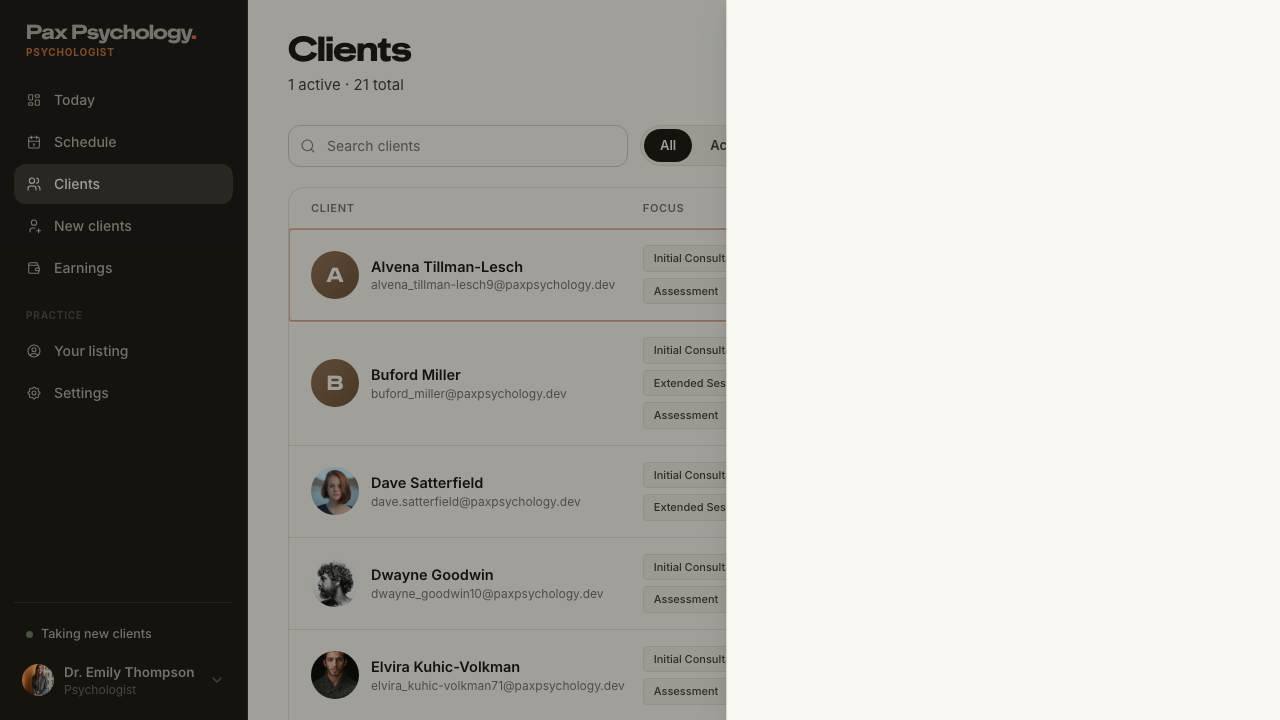
PassedTC-P-14View the clients list9.2s
- 1. Navigate to https://paxpsychology.dev/dashboard/clients
- 2. Search for a client, then try each status tab
- 3. Click a row
- Notes: the old Name / Email / Mobile / Referring Doctor columns are gone
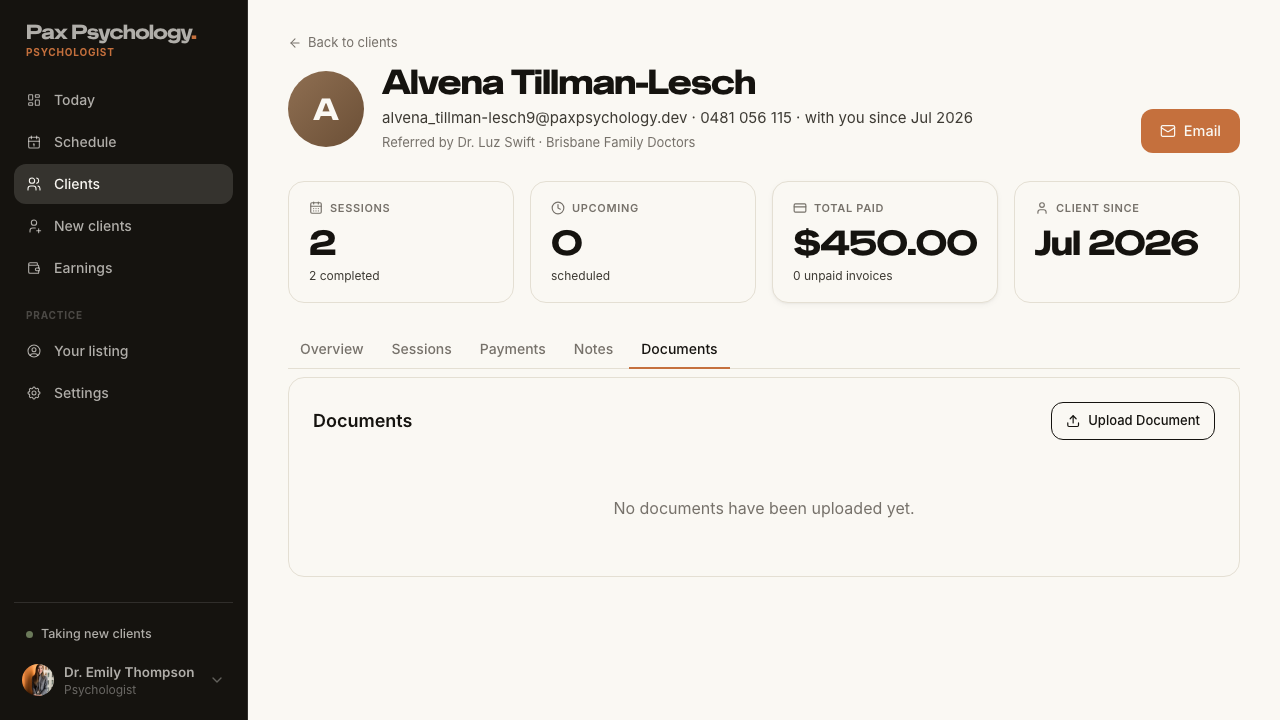
PassedTC-P-15View the client detail page6.5s
- 1. From the drawer click "View full profile"
- H1 is the client's name, with the email · mobile · with-you-since meta line
- KPI cards "Sessions", "Upcoming", "Total paid", "Client since"
- 2. Work through each tab
2E. Invoices
1 passed 1 failed
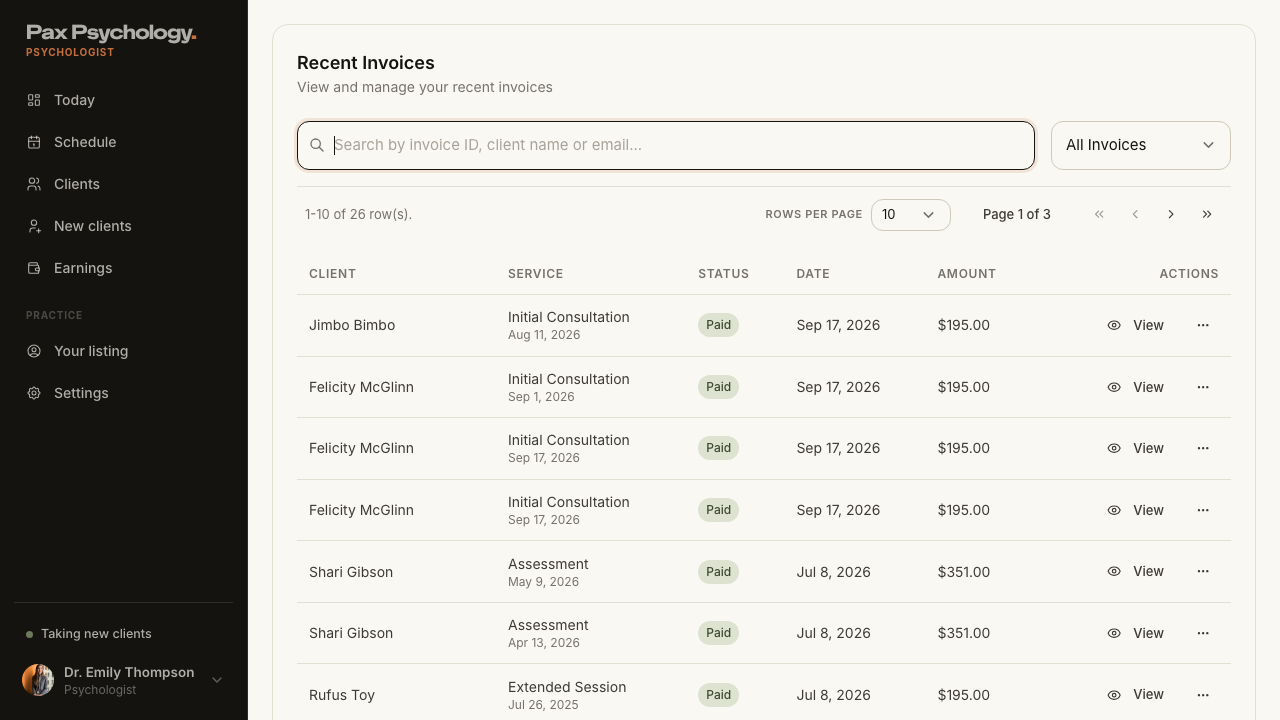
PassedTC-P-16View the psychologist invoices list9.9s
- 1. Navigate to https://paxpsychology.dev/dashboard/invoices
- 2. Search, then use the status filter
- Rows carry "View" and a "⋯" menu, and pagination appears at 10+ items
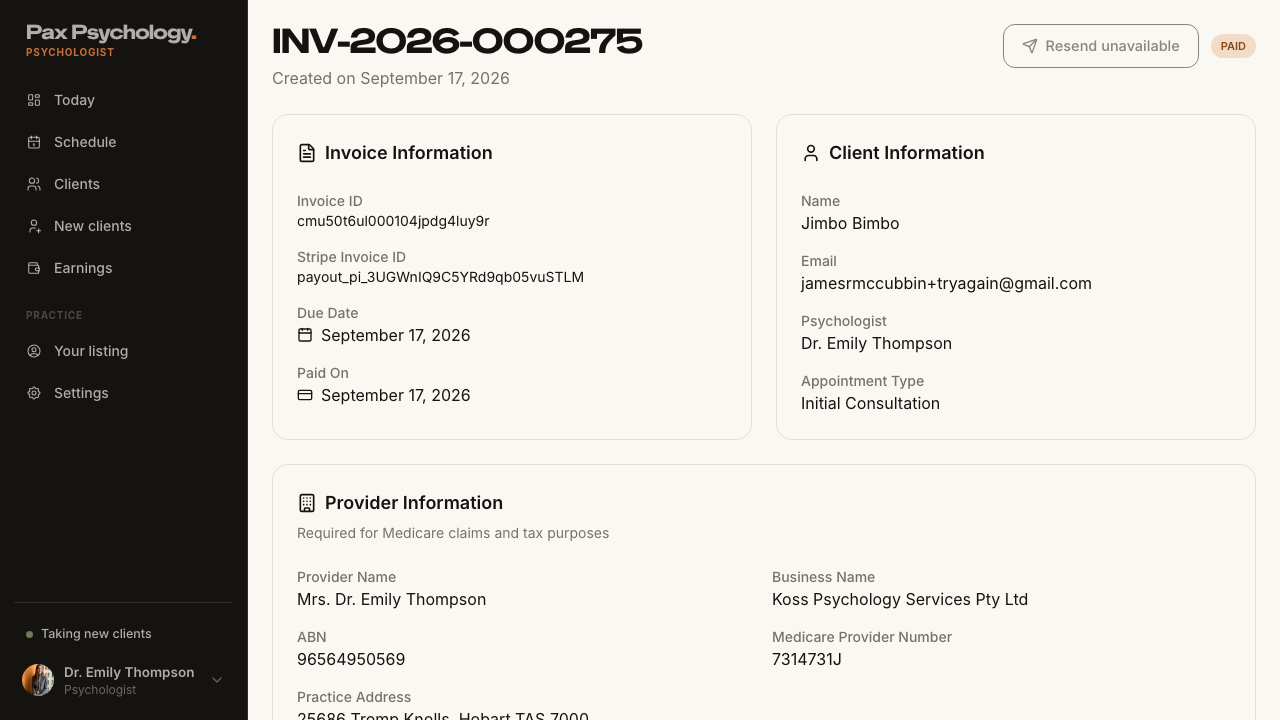
FailedTC-P-17Invoice detail and resend4.9s
- 1. From /dashboard/invoices, click "View" on an invoice
- The detail page shows the invoice number, created-on line, status pill and its cards
- 2. Click "Resend Invoice" and confirm — failed
Error: The script requires resend to work from a PAYOUT invoice, not just a client one. Every PsychologistInvoice.stripeInvoiceId is written as `payout_<client invoice id>`, and isRealStripeInvoiceId() only accepts ids starting `in_`, so the button is permanently disabled as 'Resend unavailable' on every payout invoice.

expect(received).toBe(expected) // Object.is equality

Expected: false
Received: true
2F. Settings
3 passed 1 failed 2 manual
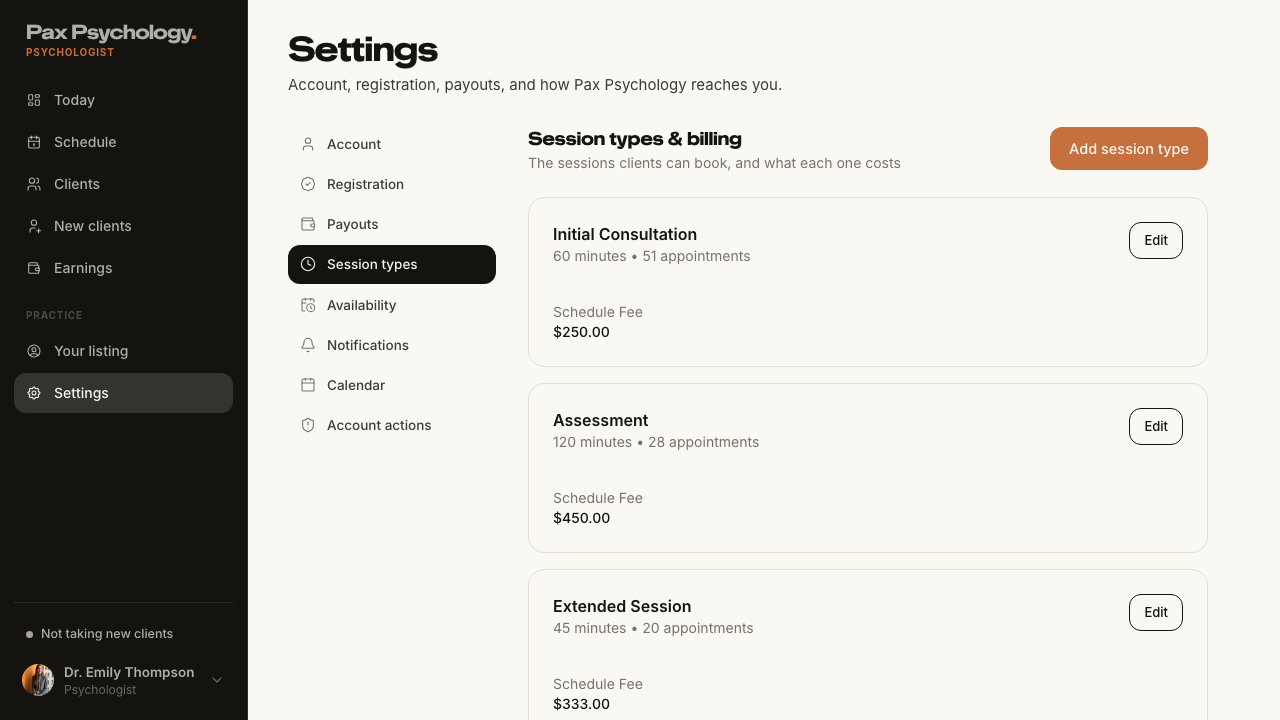
PassedTC-P-18Edit a session type8.7s
- 1. Navigate to /dashboard/settings?section=appointment-types
- 2. Click "Edit" on a session type
- 3. Change the Schedule Fee to 250.00, the Duration to 1 hour, and the Description
- 4. Click "Update appointment type"
- "Cancel" returns to /dashboard/settings?section=appointment-types
ManualTC-P-19Connect a calendar3.4s
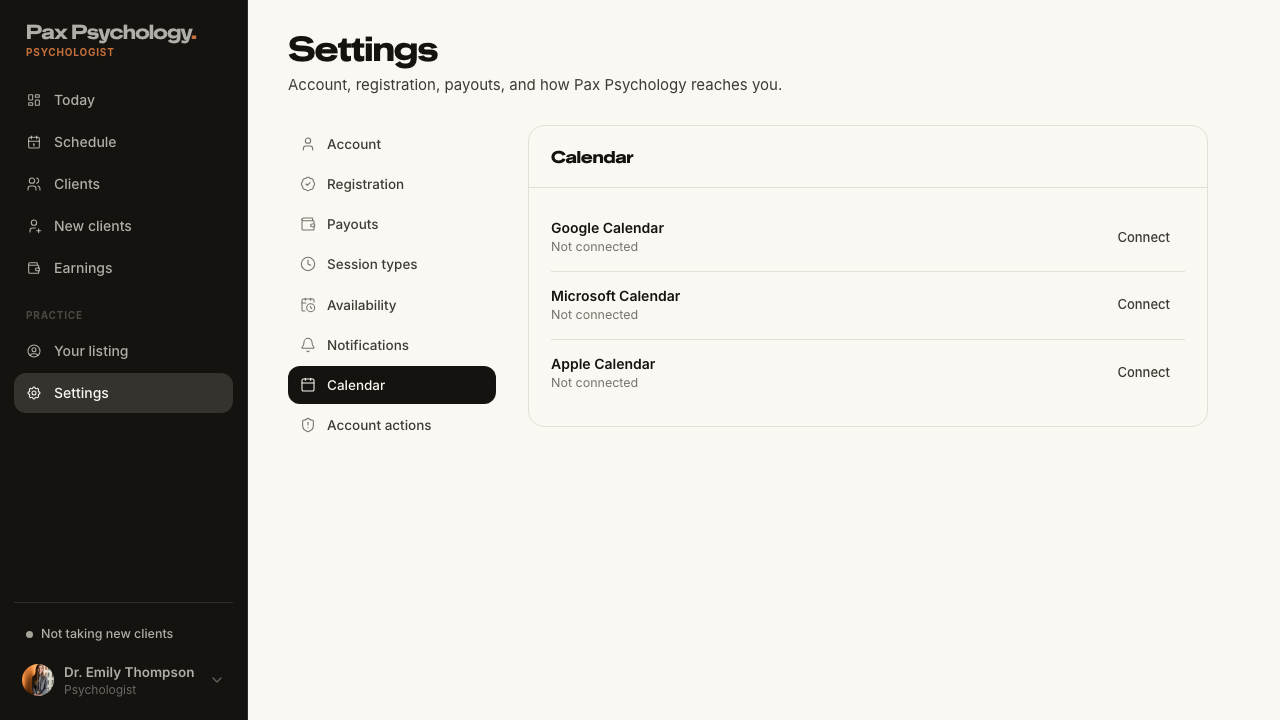
Steps 2–3 leave Pax: 'Connect' redirects to Google's (or Microsoft's) hosted OAuth consent screen, which needs real credentials and a second factor and cannot be driven from a test browser. The Pax side — the provider rows, their state copy and the Connect/Disconnect buttons — is checked below; a reviewer grants consent by hand and then confirms the toast 'Google Calendar connected successfully!' and the row flipping to 'Connected · two-way sync of sessions and blocks'.
- 1. Navigate to https://paxpsychology.dev/dashboard/settings?section=calendar
- The panel lists Google Calendar, Microsoft Calendar and Apple Calendar with their state and action
- 2.–3. Click "Connect" next to Google Calendar, complete OAuth, return to Pax — MANUAL
- 4. Click "Disconnect" — MANUAL (only meaningful once a provider is connected)
- Notes: /dashboard/settings/calendars redirects here
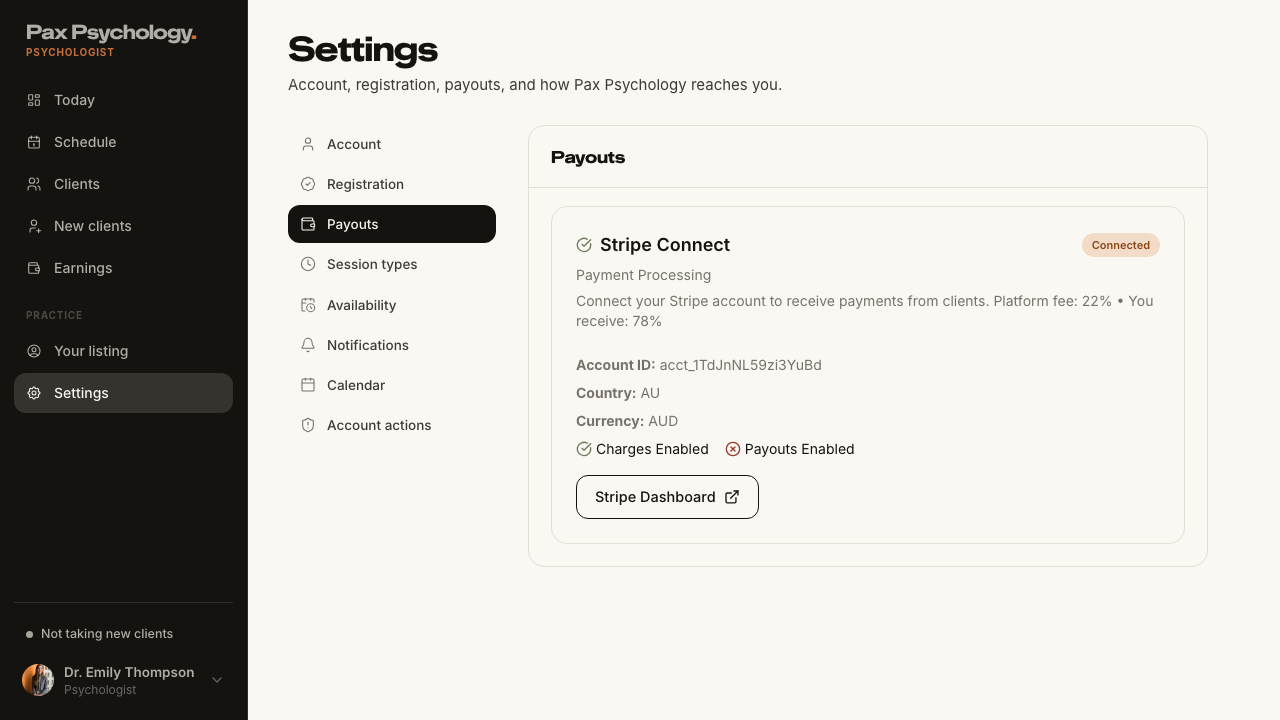
ManualTC-P-20Open the Stripe Express dashboard4.2s
The last hop of step 2 leaves Pax: 'Stripe Dashboard' mints a one-time Express login link and opens connect.stripe.com, which is Stripe's own product and cannot be asserted from here. Everything Pax renders — the 'Connected' badge, the Account ID / Country / Currency rows, the Charges Enabled / Payouts Enabled flags and the button itself — is checked below.
- 1. Navigate to /dashboard/settings?section=payouts
- The card shows the "Connected" badge, the account rows and both enabled flags
- 2. Click "Stripe Dashboard" — the button opens the Stripe Express dashboard (hosted hop is MANUAL)
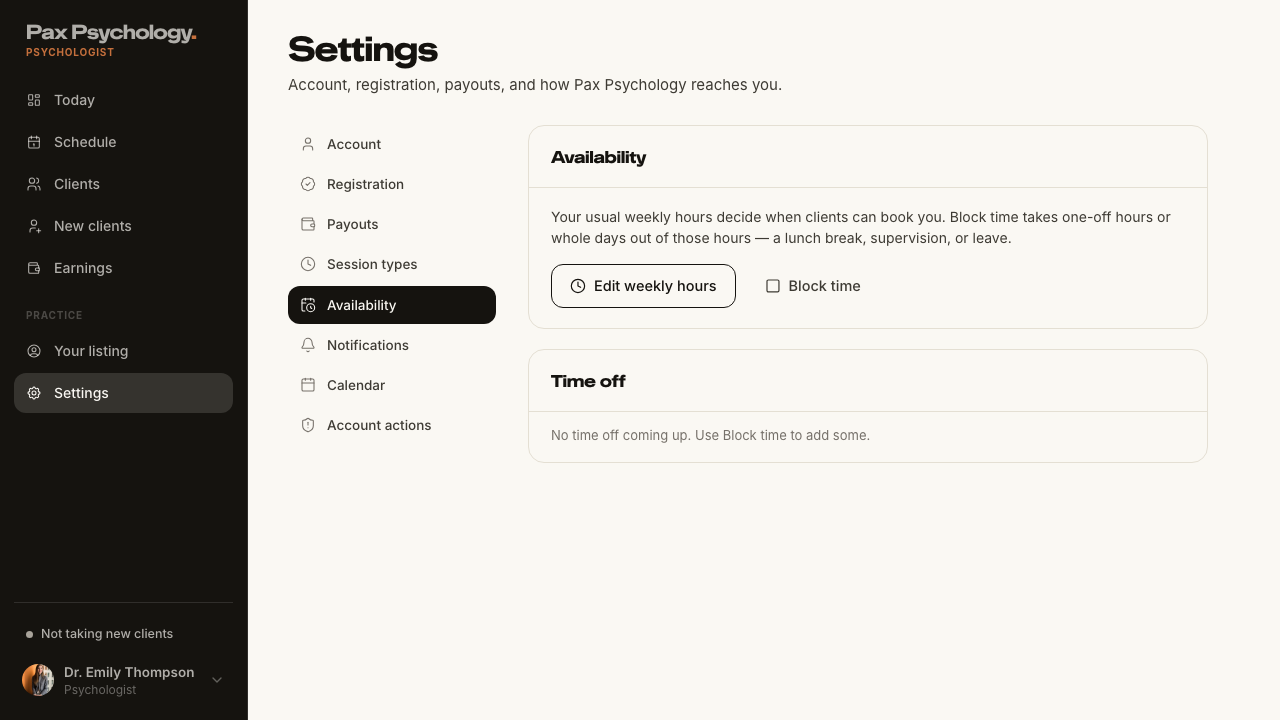
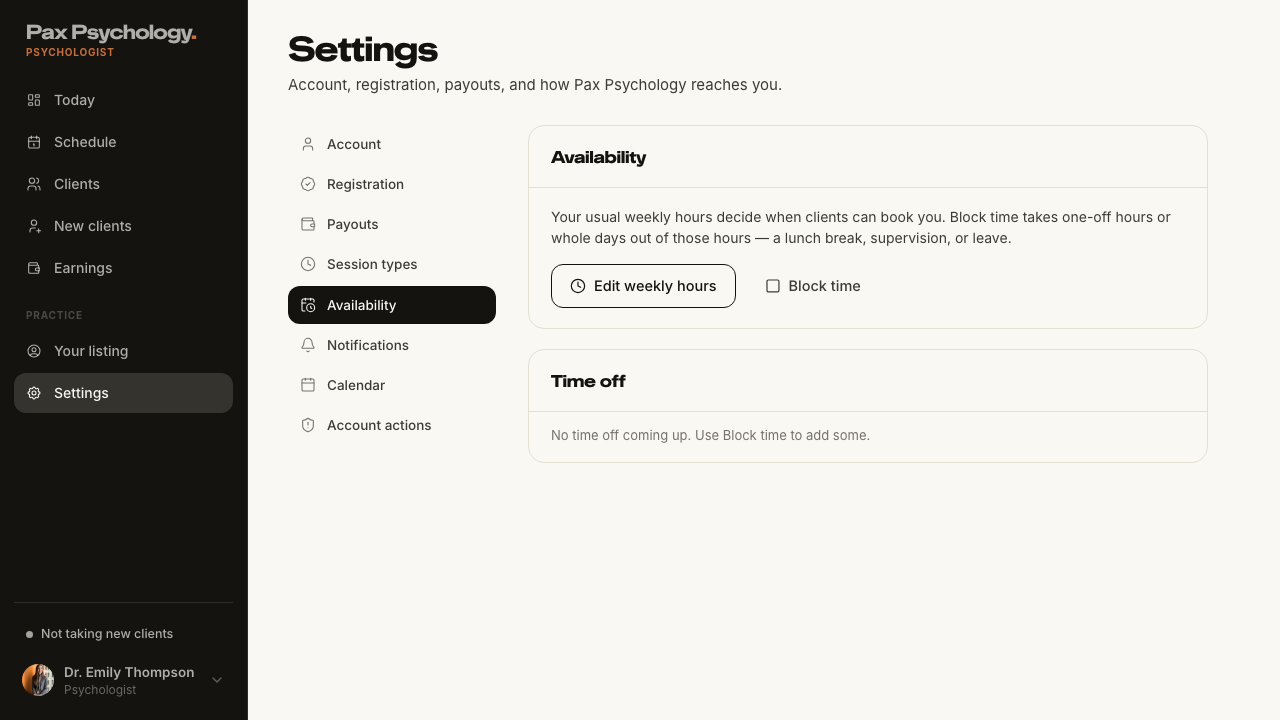
PassedTC-P-21Settings › Availability (new)7.4s
- 1. Navigate to https://paxpsychology.dev/dashboard/settings?section=availability
- 2. Click "Edit weekly hours", change something and save
- 3. Close, then click "Block time" and add a block
- 4. Check the "Time off" panel and delete an entry
- Notes: /dashboard/settings/availability 307-redirects here
PassedTC-P-22Legacy settings URLs redirect (new)10.7s
- Visit /dashboard/settings/availability and note where you land
- Visit /dashboard/settings/profile and note where you land
- Visit /dashboard/settings/billing and note where you land
- Visit /dashboard/settings/payments and note where you land
- Visit /dashboard/settings/payment-methods and note where you land
- Visit /dashboard/settings/calendars and note where you land
- Visit /dashboard/settings/notifications and note where you land
- Visit /dashboard/settings/appointment-types and note where you land
- Notes: appointment-types/add and appointment-types/[id] are real pages and must NOT redirect
FailedTC-P-23Account actions — pause and resume the listing (new)14.1s
- 1. Navigate to /dashboard/settings?section=actions
- 2. Click "Pause"
- 3. Check /psychologists in a signed-out window
- 4. Return and click "Resume"
Error: a paused psychologist should not appear in the public directory

expect(locator).toHaveCount(expected) failed

Locator:  getByText('Emily Thompson').first()
Expected: 0
Received: 1
Timeout:  5000ms

Call log:
  - a paused psychologist should not appear in the public directory with timeout 5000ms
  - waiting for getByText('Emily Thompson').first()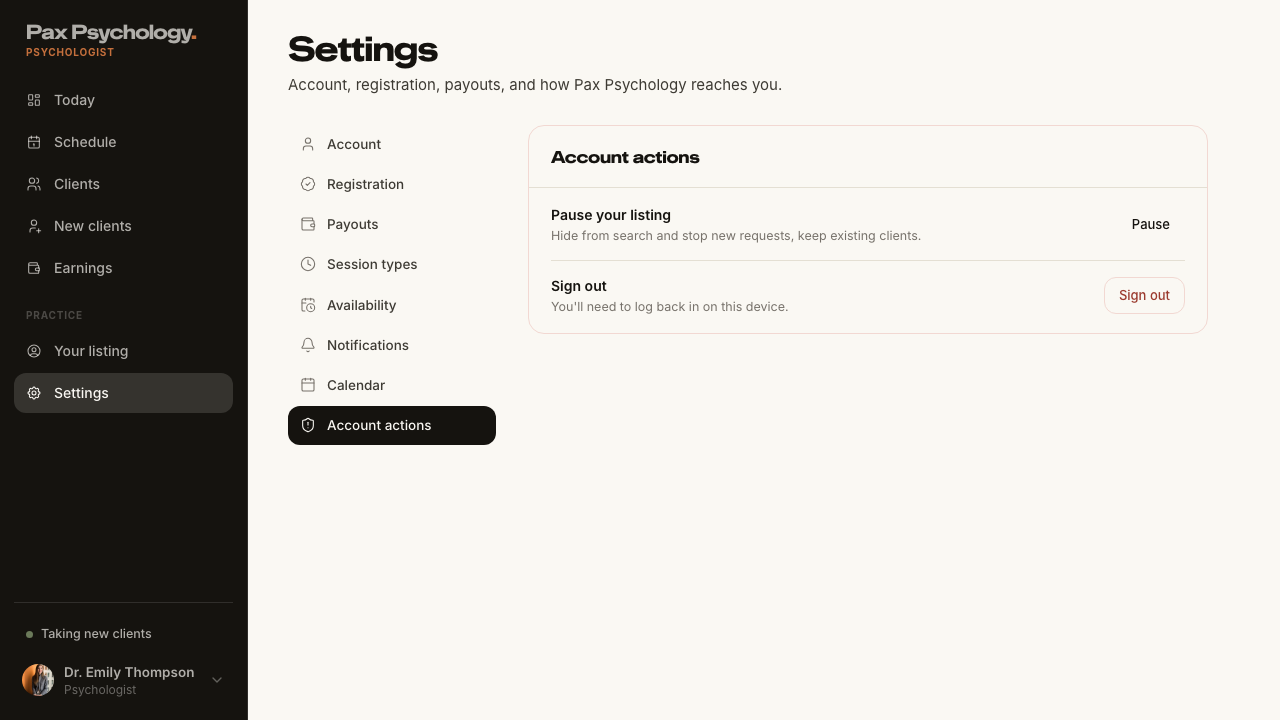
2G. New surfaces
2 passed 1 other
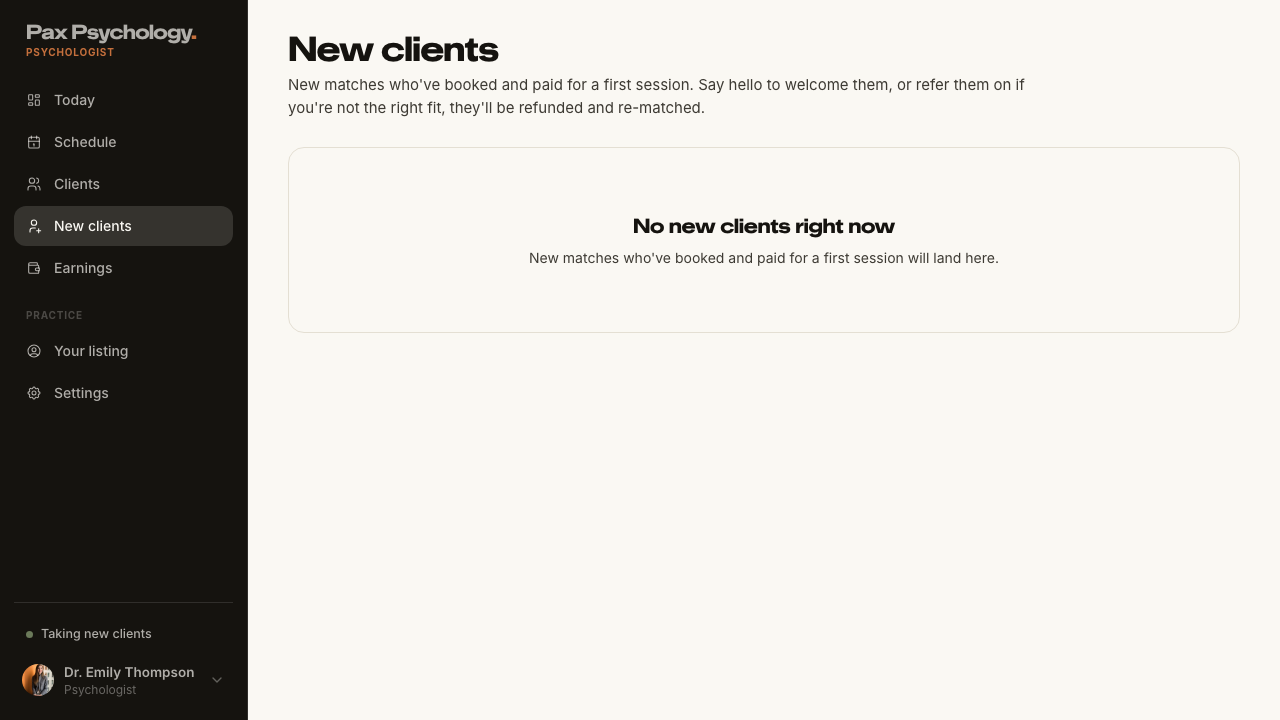
SkippedTC-P-24New clients queue (new)2.6s
No inbound match request in the queue
- 1. Navigate to https://paxpsychology.dev/dashboard/new-clients
- The queue lists requests, or shows its empty state — failed
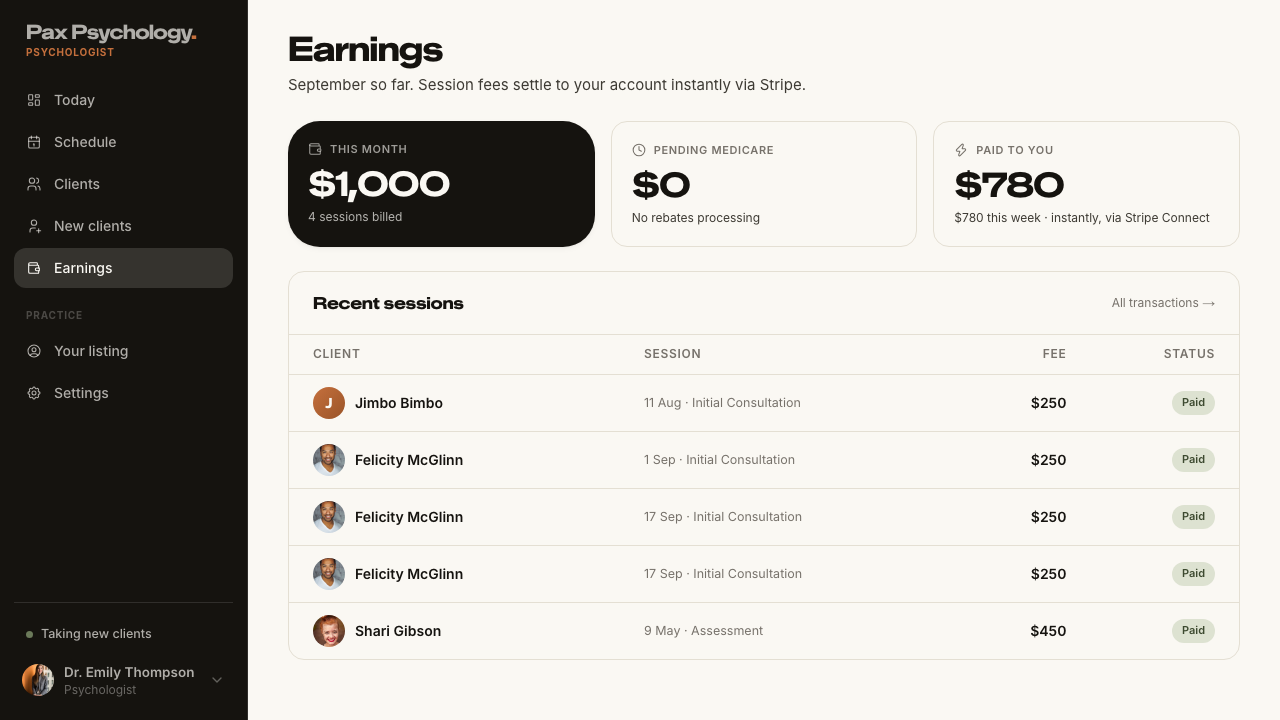
PassedTC-P-25Earnings (new)6.4s
- 1. Navigate to https://paxpsychology.dev/dashboard/earnings
- H1 Earnings with the month sub-line and the KPI tiles
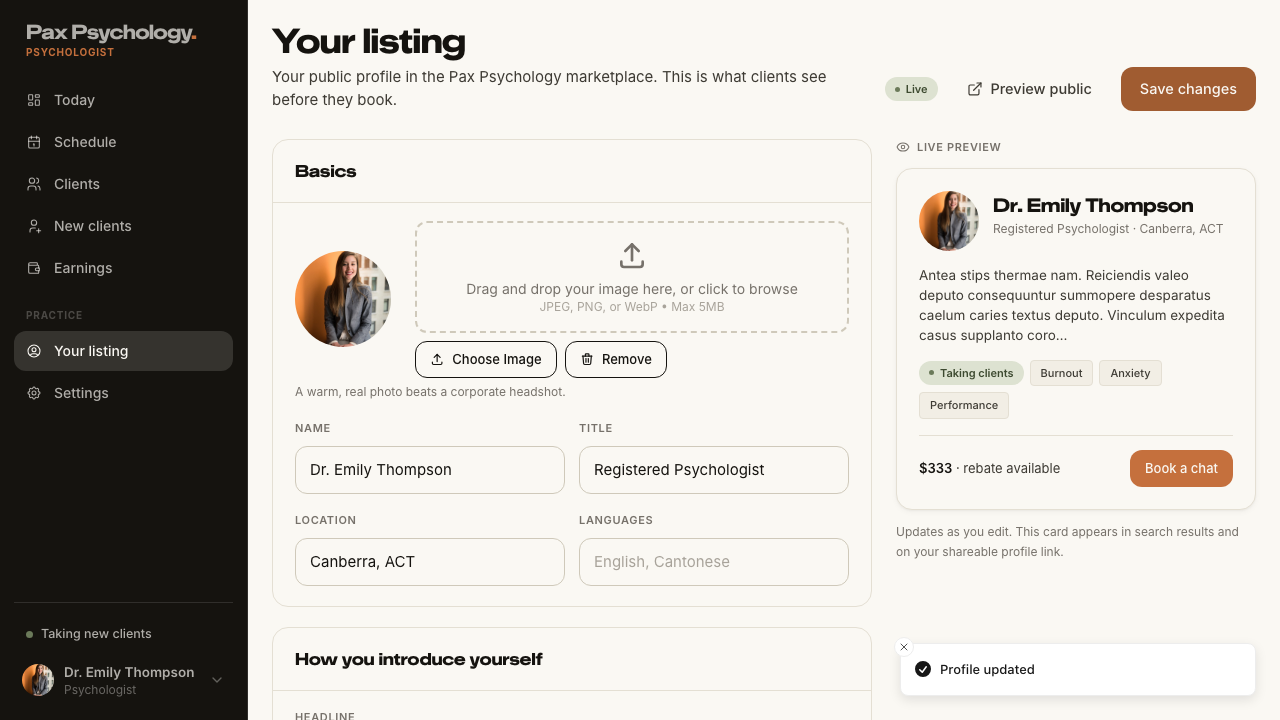
PassedTC-P-26Your listing (new)5.4s
- 1. Navigate to https://paxpsychology.dev/dashboard/listing
- 2. Edit the public-profile fields and save
- 3. Open /psychologists/[username] in a signed-out window
- Restore the original location
Admin
21 cases18 passed 1 failed 2 other
3A. Dashboard
1 passed
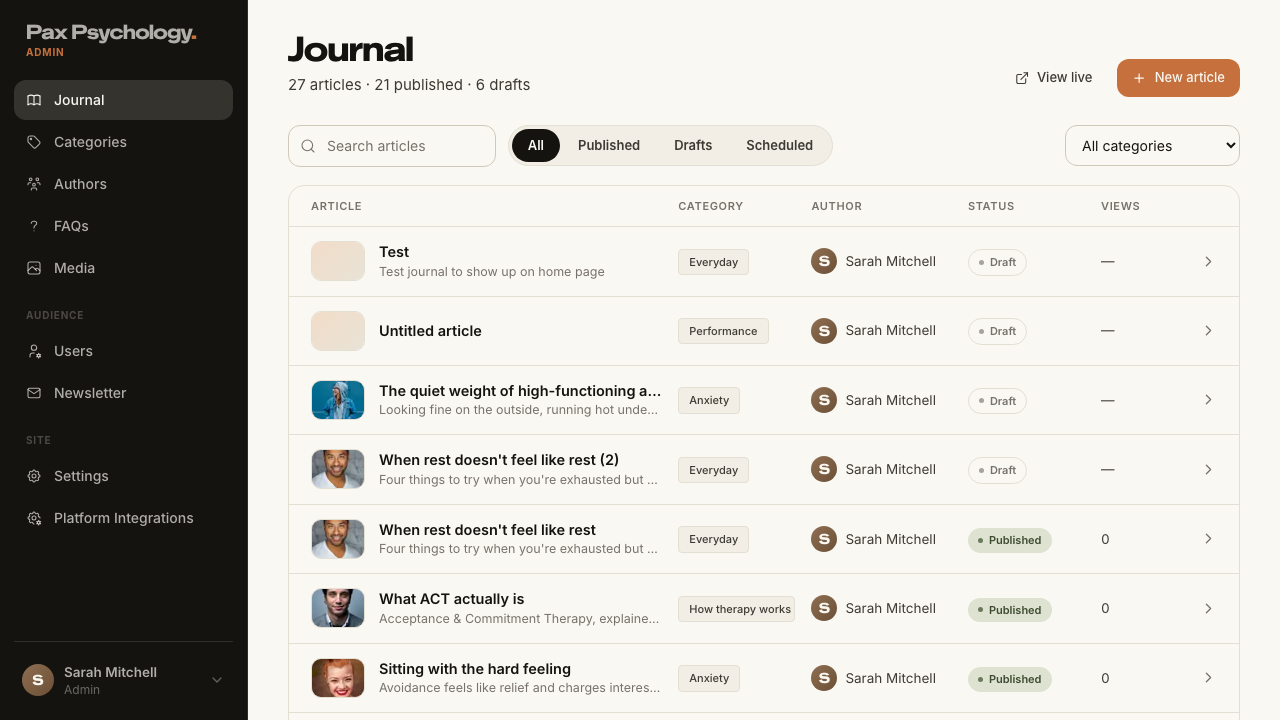
PassedTC-A-01Admin landing page7.9s
- 1. Navigate to https://paxpsychology.dev/dashboard
- Expected: the sidebar shows the admin nav and the 'Admin' role tag
- Expected: the old admin overview has been removed
3B. User Management
8 passed
PassedTC-A-02View all users10.1s
- 1. Navigate to https://paxpsychology.dev/dashboard/users
- 2. Search by name, then by email
- 3. Try each role tab
- 4. Click a row
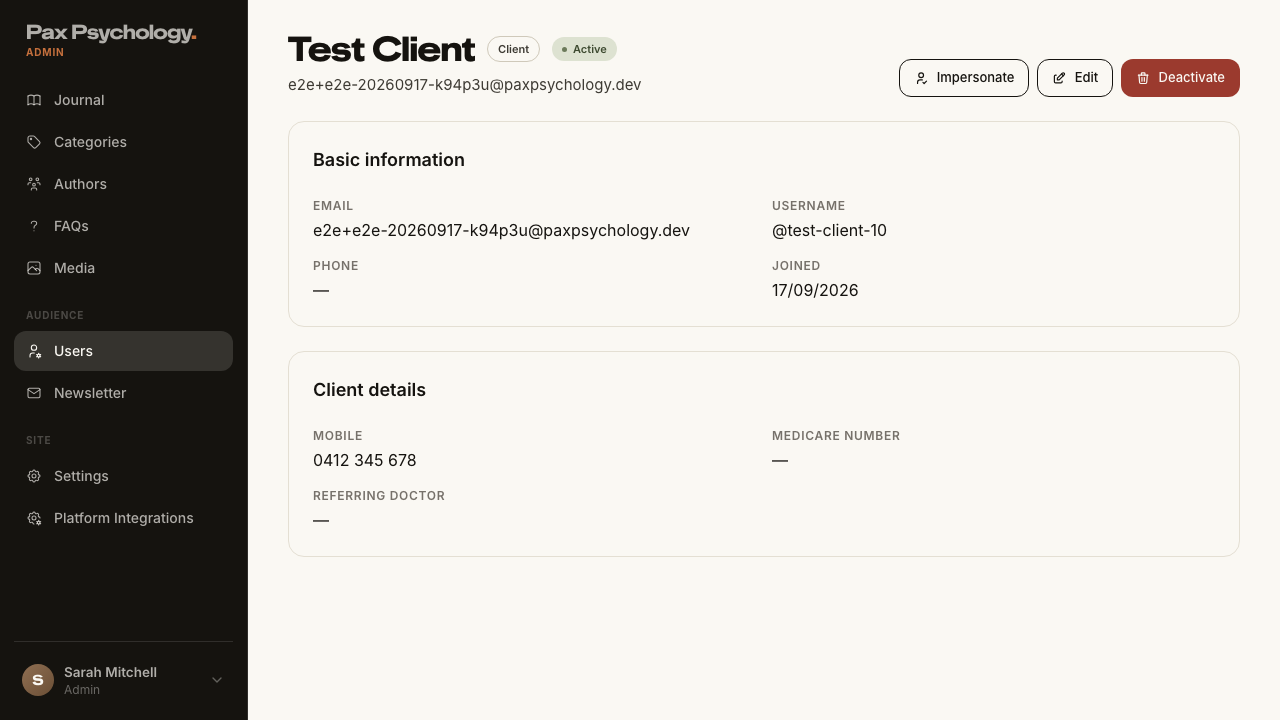
PassedTC-A-03Create a new CLIENT user8.5s
- 1. Navigate to https://paxpsychology.dev/dashboard/users/add
- 2. Choose the "Client" role card
- 3. Fill in the details, using a deliberately mixed-case email, and leave Password blank
- 4. Click "Create client"
- 5. Open the new user's detail page and check the stored email
- Expected: the same address in different casing is rejected as a duplicate
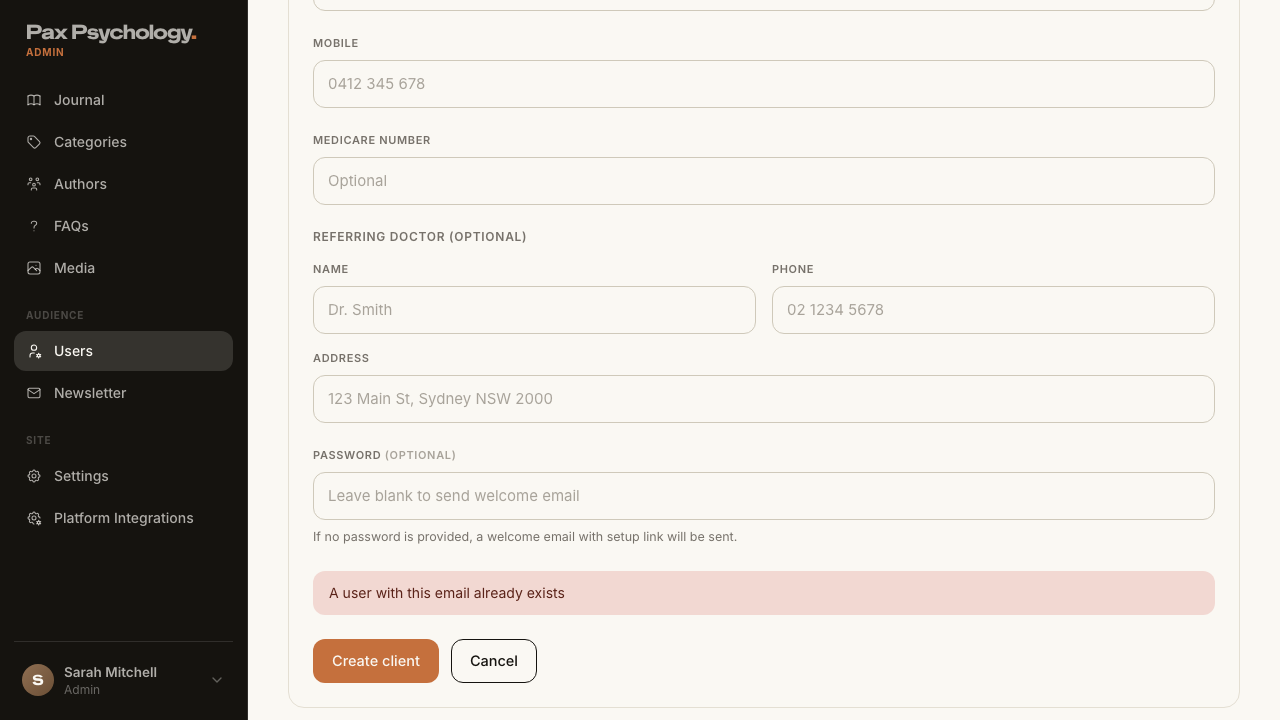
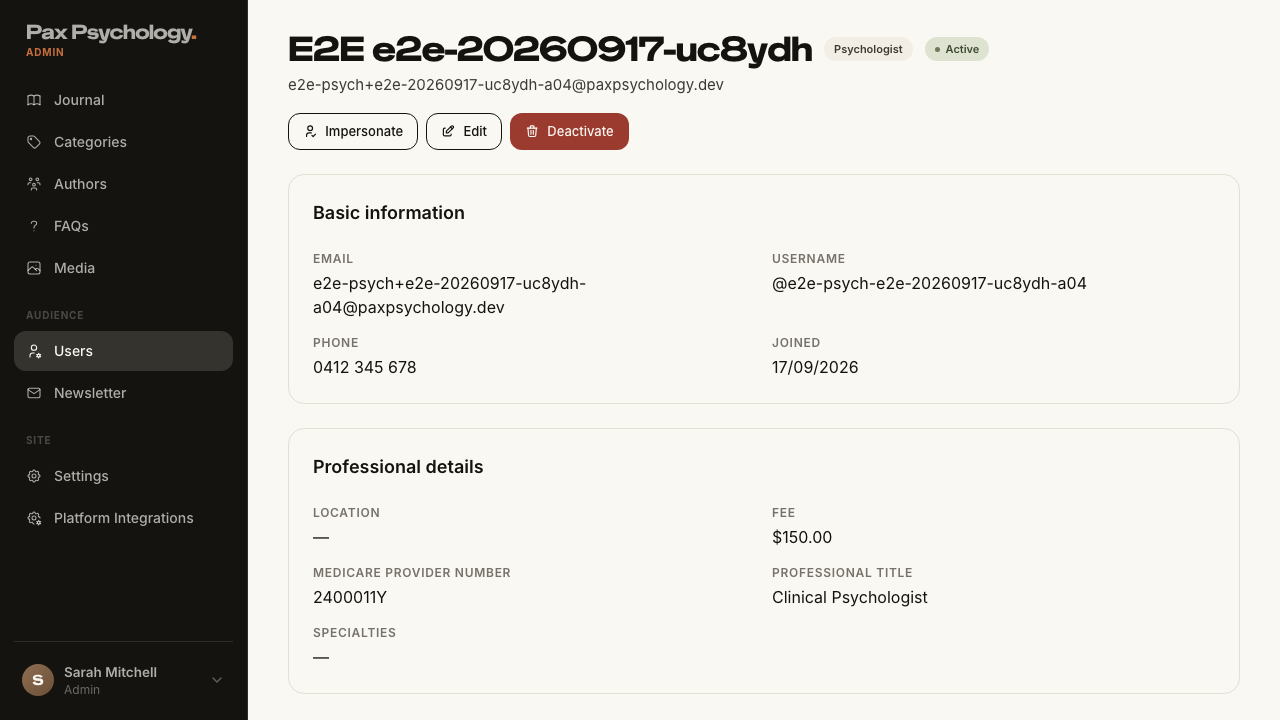
PassedTC-A-04Create a new PSYCHOLOGIST user (and the welcome email)7.1s
- 1. Navigate to /dashboard/users/add and choose "Psychologist"
- 2. Fill the form (name, email, username, professional details) and submit, leaving the password blank
- Expected: the psychologist appears in the list with the "Psychologist" role tag and a lower-cased email
- Manual: open the welcome email and follow 'Set your password & get started'
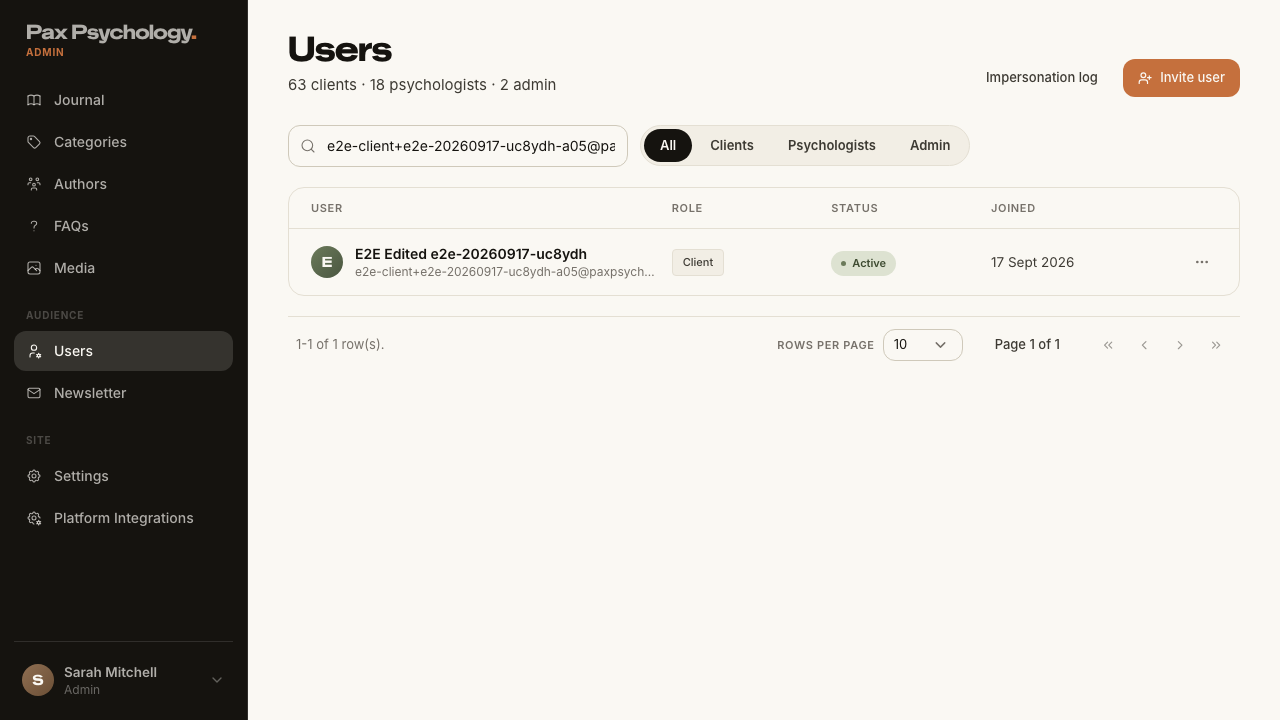
PassedTC-A-05Edit an existing user8.6s
- Setup: create a throwaway client to edit
- 1. Open a user's detail page and click "Edit"
- 2. Update the name and save
- Expected: the change appears in the users list
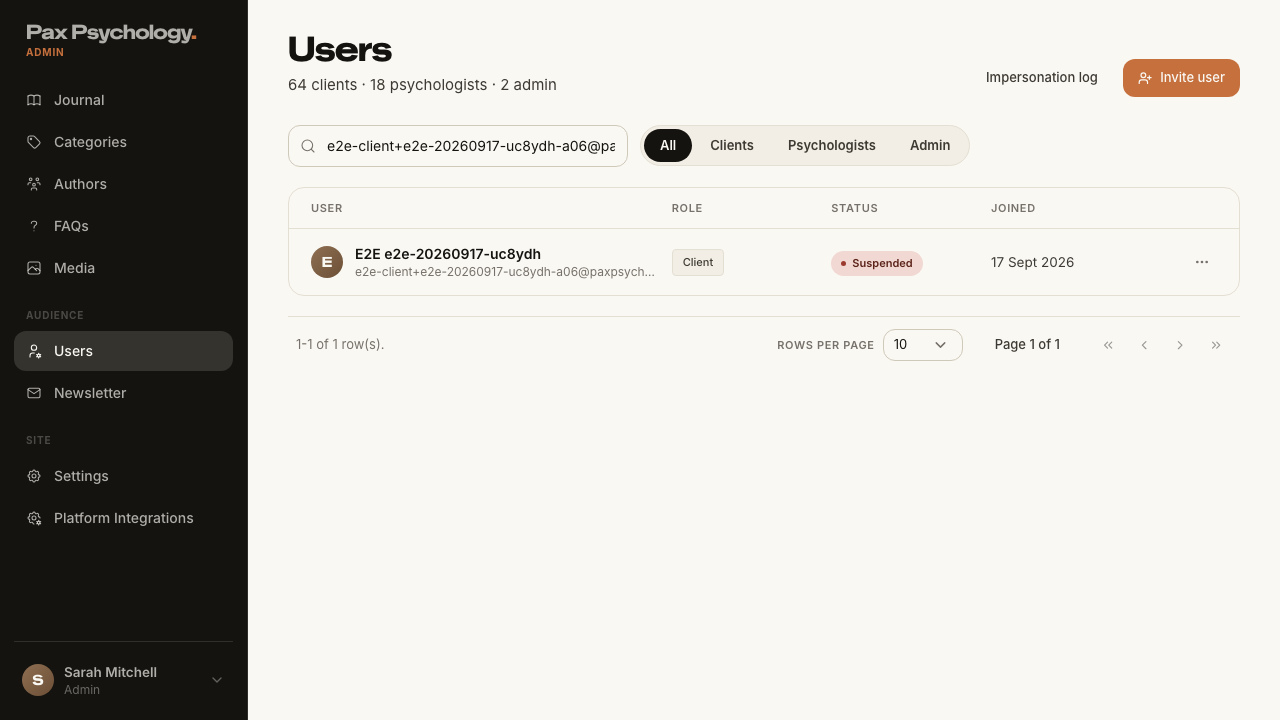
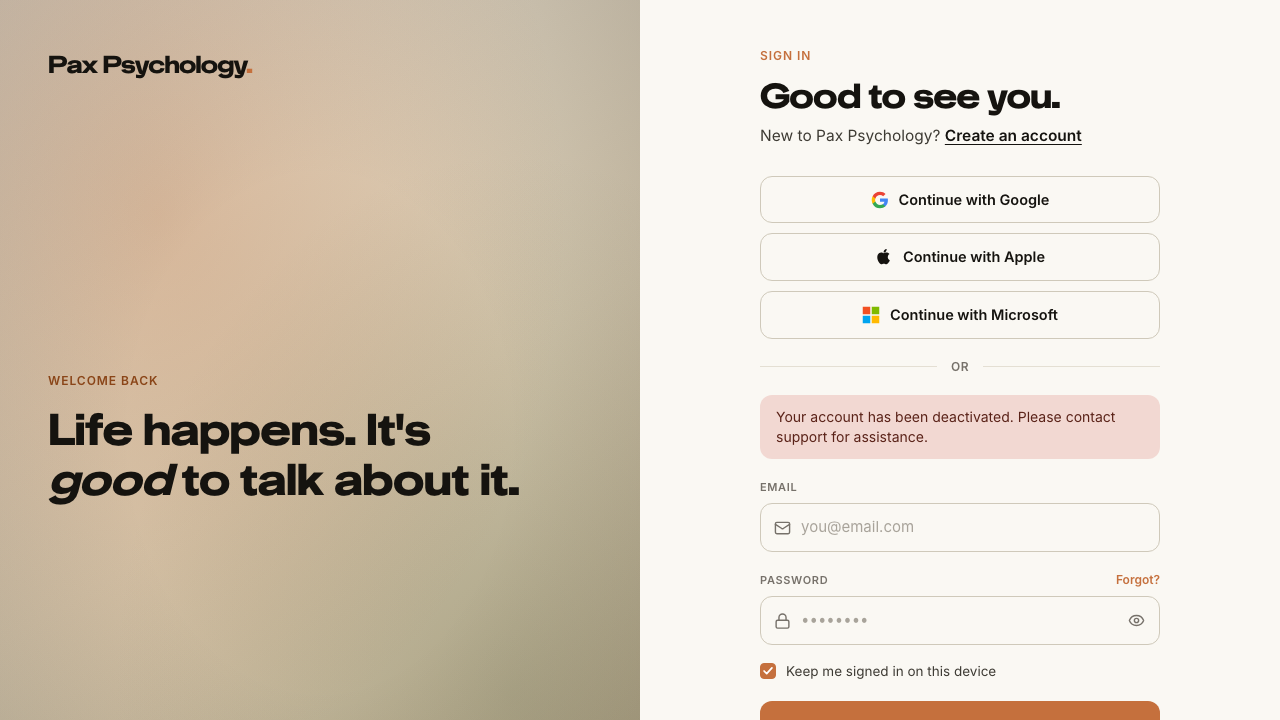
PassedTC-A-06Deactivate a user9.7s
- Setup: create a throwaway client (with a password) to deactivate
- 1. Open the user's detail page and click "Deactivate"
- 2. Read the confirmation page and click "Deactivate user"
- 3. Try to sign in as that user
PassedTC-A-07Impersonate a client12.1s
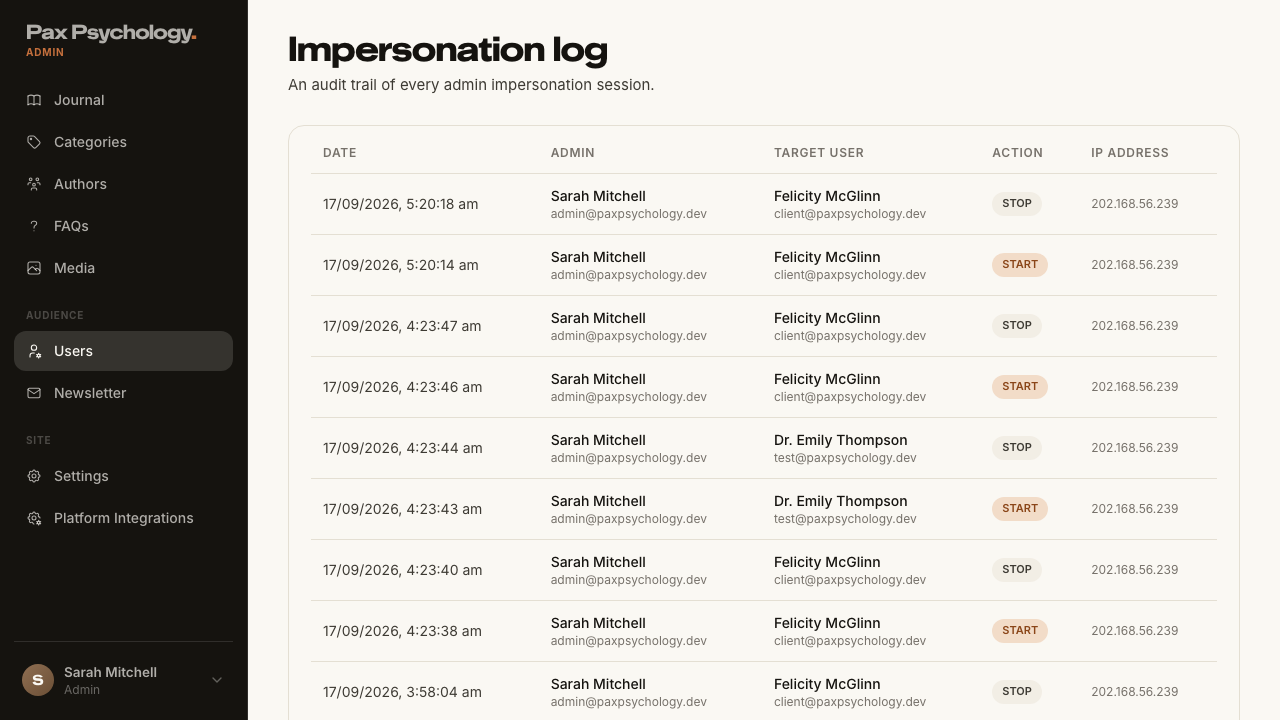
- 1. From /dashboard/users, open a CLIENT user and click "Impersonate"
- 2. Move around the dashboard
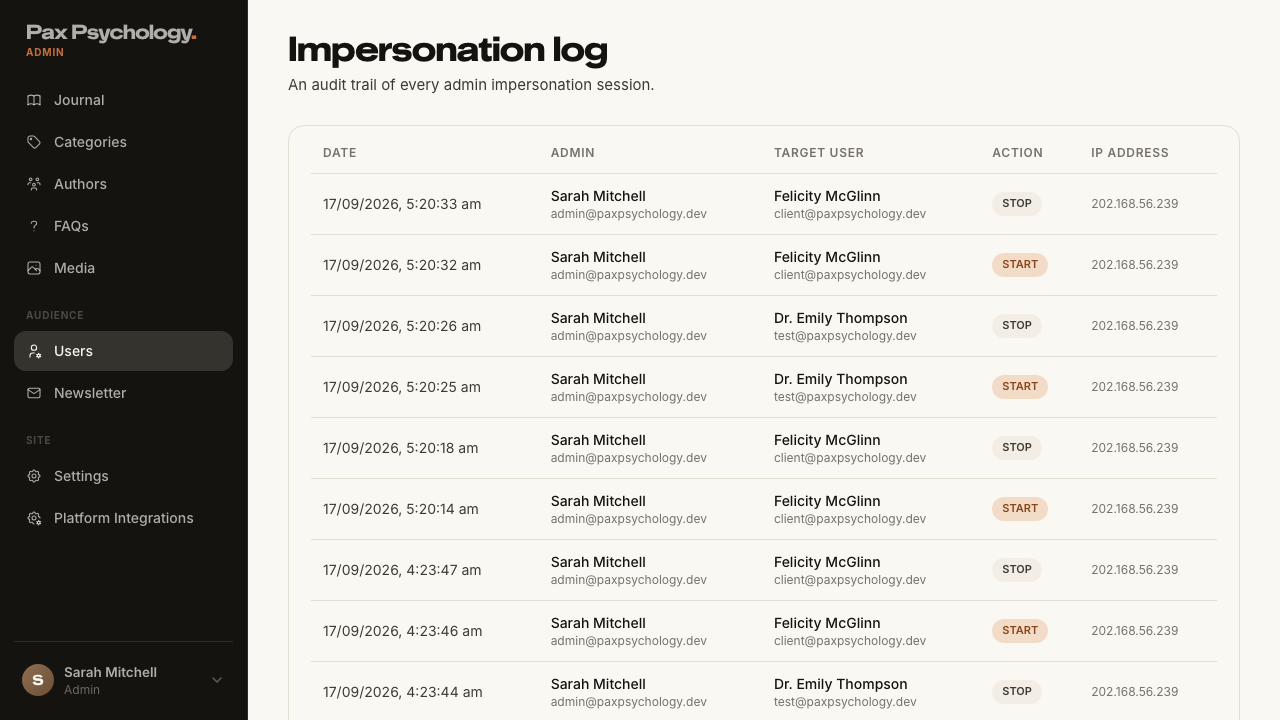
- Expected: the event is written to the impersonation log
PassedTC-A-08Impersonate a psychologist6.0s
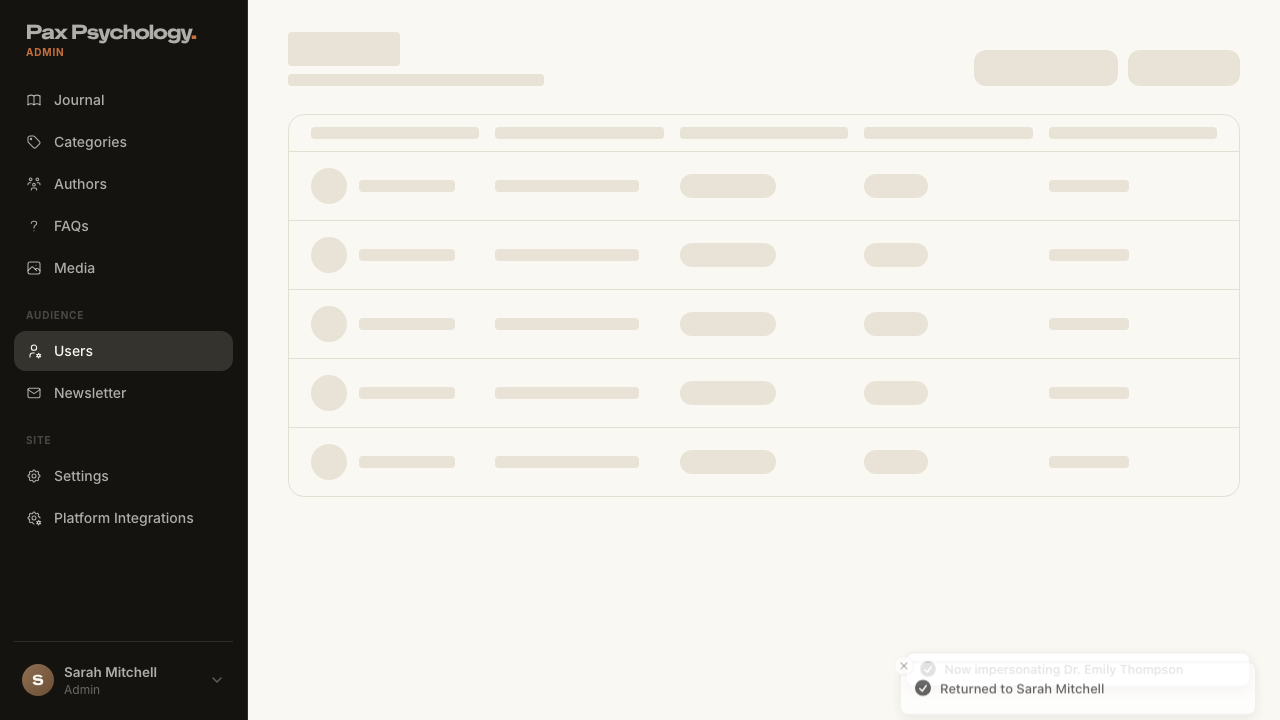
PassedTC-A-09Stop impersonation and check the audit log9.0s
- Setup: impersonate the seeded client so there is a session to stop
- 1. Click "Stop Impersonating" in the amber banner
- 2. Go to /dashboard/users and click "Impersonation log"
3C. Content Management
1 passed 2 other
RetiredTC-A-10Create, edit, and publish a blog post—
The blog has been folded into the Journal. There is no /dashboard/blog any more; /dashboard/blog, /dashboard/blog/add and /dashboard/blog/:id 307-redirect to the equivalent Journal routes. The Journal editor is tested as TC-A-16.
RetiredTC-A-11Create, edit, and publish a story/testimonial—
The Story model was rebranded to Journal. There is no /dashboard/stories; /dashboard/stories and /dashboard/stories/* 307-redirect to /dashboard/journal. The "It's normal" stories carousel on the directory page has been replaced by the journal carousel. The Journal editor is tested as TC-A-16.
PassedTC-A-12Create, edit, and publish an FAQ18.8s
- 1. Navigate to https://paxpsychology.dev/dashboard/faqs
- 2. Click "New FAQ"
- 3. Enter a Question and Answer, pick an Audience, turn "Published" on, and click "Create FAQ"
- 4. Edit the FAQ and save
- 5. Check the FAQ accordion on the homepage
- 6. Delete the FAQ
3D. Newsletter
3 passed
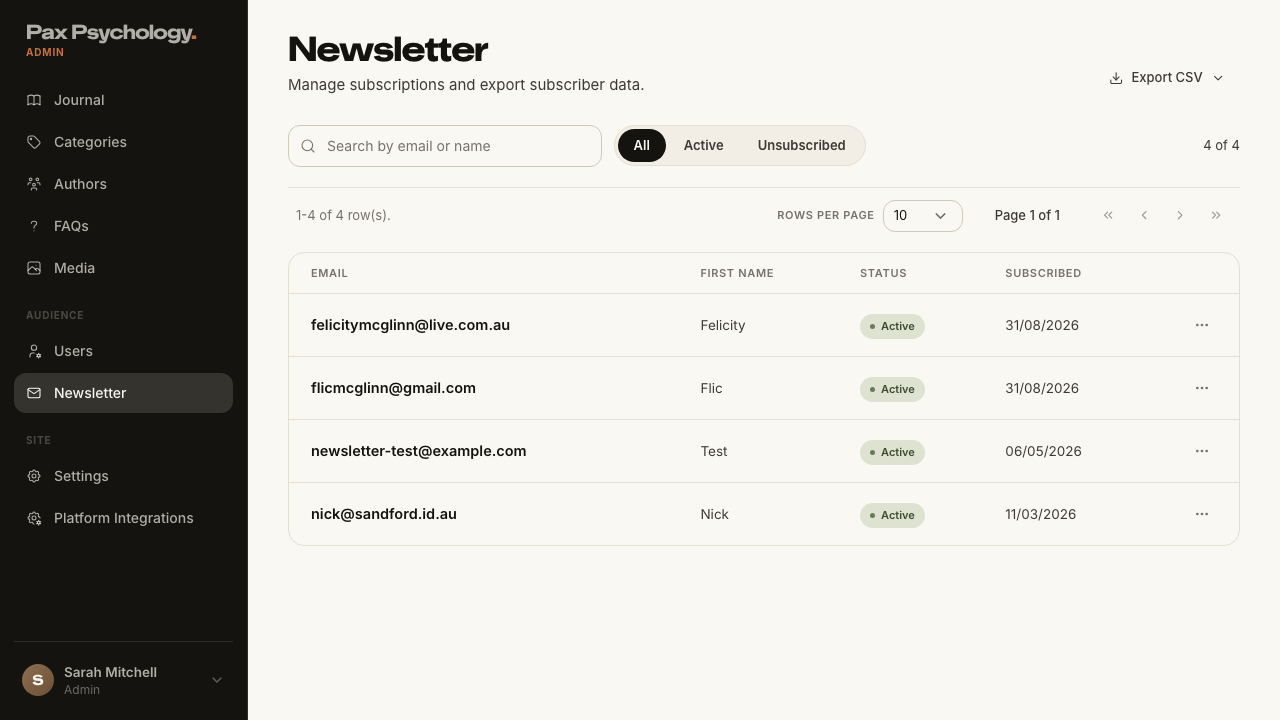
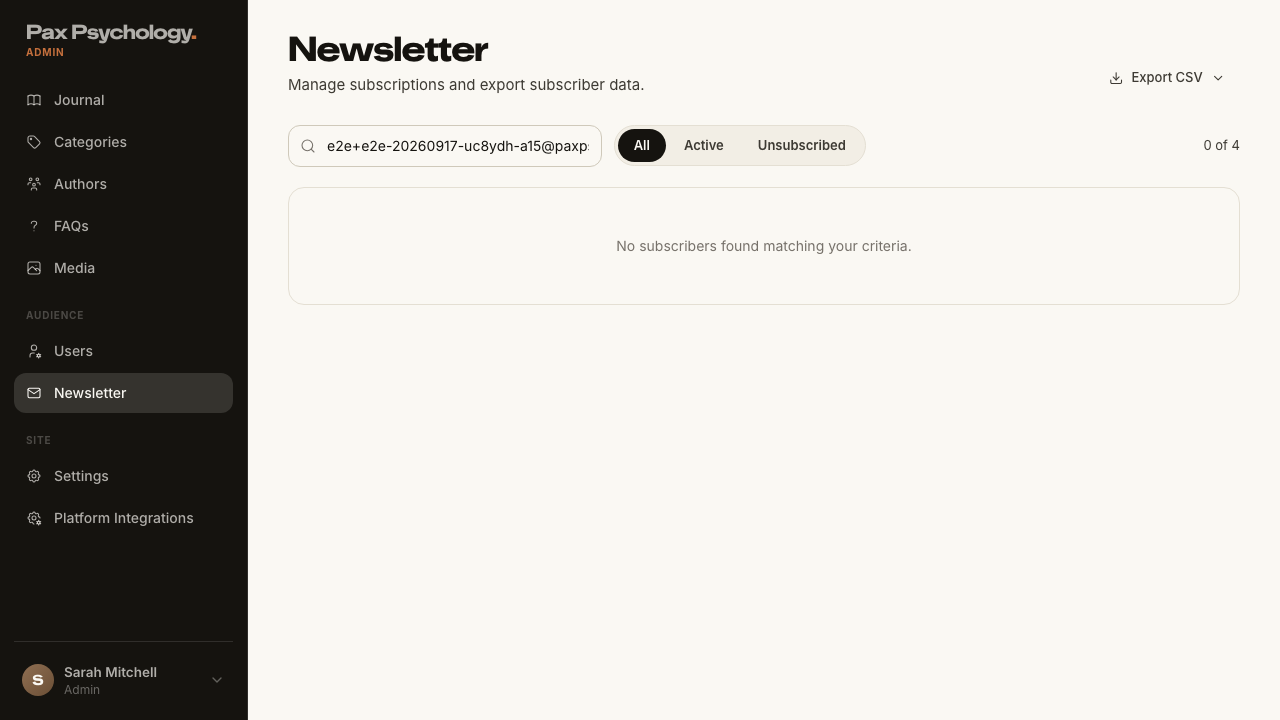
PassedTC-A-13View newsletter subscribers6.8s
- 1. Navigate to https://paxpsychology.dev/dashboard/newsletter
- 2. Search for a subscriber by email, then by first name
- 3. Try the "All", "Active" and "Unsubscribed" tabs
PassedTC-A-14Export subscribers as CSV7.4s
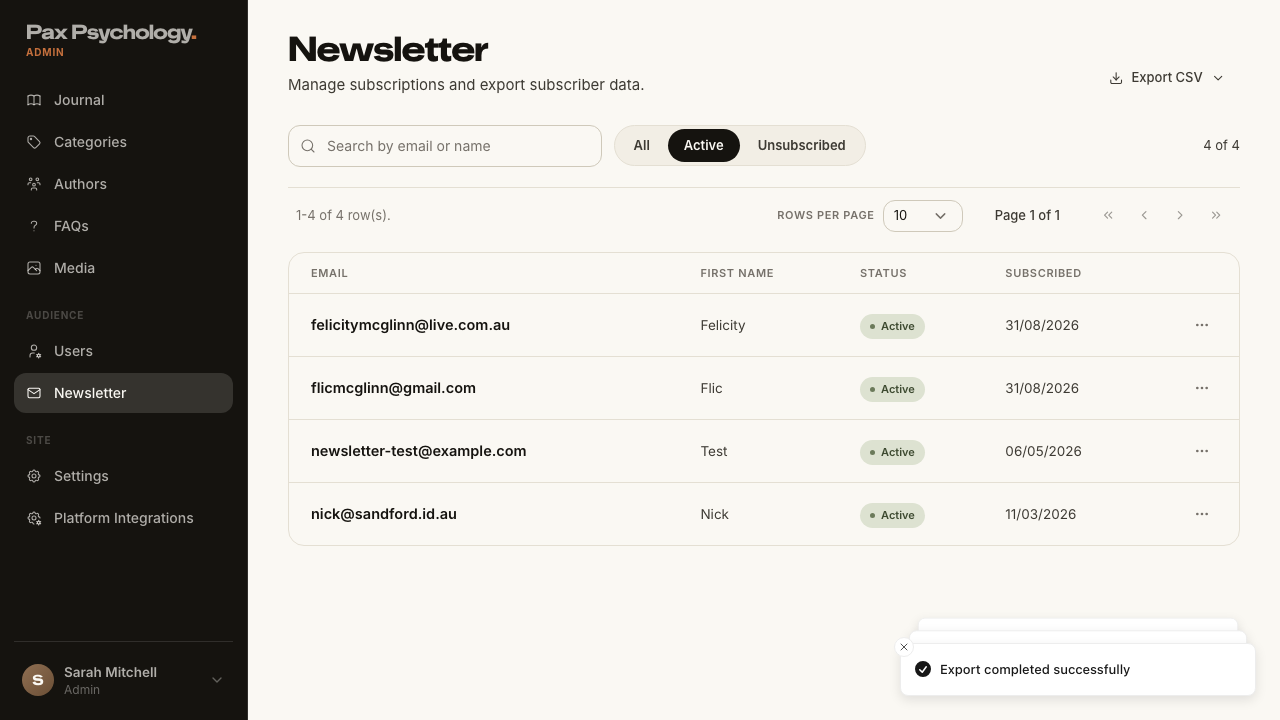
- 1. Switch to the "Active" tab
- 2. Click "Export CSV" and choose "Export Current View (Active)"
- 3. Open the file
- 4. Repeat with "Export All Subscribers", "Export Active Only" and "Export Unsubscribed Only"
PassedTC-A-15Toggle a subscriber's status and delete a subscriber13.4s
- Setup: subscribe from the public /journal newsletter strip
- 1. Open the "⋯" menu on an active subscriber's row
- 2. Click "Mark Unsubscribed"
- 3. Reopen the menu on the same row and click "Reactivate"
- 4. Open the menu again and click "Delete", then confirm
3E. Journal CMS (new)
5 passed 1 failed
PassedTC-A-16Create, edit and publish a journal article26.1s
- 1. Navigate to https://paxpsychology.dev/dashboard/journal
- 2. Click "New article"
- 3. Enter a Title and click "Generate from title" next to "URL slug"
- 4. Fill Excerpt and Body, upload a Cover image, pick a Category and Author
- 5. Click "Save draft"
- 6. Reopen the article from the list and click "Publish"
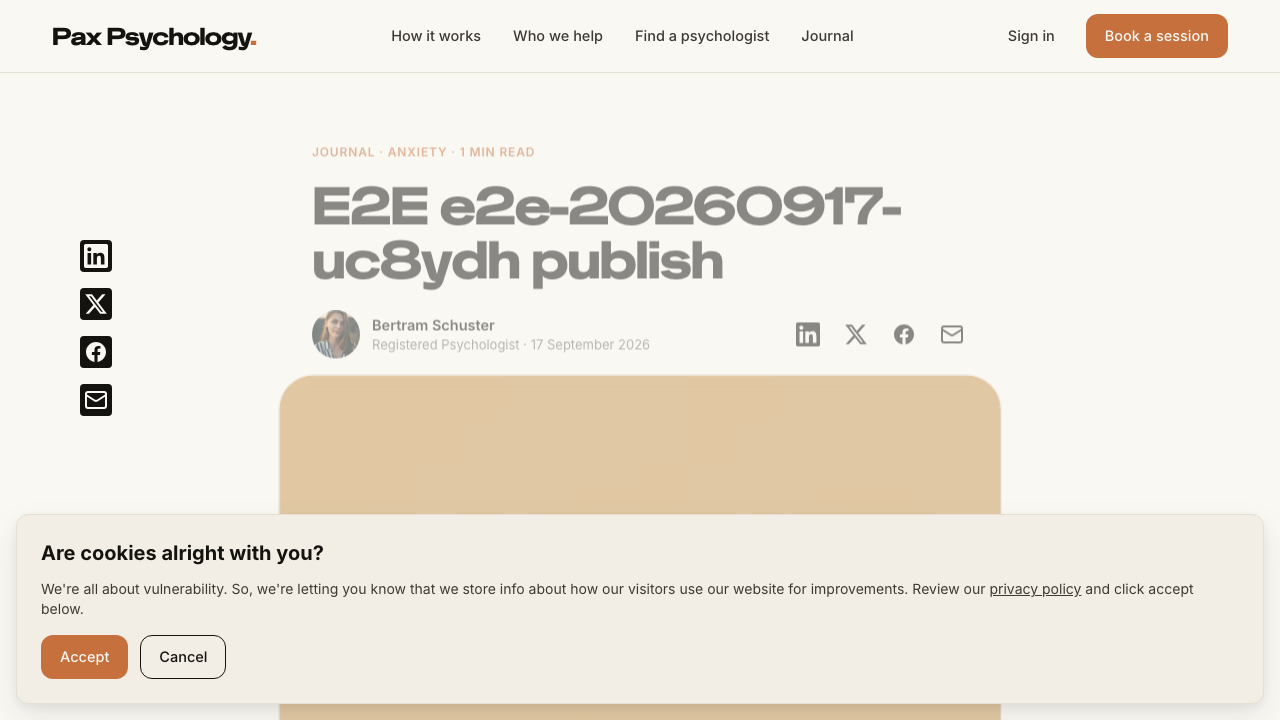
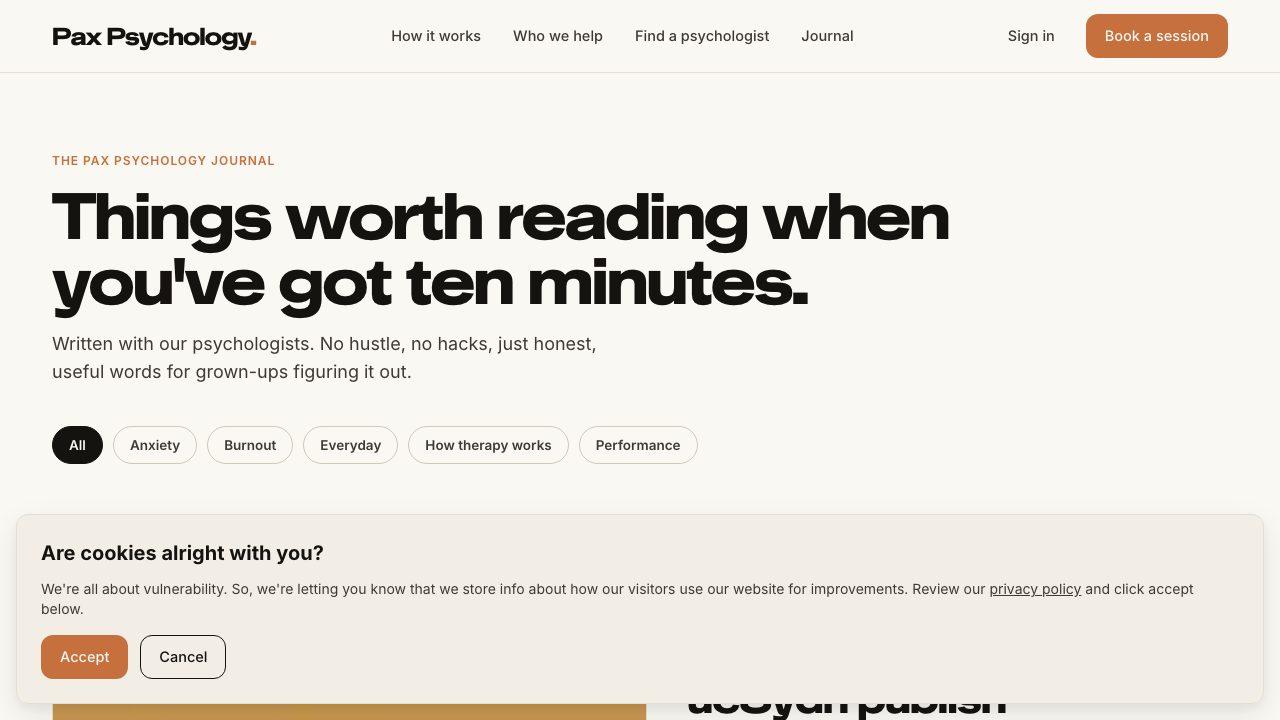
- 7. Check /journal in a signed-out window
- 8. Reopen the article, turn on "Feature on journal", and click "Update"
PassedTC-A-17Journal status radio and scheduled articles12.7s
- Setup: write a draft article to schedule
- 1. Open the article and look at the "Publish" card in the right-hand sidebar
- 2. Select "Scheduled", set a "Goes live" date/time in the near past, and save
- 3. Wait past that time and reload /journal
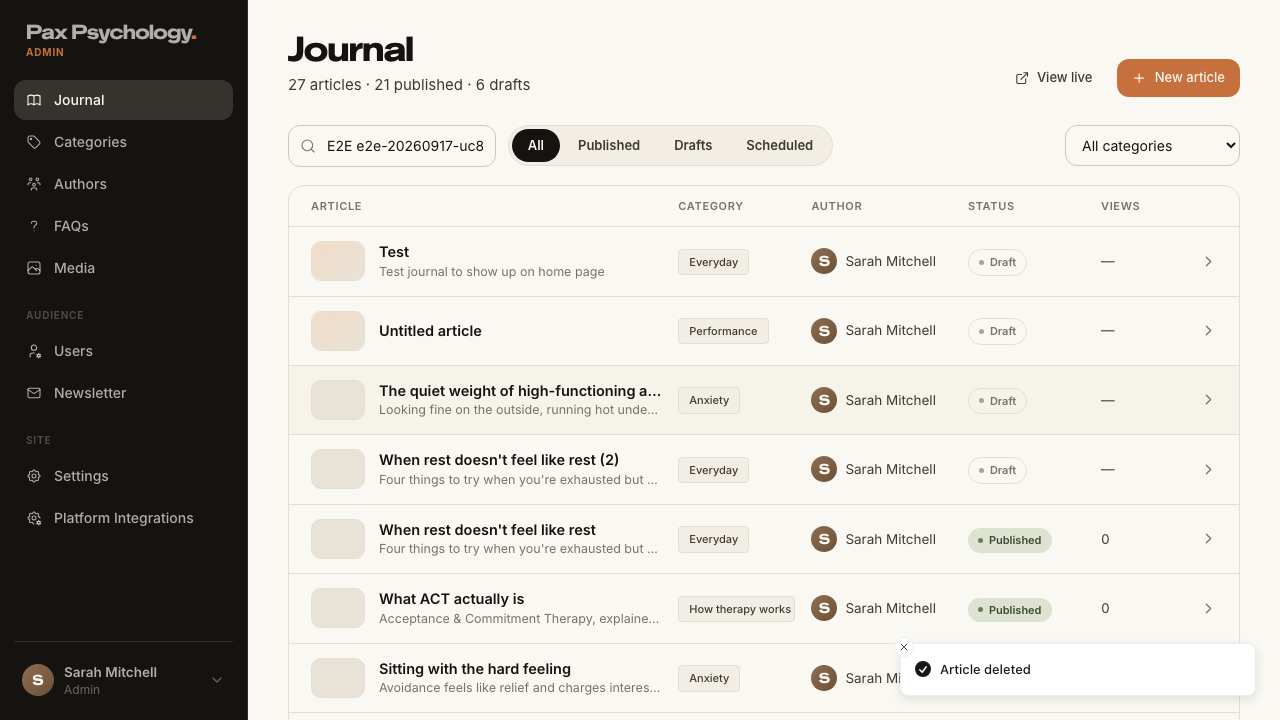
PassedTC-A-18Delete a journal article9.4s
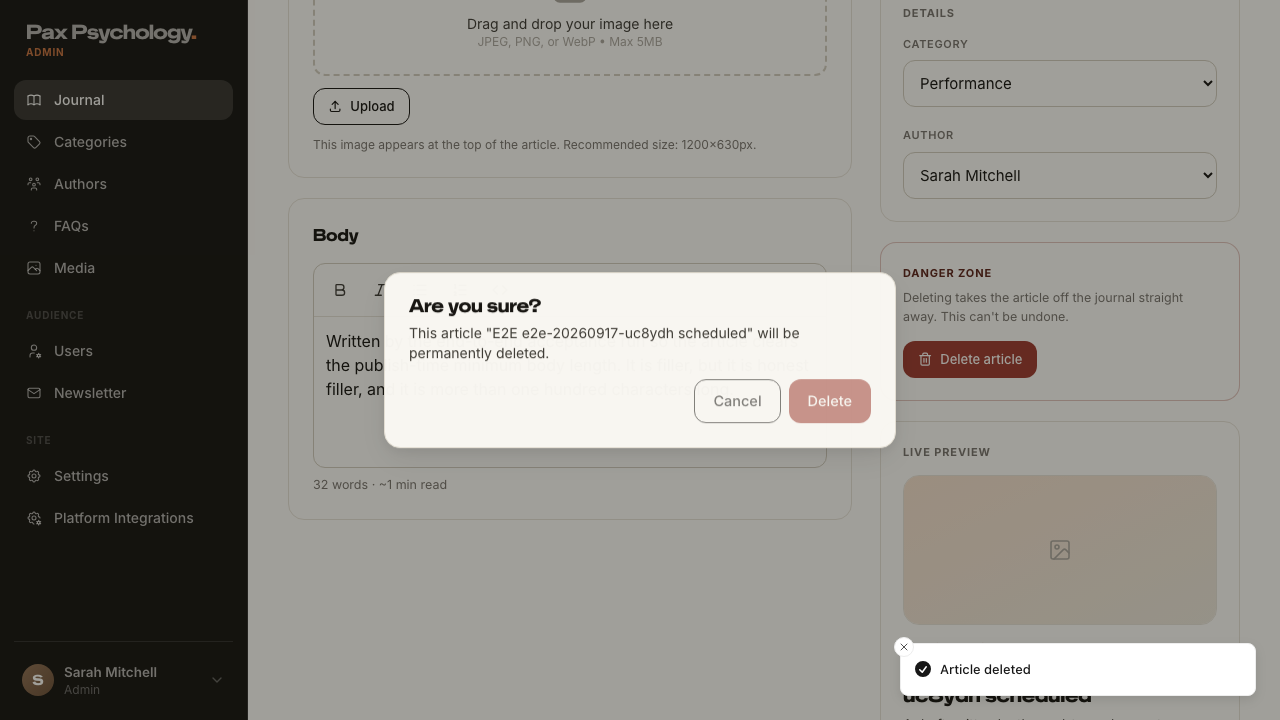
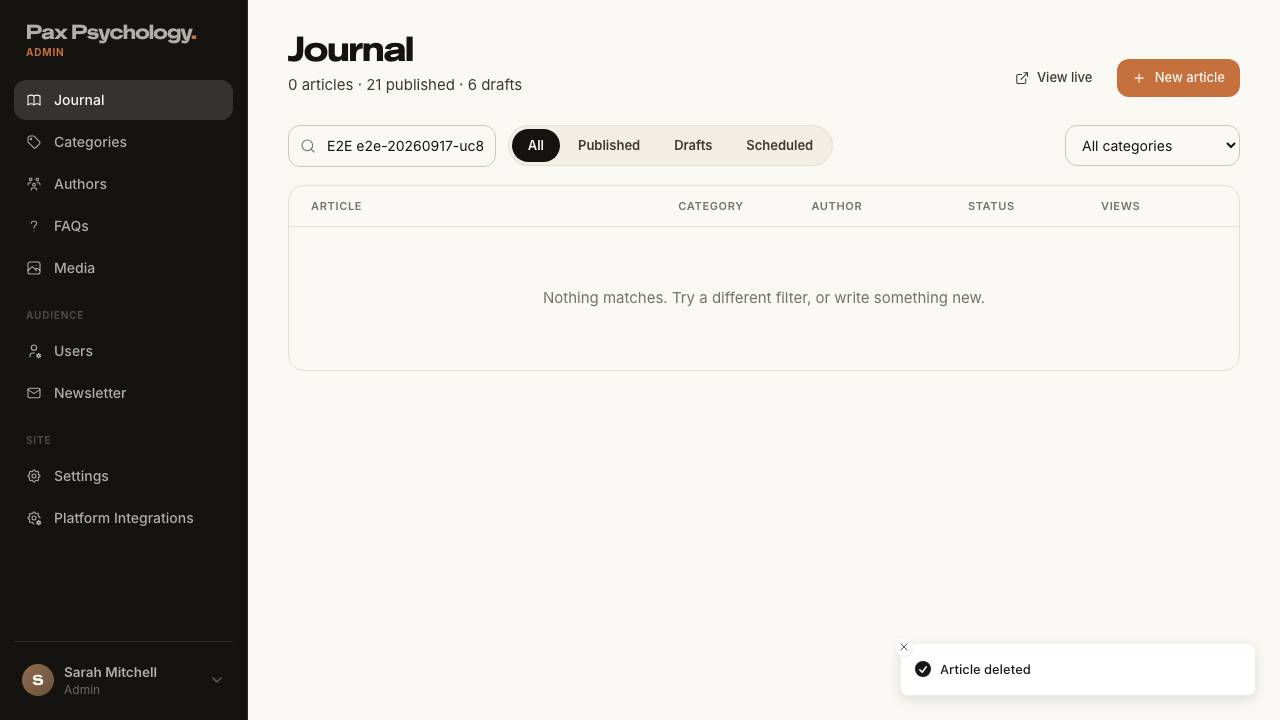
- Setup: publish an article that can be discarded
- 1. Open the article and scroll to the "Danger zone" card
- 2. Click "Delete article" and confirm
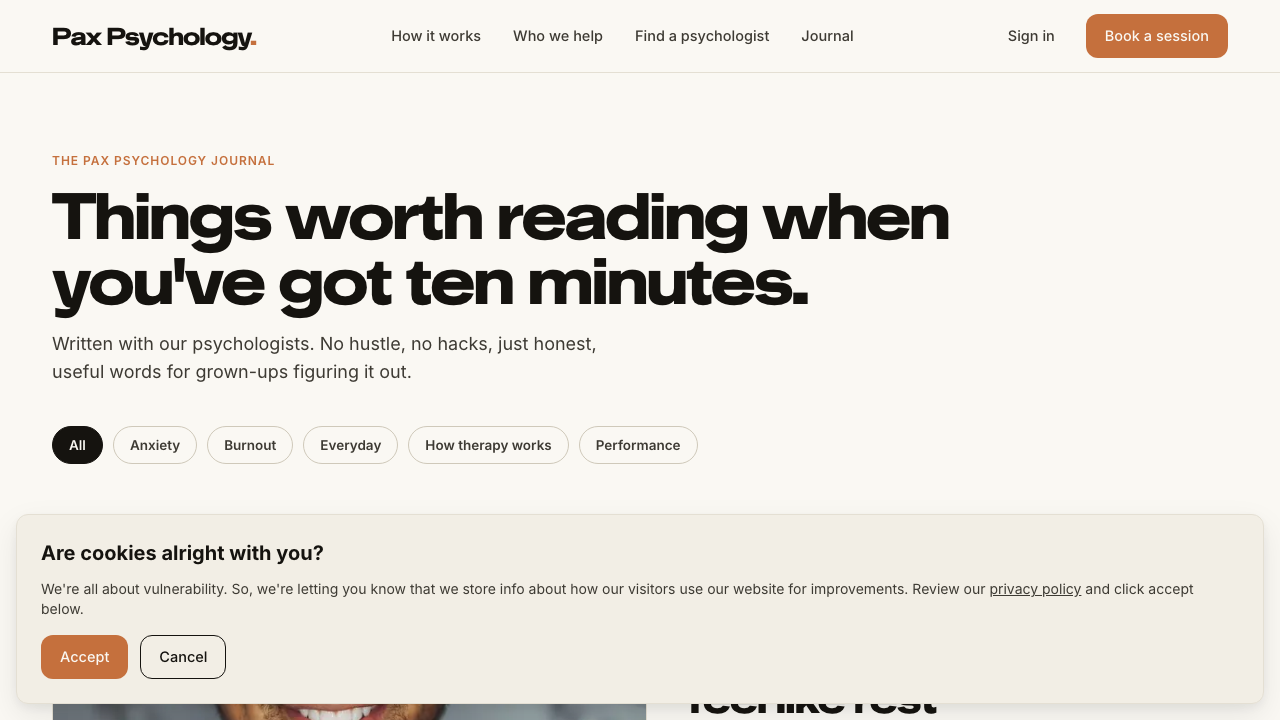
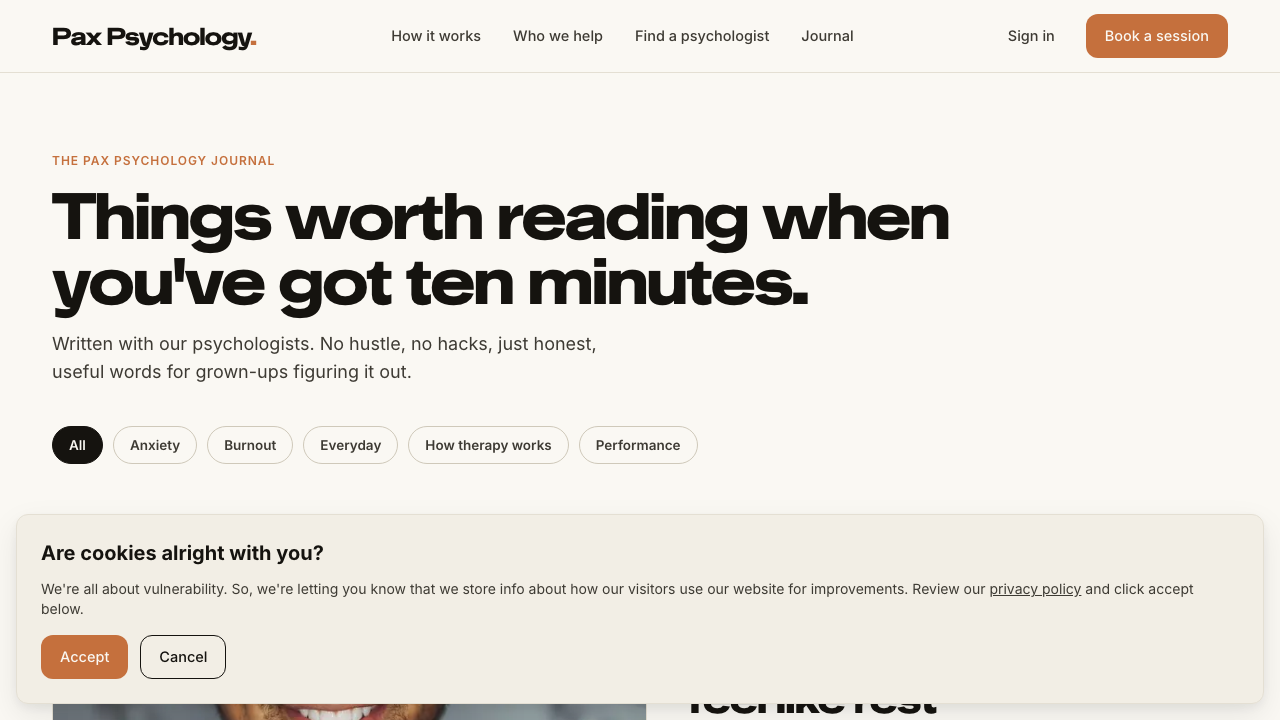
- Expected: the article disappears from /journal immediately
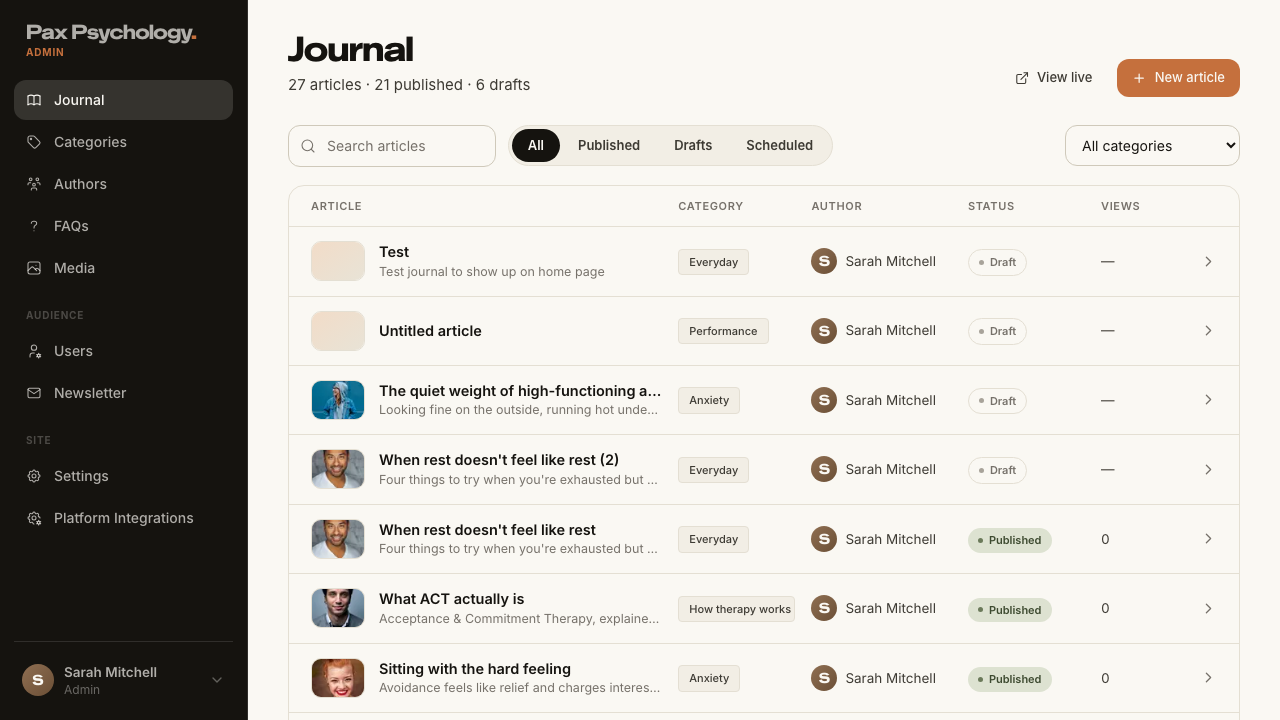
FailedTC-A-19Categories, Authors and Media (new)45.2s
- 1. Navigate to /dashboard/categories, add a category, edit it, then delete it
- 2. Navigate to /dashboard/authors
- 3. Navigate to /dashboard/media, upload an image, then delete it — failed
Error: expect(locator).toBeVisible() failed

Locator:  getByText('e2e-e2e-20260917-uc8ydh.png').first()
Expected: visible
Received: hidden
Timeout:  30000ms

Call log:
  - Expect "toBeVisible" with timeout 30000ms
  - waiting for getByText('e2e-e2e-20260917-uc8ydh.png').first()
    63 × locator resolved to <p id="_r_1_" class="text-ink-2 text-sm">Delete "e2e-e2e-20260917-uc8ydh.png" from the med…</p>
       - unexpected value "hidden"
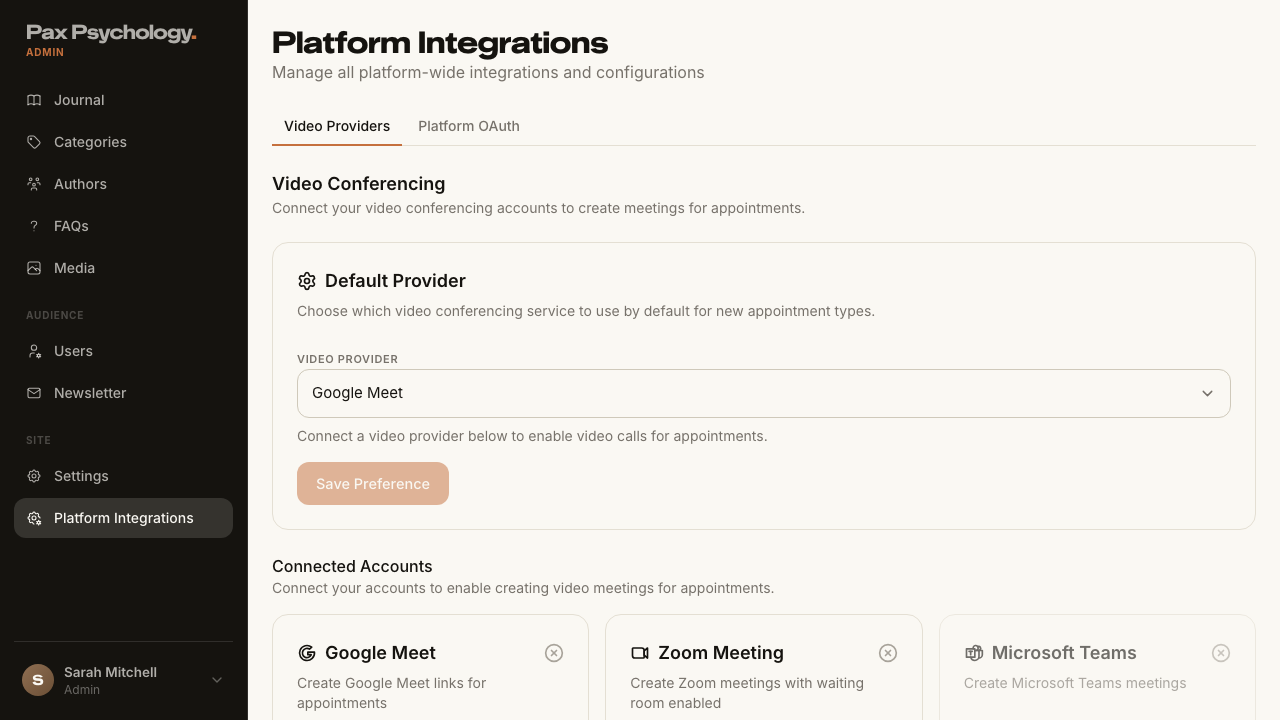
PassedTC-A-20Admin settings and platform integrations (new)9.5s
- 1. Navigate to https://paxpsychology.dev/dashboard/settings
- 2. Step through each section in the left nav
- 3. Open /dashboard/settings/integrations
PassedTC-A-21Retired dashboard URLs redirect (new)7.9s
- Setup: pick a real article id for the /dashboard/blog/<id> row
- Visit each retired URL and note where you land